

Updated: October 2026 · Reading time: about 9 minutes
Looking for a Mac for your home office that handles everyday work reliably and fits your budget? Whether you work with email, Excel, video calls or creative projects, your software, workspace and configuration matter most. This guide explains when a Mac mini, MacBook Air, MacBook Pro, iMac or Mac Studio makes sense, including used and refurbished options.
The quick answer
- Fixed workspace with an existing monitor: A Mac mini with Apple silicon; for typical office work, we recommend 16 GB RAM and a 512 GB SSD.
- At home and on the go: MacBook Air for everyday office tasks, MacBook Pro for extra ports and more demanding sustained workloads.
- Computer and screen in one: An iMac with Apple silicon if you prefer a tidy workspace with an integrated display.
- Professional creative work: Mac Studio if video editing, large image projects or local AI are central to your working day.
Our recommendations are buying guidelines. Check your software requirements and the exact configuration of the device on offer before purchasing.
What does a home office Mac need to do?
Start by considering a typical working day: do you run video calls alongside your browser? Do you edit large spreadsheets? Do you use local files or mainly cloud services? These questions are more useful than simply choosing the highest chip tier.
For email, word processing, presentations and many browser-based applications, a Mac with a standard Apple chip is often sufficient. A Pro, Max or Ultra chip is mainly worthwhile when your particular tasks need additional computing power, graphics performance or especially large amounts of memory.
Plan the entire workspace too: a desktop Mac needs a screen, input devices and possibly a camera, microphone and speakers. Many of these are already built into a MacBook. Our guide is a useful starting point: Which Mac is right for me?.
Mac mini for the home office: compact and flexible
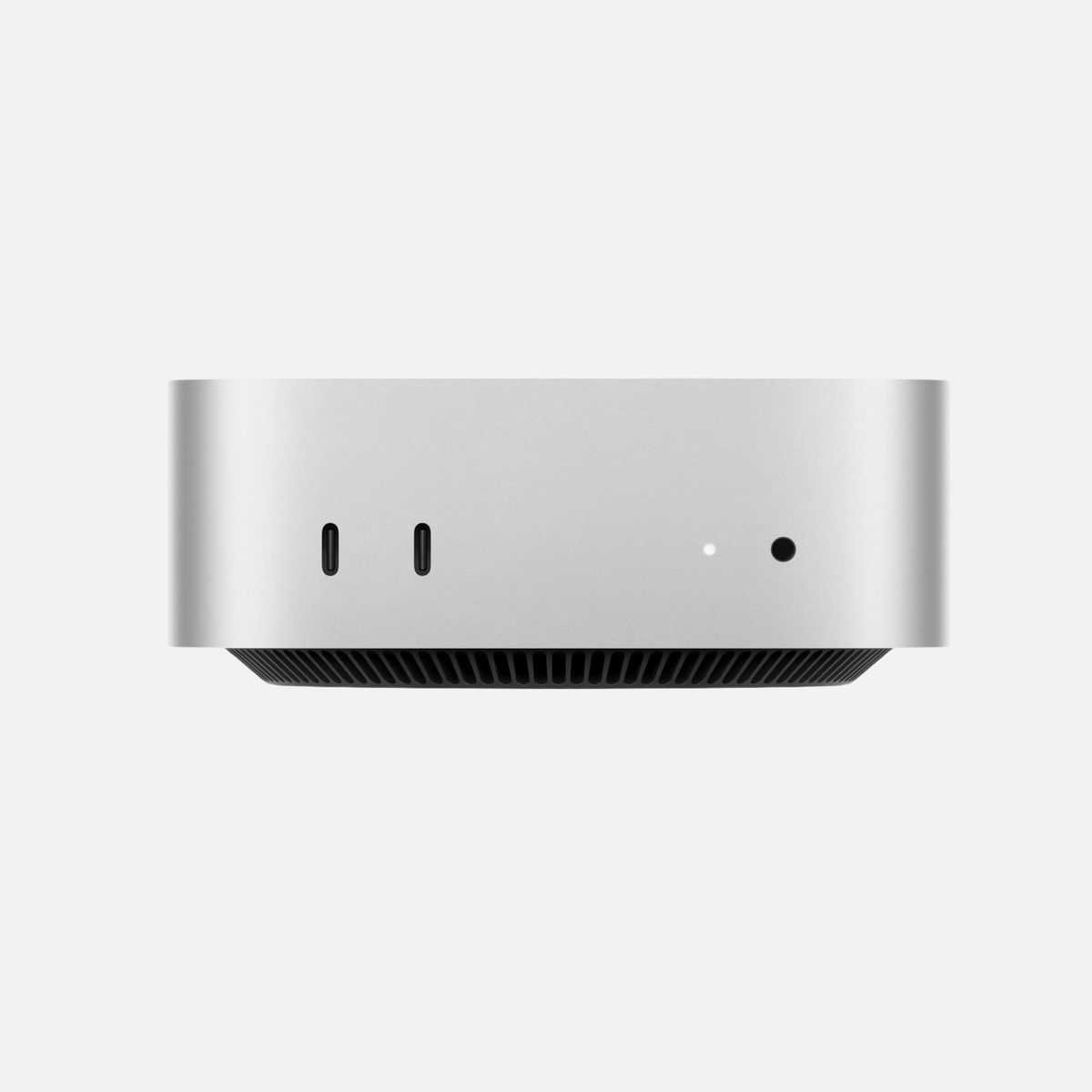
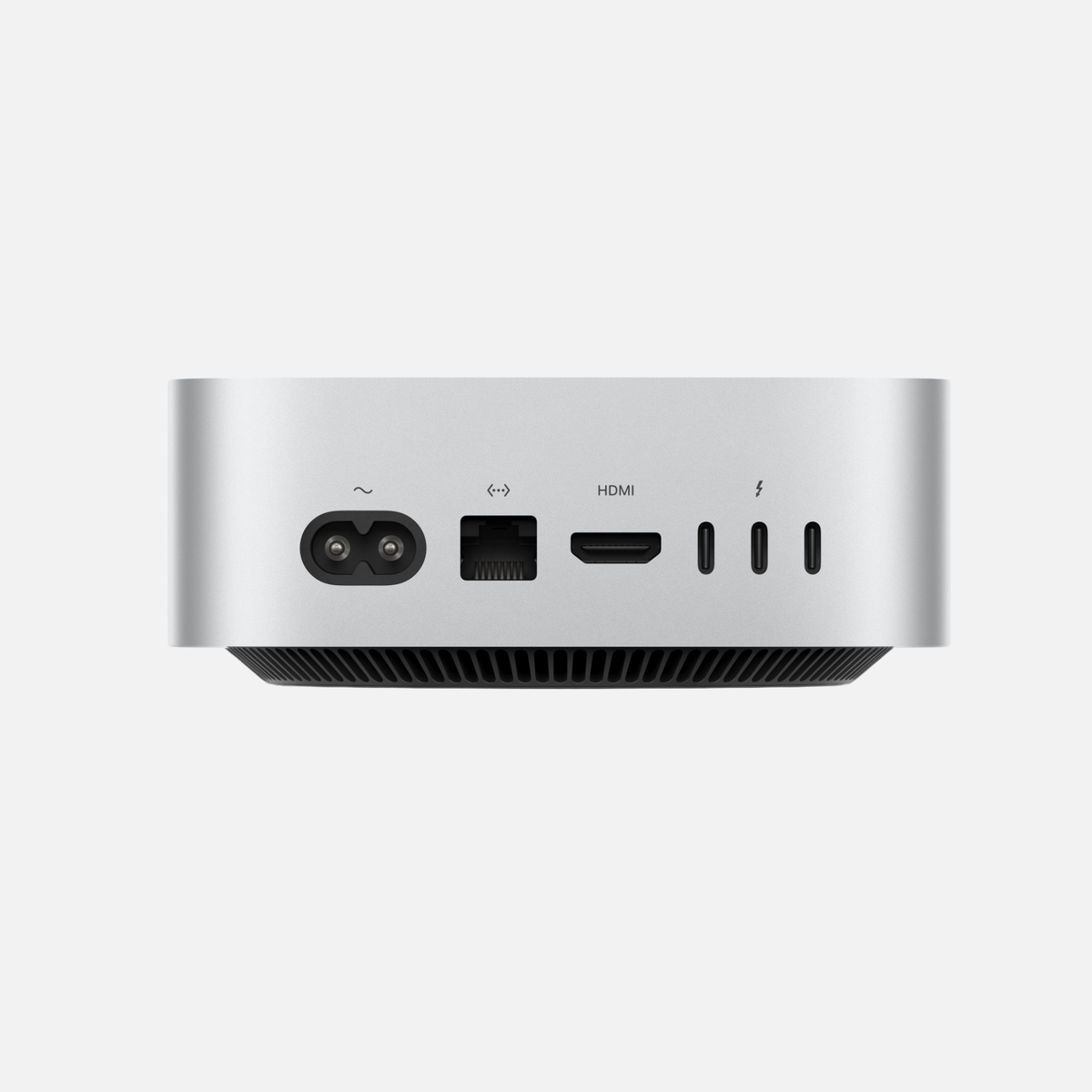
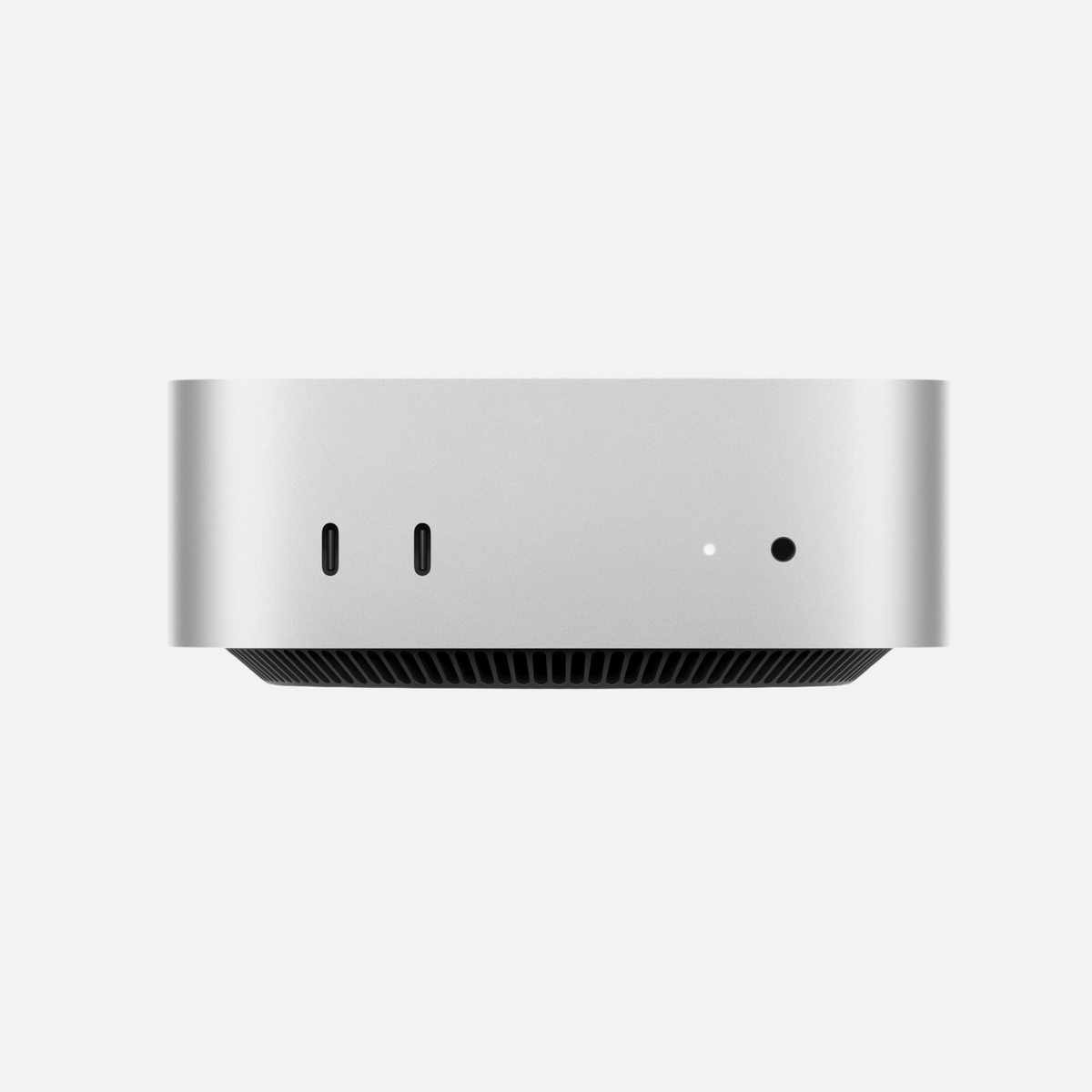
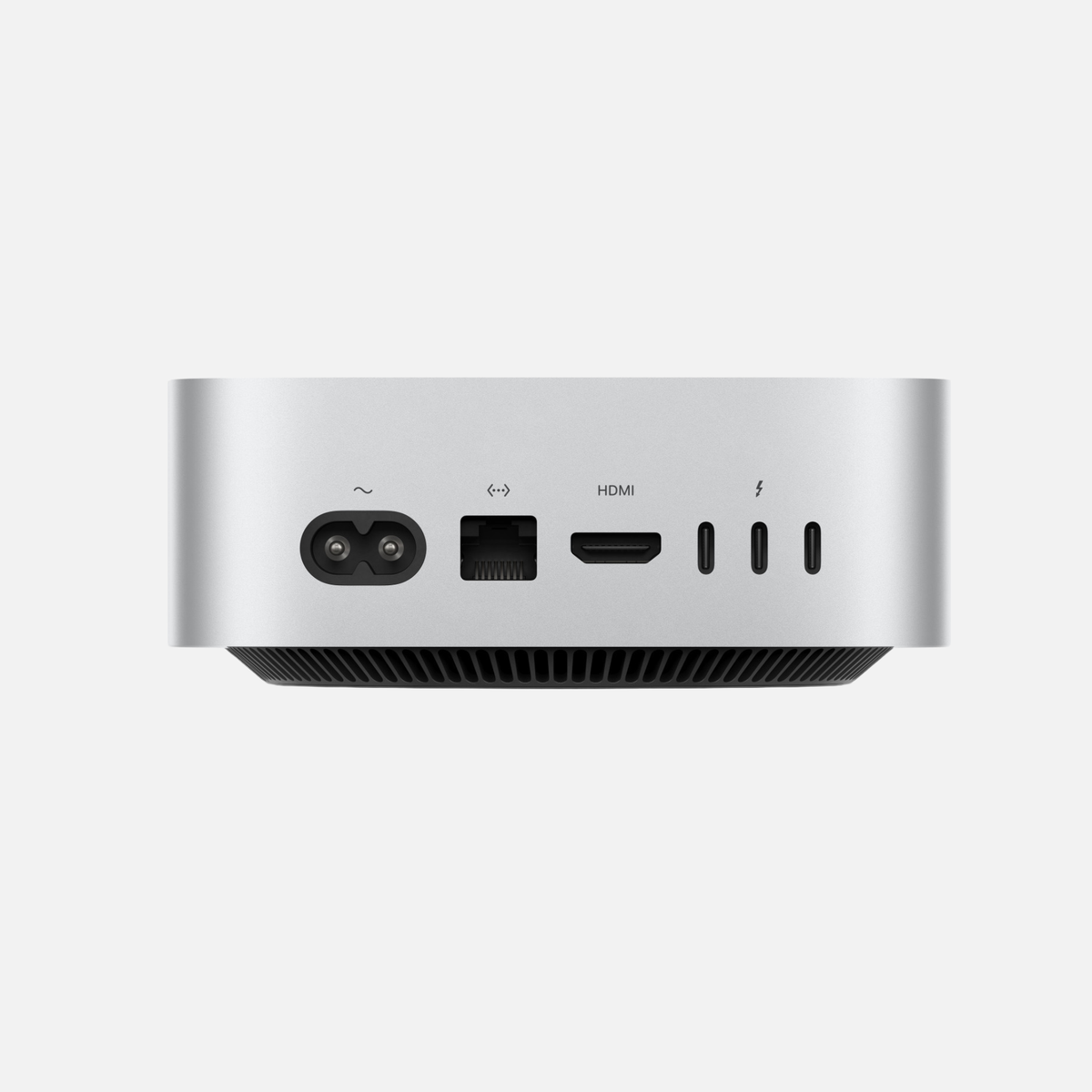
The Mac mini is our first recommendation for many fixed office workspaces where a good monitor is already available. You can choose a screen and input devices to suit your needs and keep using them when you replace the computer later.
When buying used, it is worth comparing, for example, a Mac mini with M2 or M4: typical office tasks do not automatically require the latest generation. Always compare RAM, SSD capacity, ports, software support and the actual asking price. A cheaper model with the right configuration can make more sense than a newer one with limited storage.
Our buying recommendation for everyday office work: 16 GB memory and a 512 GB SSD make a balanced starting point. If you run many applications simultaneously or handle large files, 24 or 32 GB may be useful. Choose a Pro chip according to your applications.
Check before buying: Desktop accessories and a camera are not automatically included. The number of supported monitors also depends on the specific model.
MacBook Air or MacBook Pro for your home office?
MacBook Air: for flexible office work
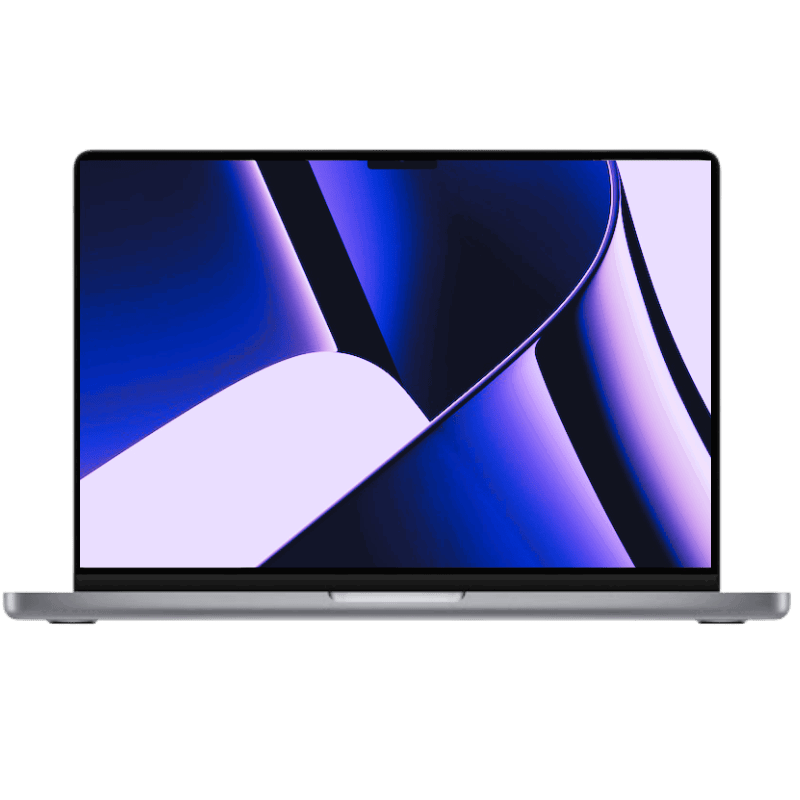
If you move between your desk, the office and appointments, a MacBook Air is a natural choice. Writing, research, presentations and video calls often do not require a Pro model. When buying used, pay particular attention to memory, battery condition, keyboard layout and the screen size that suits the way you work.
MacBook Pro: for more demanding tasks
A MacBook Pro becomes interesting if you regularly work on complex image projects, edit video or run intensive computing tasks for extended periods. Depending on the model, the display and additional ports may also be reasons to choose it. Generations and chip variants differ considerably: the name “Pro” alone does not replace a comparison of the specifications.
At your desk, you can combine a MacBook with an external screen, keyboard and mouse. Check whether your monitor supports video and sufficient charging power over USB-C. This can often simplify connecting your computer to your workspace each day.
For more help choosing a model, see Which Mac is right for me?.
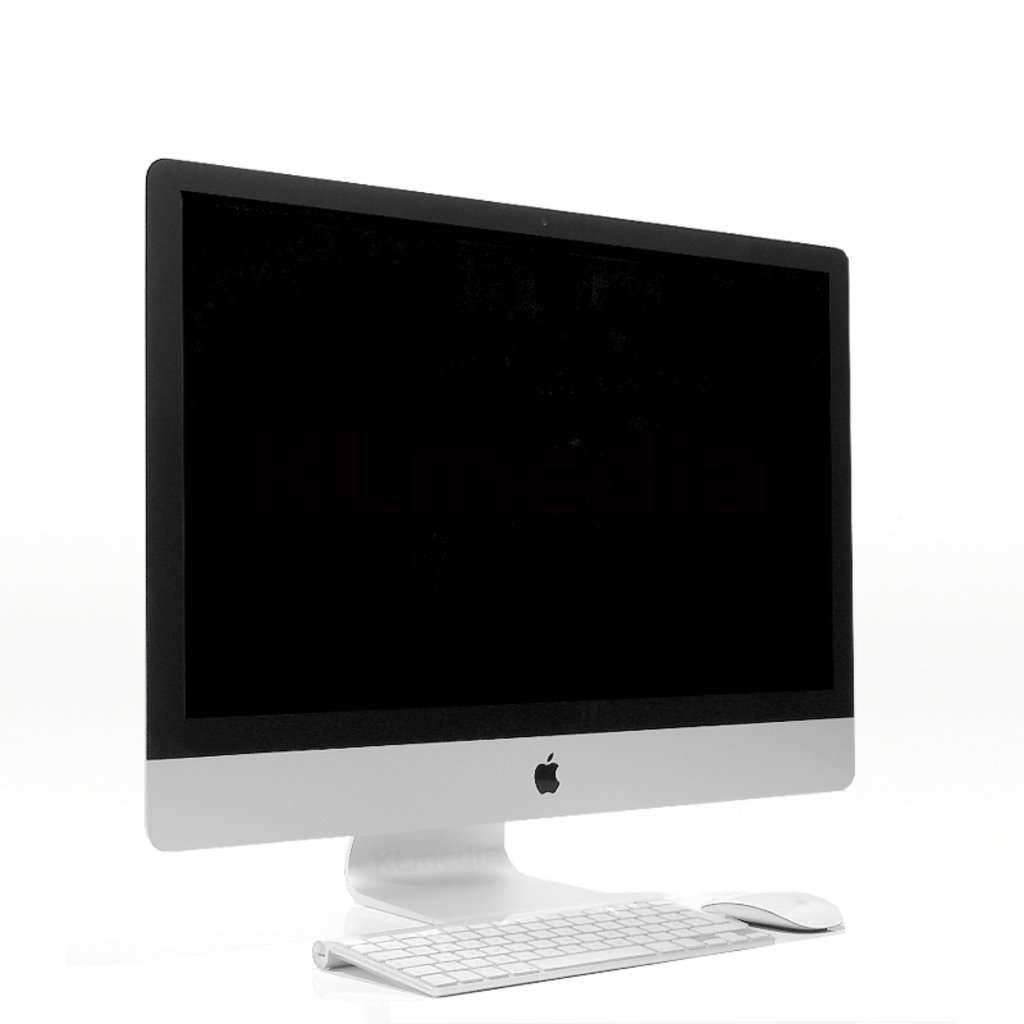
iMac for the home office: a tidy workspace
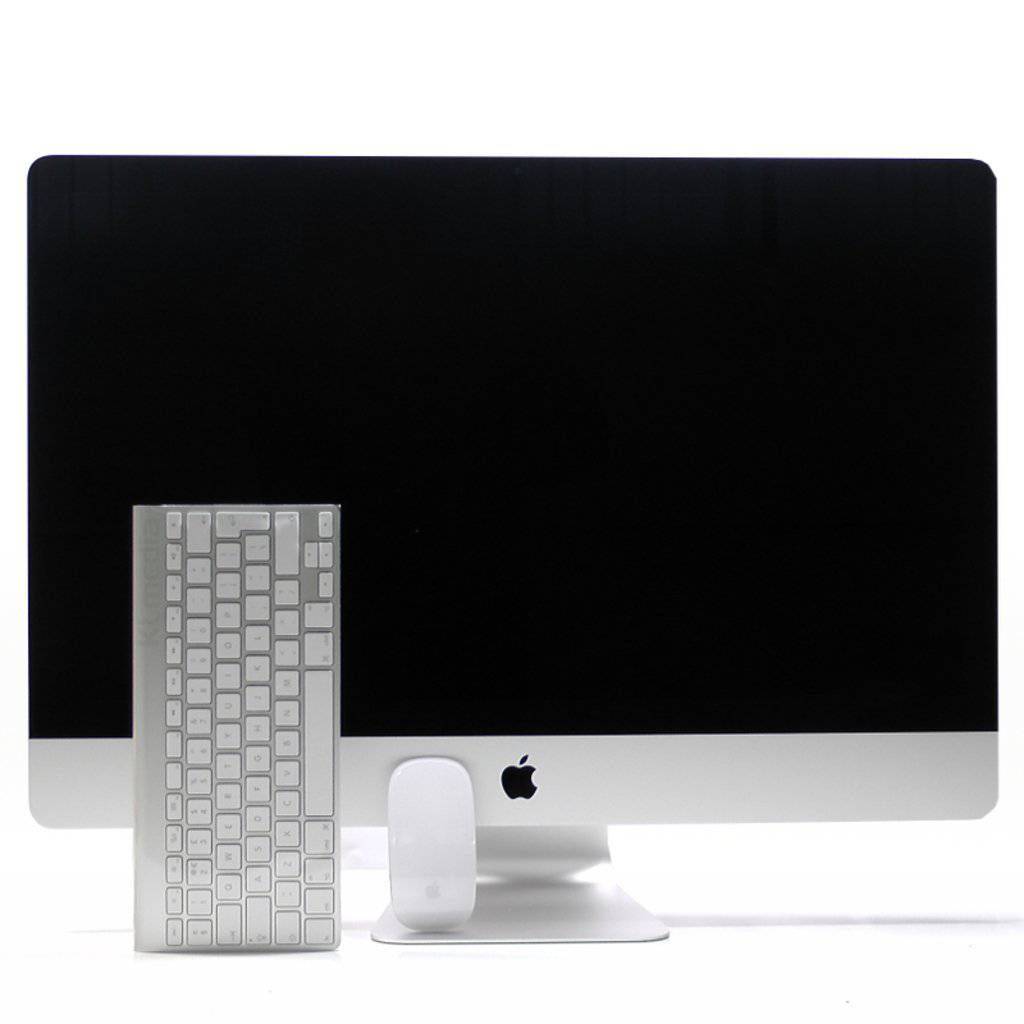
An iMac is a good fit if you want a fixed workspace and wish to buy the computer and screen together. The display, camera, microphones and speakers are integrated. Check the individual listing to see which keyboard and mouse are included with a used device.
An iMac with Apple silicon and 16 GB RAM is a useful guideline for many typical office workflows. Older listings also include configurations with 8 GB RAM. These can be sufficient for simple tasks; when buying a work computer for longer-term use, we recommend more headroom, especially if several programs run at the same time.
Also consider whether the integrated display is sufficient as your main screen. If you want to replace the computer and main monitor separately in future, a Mac mini offers more flexibility.
Mac Studio for the home office: when professional performance matters
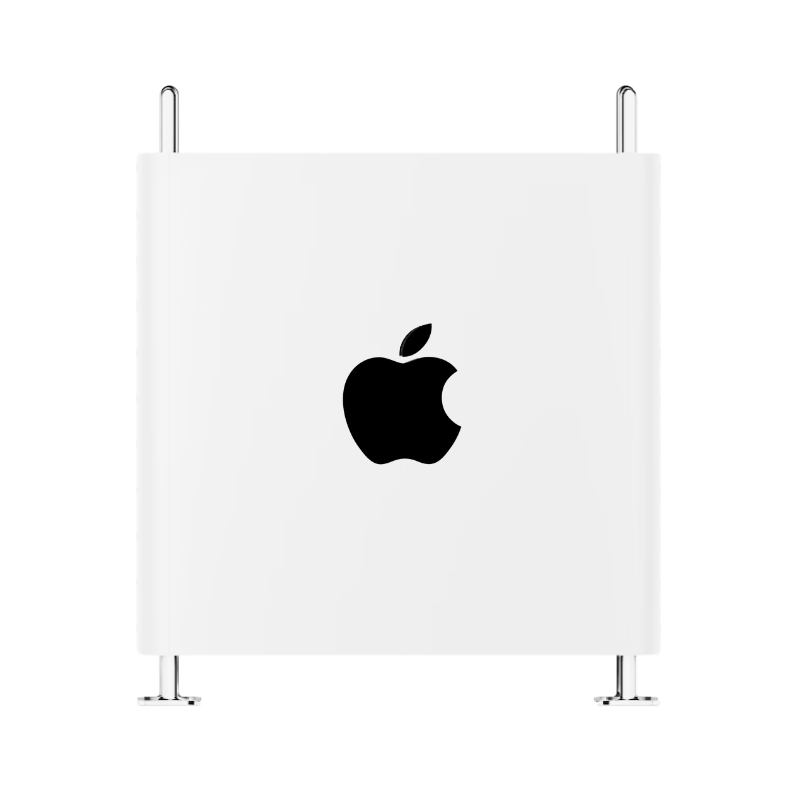
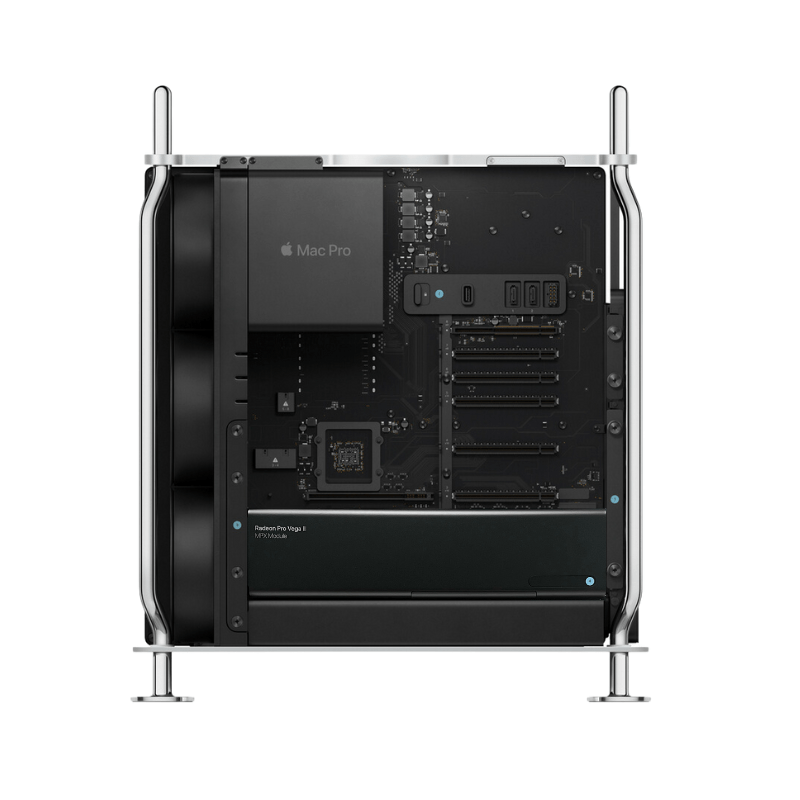
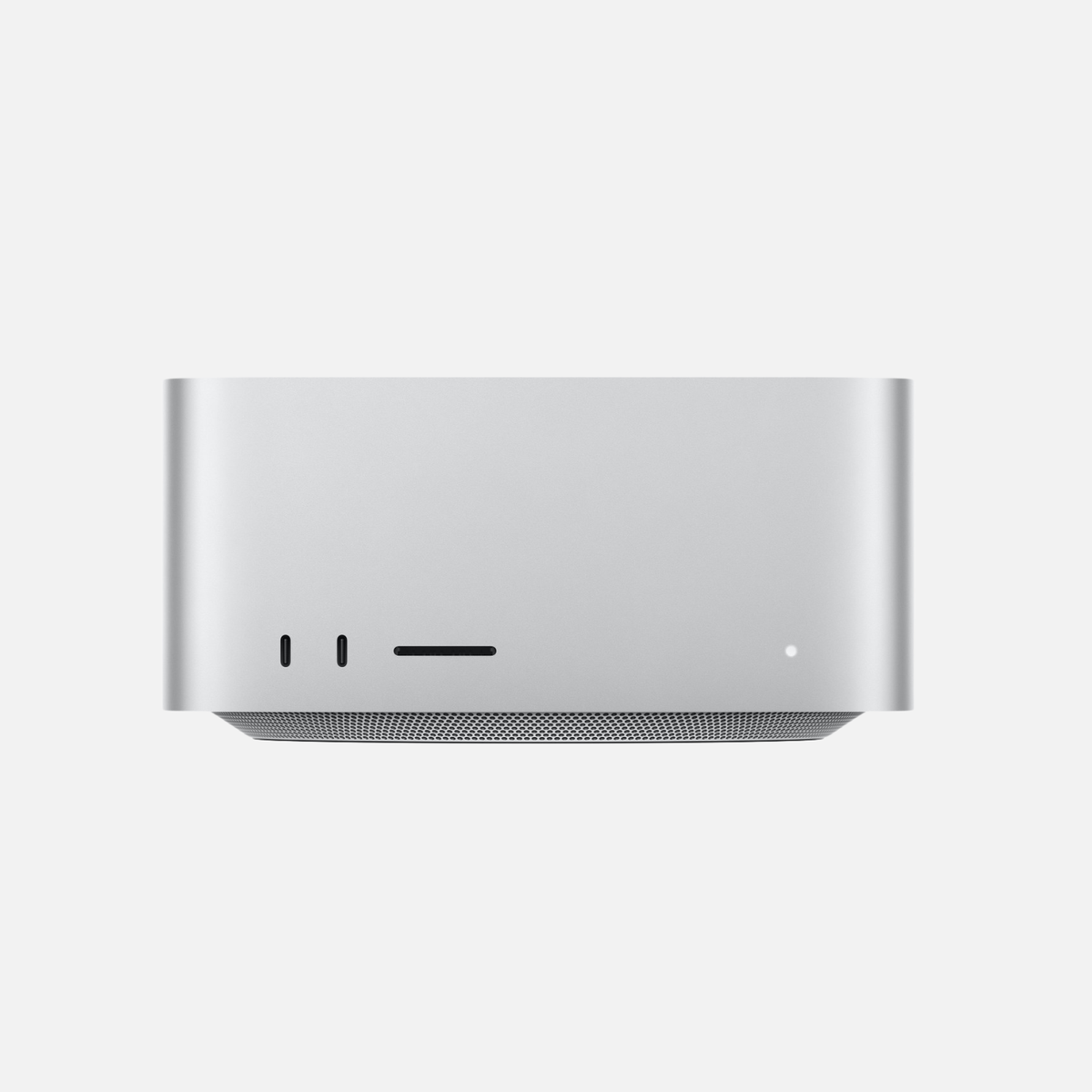
If your work at home mainly involves email, Office and video calls, you generally do not need a Mac Studio. It becomes interesting when your home office also serves as a video editing suite, photography studio or workspace for demanding local AI applications.
The right GPU, the required memory capacity and compatibility with your software then matter most. Compare specific configurations when buying used: an older model with sufficient RAM may suit your workflow better than a newer model with less memory. A blanket ranking by release year is too simplistic.
Find more detailed recommendations in our articles Which Mac for video editing?, Which Mac for photo editing? and Which Mac is suitable for AI?.
Discover Mac Studio configurations
How much RAM and SSD storage does a home office Mac need?
| Your working day | Our RAM guideline | Our SSD guideline |
|---|---|---|
| Office, browser, email, video calls | 16 GB | 512 GB |
| Many simultaneous apps, large spreadsheets, extensive local files | 24–32 GB | 512 GB to 1 TB |
| Professional creative work or local AI | Size according to your projects and software | 1 TB or more, supplemented by external drives if required |
These are buying recommendations, not technical minimum requirements. If you consistently use cloud services and have few local files, even a 256 GB SSD may be sufficient. Still check your current storage needs and allow headroom for applications, downloads and synced folders.
The memory in Macs with Apple silicon cannot be upgraded after purchase. Choose it to suit your intended use. You can often add file storage with external drives; an external drive, however, does not replace a separate backup.
Read more: How much RAM does a Mac need?, How much SSD storage does a Mac need? and Back up your Mac with Time Machine.
Software, monitors and accessories: what to check first
Will your work software run on a Mac?
Microsoft Word, Excel, PowerPoint and Outlook are available for Mac. Availability alone does not mean every workflow operates identically to the Windows version. Check company-specific add-ins, complex Excel files, macros and specialist software with the provider or your IT department.
For a company workspace, VPN, device management and security requirements must also be compatible. Before buying, clarify whether your employer allows a personal Mac to access company data. Do not assume that a Windows-only application will be compatible without checking.
How many screens do you want to use?
The number of external displays and supported resolutions and refresh rates depend on the exact Mac and chip. A USB-C port alone does not guarantee support for a particular monitor configuration. Check the specifications of the listed model as well as the cable and dock.
When using a second-hand monitor, consider its connections too. Our Mac monitor buying guide will help you choose.
Is a used or refurbished Mac worthwhile for your home office?
A used Mac can be a good way to get more RAM, a larger SSD or a higher-tier device within your budget. Compare devices with similar configurations and consider their condition and included accessories. A price advantage can only be assessed against a specific offer.
- Exact model: The chip, model year, RAM and SSD must suit your software.
- Software support: Check the required macOS version and the requirements of your most important applications. There is no blanket guarantee of a fixed number of remaining update years.
- Condition: Read the condition description. For MacBooks, battery condition and keyboard layout matter too.
- Included items: Power adapters, cables and input devices vary by listing.
- Total cost: If necessary, add the cost of a monitor, dock, camera, software and backup drive.
“Refurbished” also does not automatically mean “Apple Certified Refurbished”. Check the product’s exact designation. We explain the differences in What does Apple refurbished mean?.
Find the Mac for your workspace
For many fixed office workspaces, a Mac mini with 16 GB RAM and a 512 GB SSD is a good starting point. If you work on the go, consider a MacBook Air or MacBook Pro. An iMac combines the computer and screen; a Mac Studio offers headroom for demanding professional tasks.
Compare the configurations currently available at mac-store24. Condition, specifications and included items are listed in each individual offer.
Frequently asked questions about Macs for the home office
Is 16 GB RAM enough for Office and working from home?
For typical office tasks, we recommend 16 GB as a starting point. More RAM may be useful if you run many demanding applications simultaneously, work with large files or need virtual machines. Your software requirements remain the deciding factor.
Do I need a Mac with a Pro chip?
Often not for email, documents, presentations and video calls. Use your workload and the ports or display support you require to decide whether the additional features offer a practical benefit.
Can I keep using my existing screen?
Often yes, provided the ports, cables and supported resolutions match. For USB-C docks and multiple screens, check the complete configuration before buying.
Mac mini or iMac: which costs less?
Compare the entire workspace. A Mac mini can be particularly attractive if you already have a monitor and accessories. An iMac includes the display. The specific offers and any additional accessories required determine the total.
How do I set up my new Mac for work?
Install the programs you need, set up a user account and access protection, and plan regular backups. We recommend starting with Set up your new Mac correctly: 12 settings.
Sources and further manufacturer information: Apple: Mac mini and productivity applications · Apple: Connect external displays · Microsoft: Office on Macs with Apple silicon. Specifications and software requirements may vary by model and version.


Share:
Change the keyboard language on a Mac: a practical guide