
Updated: 25.10.2026 · Reading time: approx. 16 minutes
Is a 256 GB SSD still enough for a Mac? Is 512 GB the best compromise, or should you choose 1 TB, 2 TB or even more storage when buying? The right SSD capacity depends less on a blanket figure than on which programs, projects and data you want to store locally on your Mac.
This guide explains which SSD capacity makes sense for Office, studying, photo editing, software development, video editing, music production and local AI. We also explain when an external SSD is a good alternative, when more internal storage can be worth the extra cost and why this decision is particularly important when buying.
Calculate SSD needs: data, headroom and backup
Add up current occupied storage, additional active projects, applications and planned downloads. Example: 180 GB of existing data + 150 GB of new projects + 100 GB of additional models means 430 GB of planned usage. A 512 GB SSD would leave little headroom for updates, temporary files and growth; consider 1 TB or an external project drive.
An external SSD adds storage, not RAM. If files exist only on that drive, it is not a backup. Plan a separate backup. Internal SSD replacement options depend on the model; do not assume a routine PC-style upgrade later.
Quick overview
- 256 GB can be enough for cloud use, Office and very lean setups, but leaves little headroom.
- 512 GB is a sensible starting point for many everyday users, students and mobile users.
- 1 TB is the sweet spot for many creatives, developers and users with larger amounts of local data.
- 2 TB or more is particularly worthwhile for video, large photo archives, music libraries, virtual machines and local AI.
- An external SSD is excellent for archives, backups and large media collections, but does not replace generous internal storage in every workflow.
Why does SSD capacity matter so much on a Mac?
The internal SSD stores macOS, programs, documents, photos, videos, music libraries, virtual machines, AI models and temporary working data. The larger and more data-intensive your projects become, the faster your storage requirements grow.
The decision is particularly important because the internal SSD in most modern Macs cannot be upgraded as a normal user upgrade in the same way as a conventional PC hard drive. When buying, therefore, consider not only how much space you need today, but also how your use may develop over the coming years.
Which SSD capacities are available in MacBook Pro, Mac mini, Mac Studio and iMac?
Available SSD capacity always depends on the product line, chip generation and specific configuration. Look beyond the model name to the actual device on offer. With used and refurbished Macs in particular, older generations may have different storage tiers from current models.
| Mac family | Typical sensible range | Typical use |
|---|---|---|
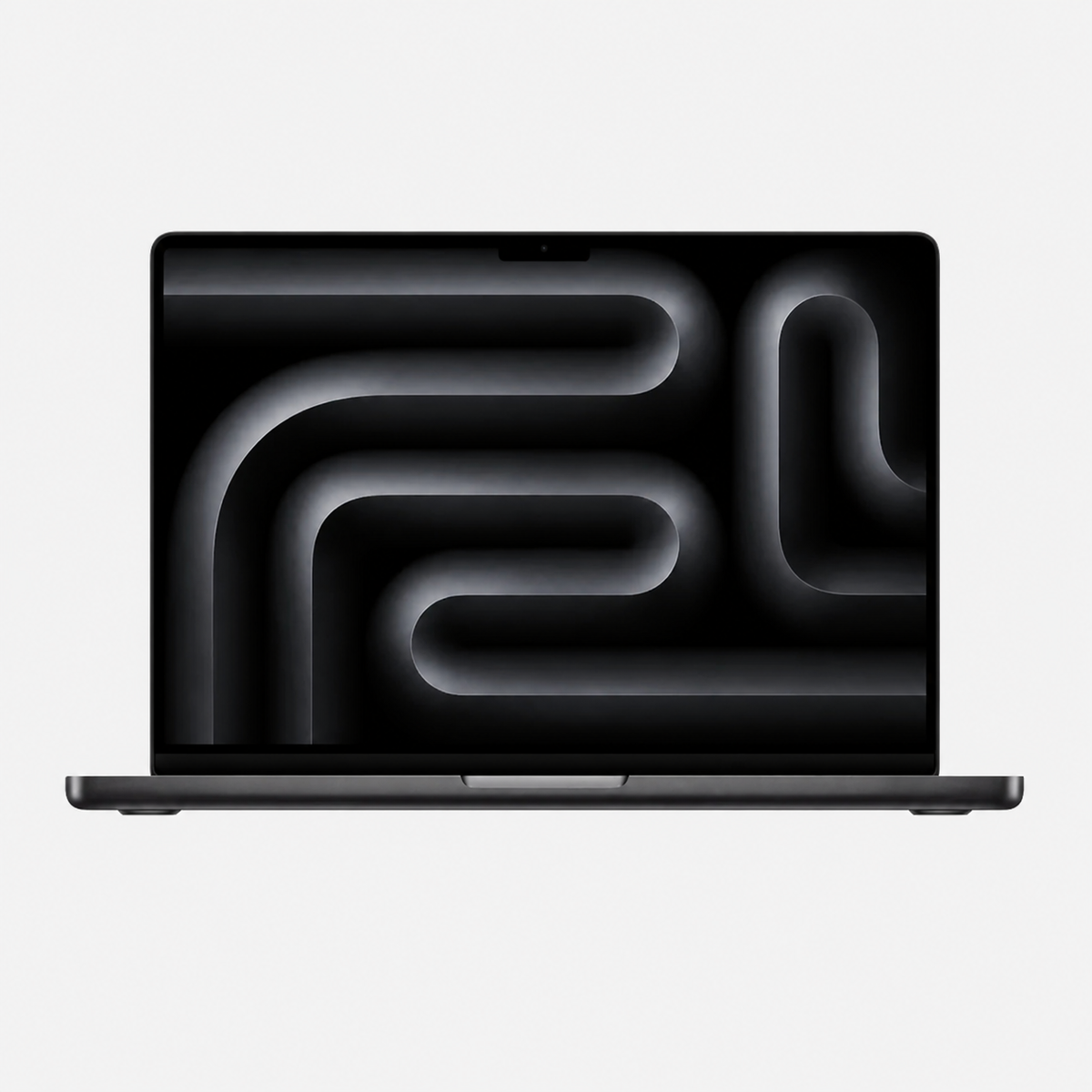
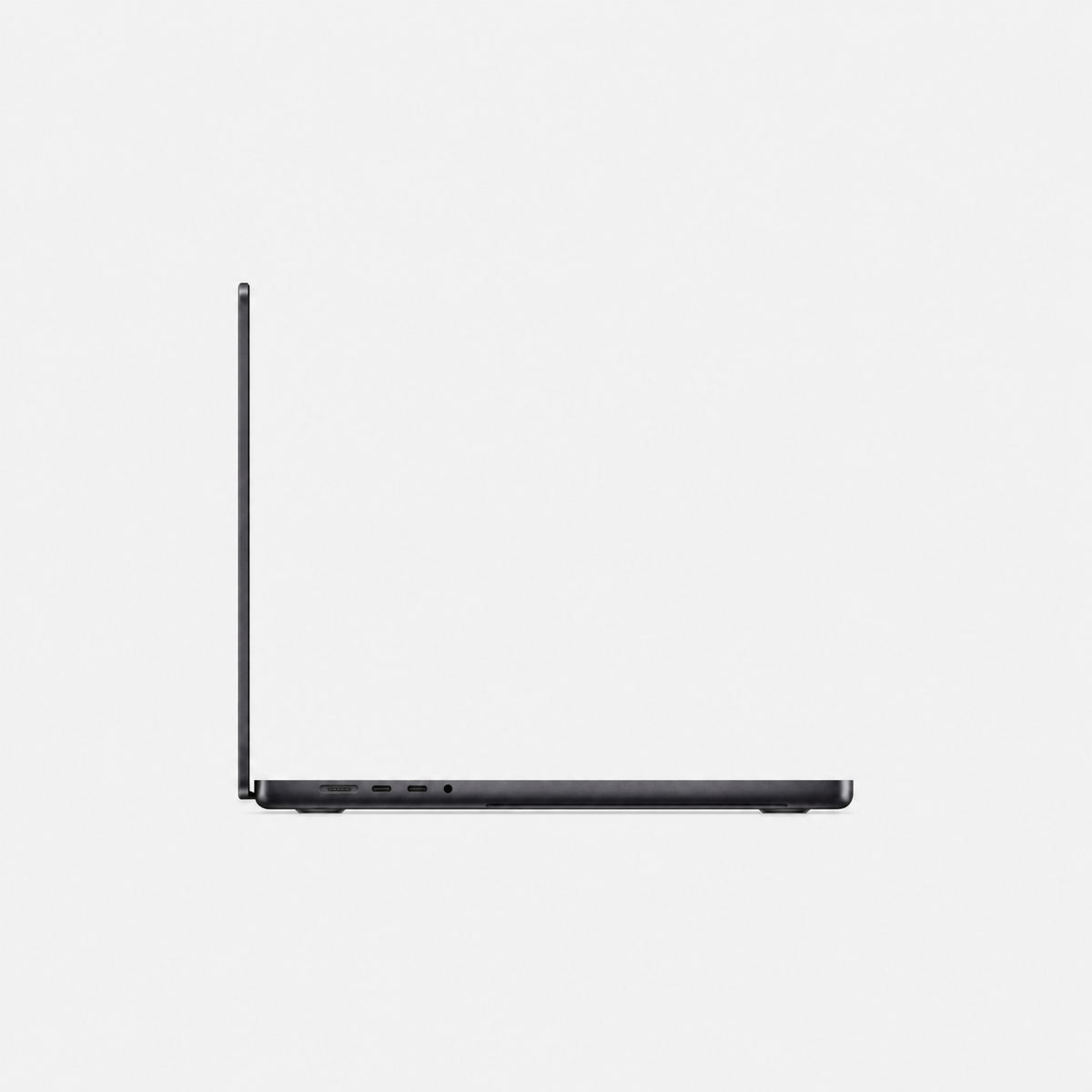
| MacBook Pro | 512 GB to 2 TB+ | Mobile creatives, developers, professional use |
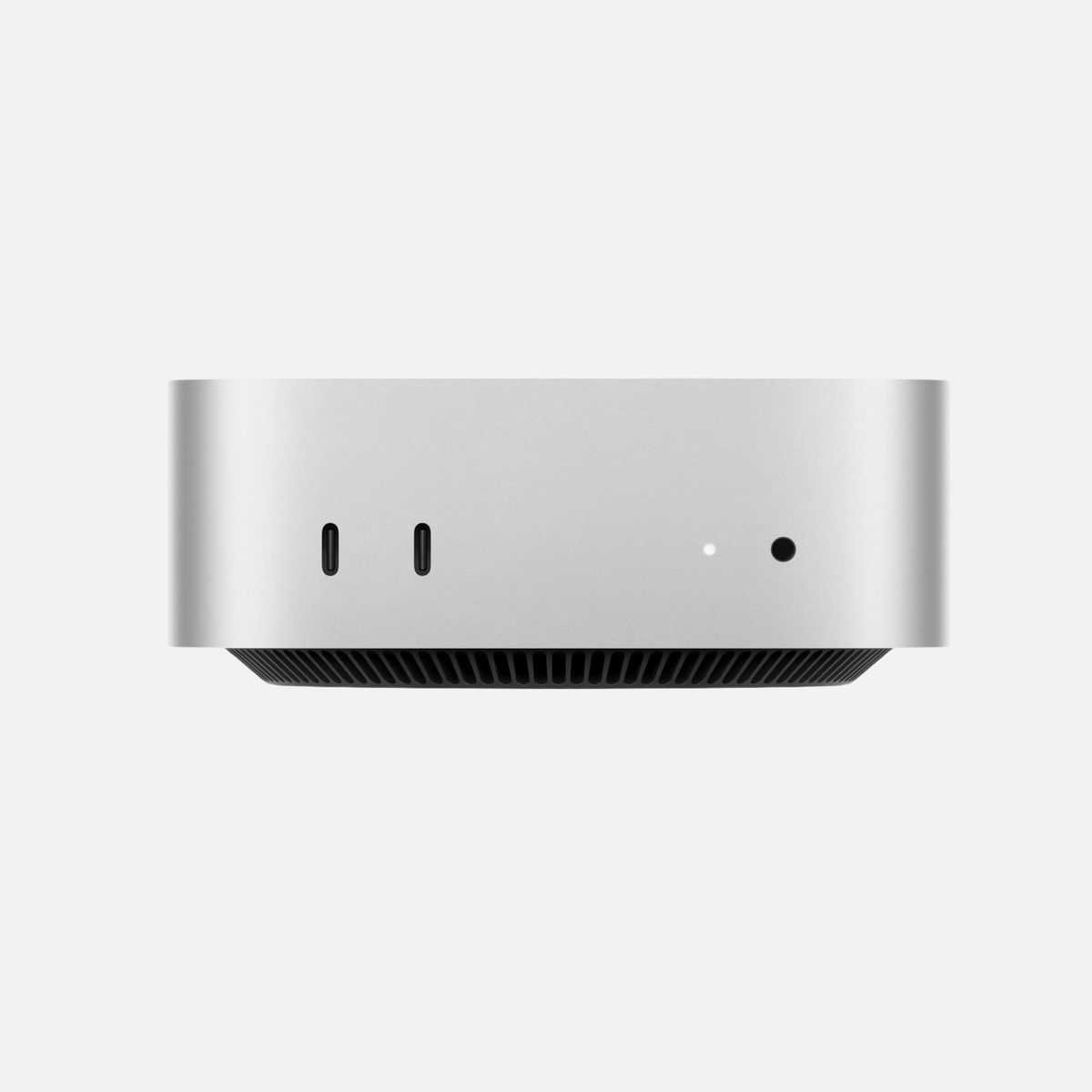
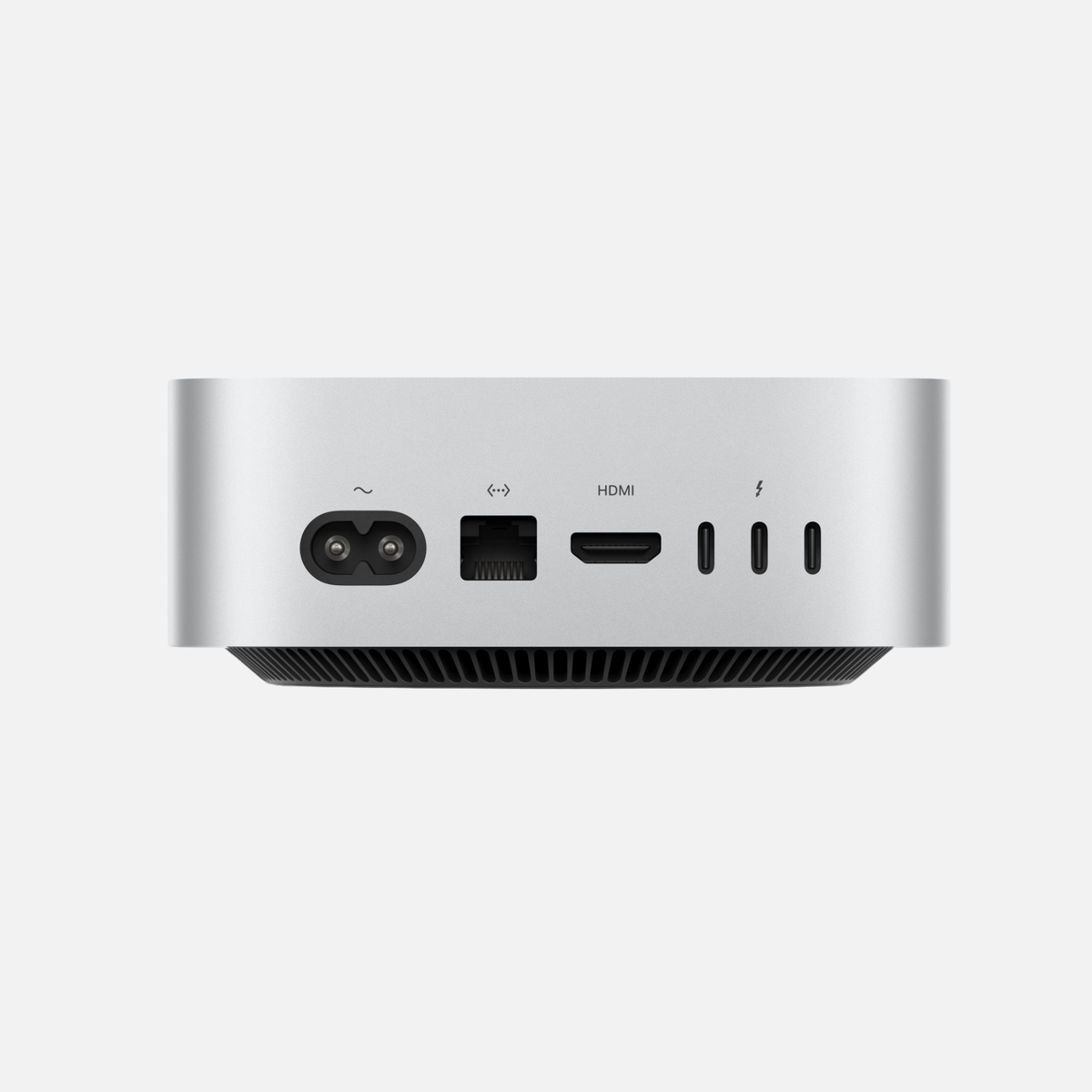
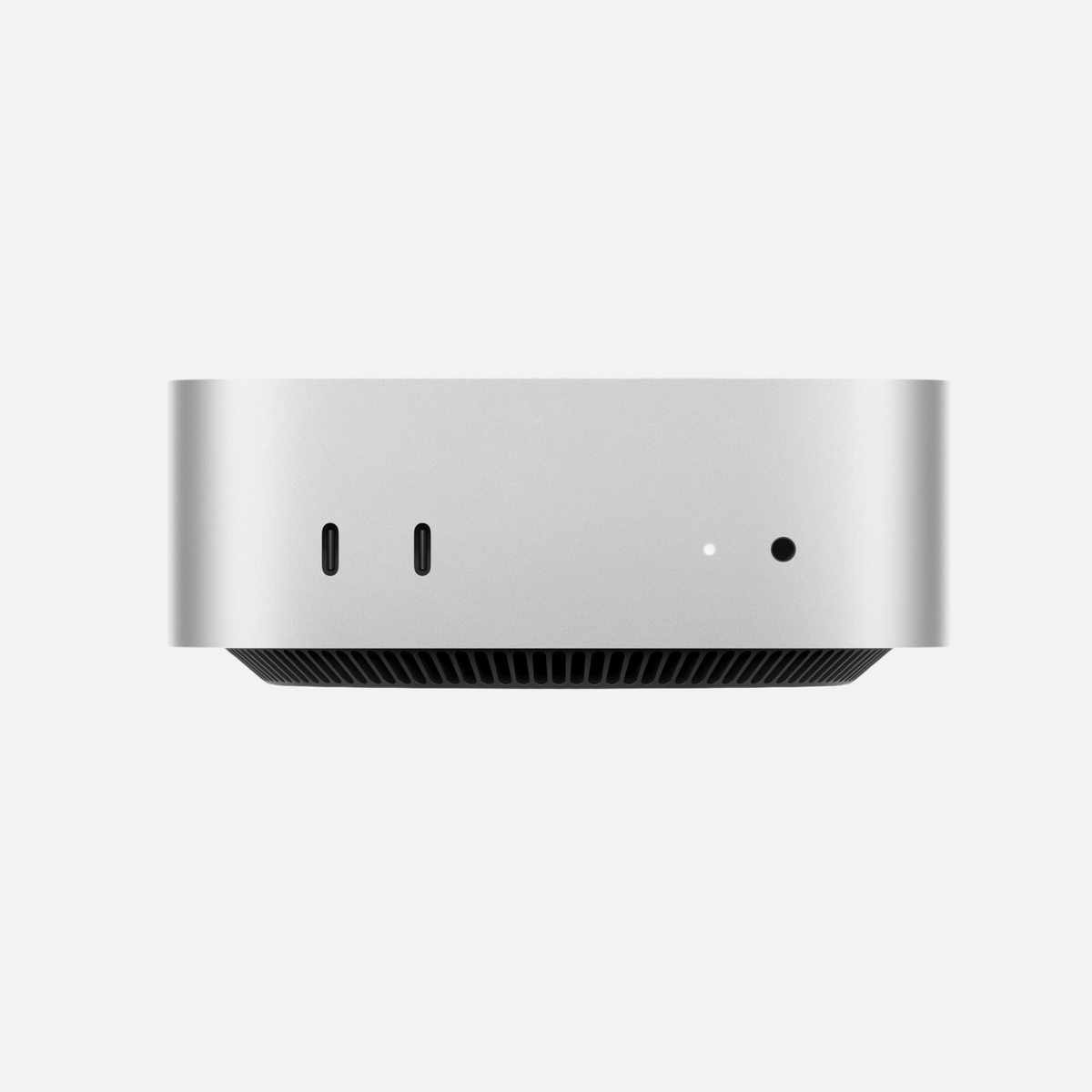
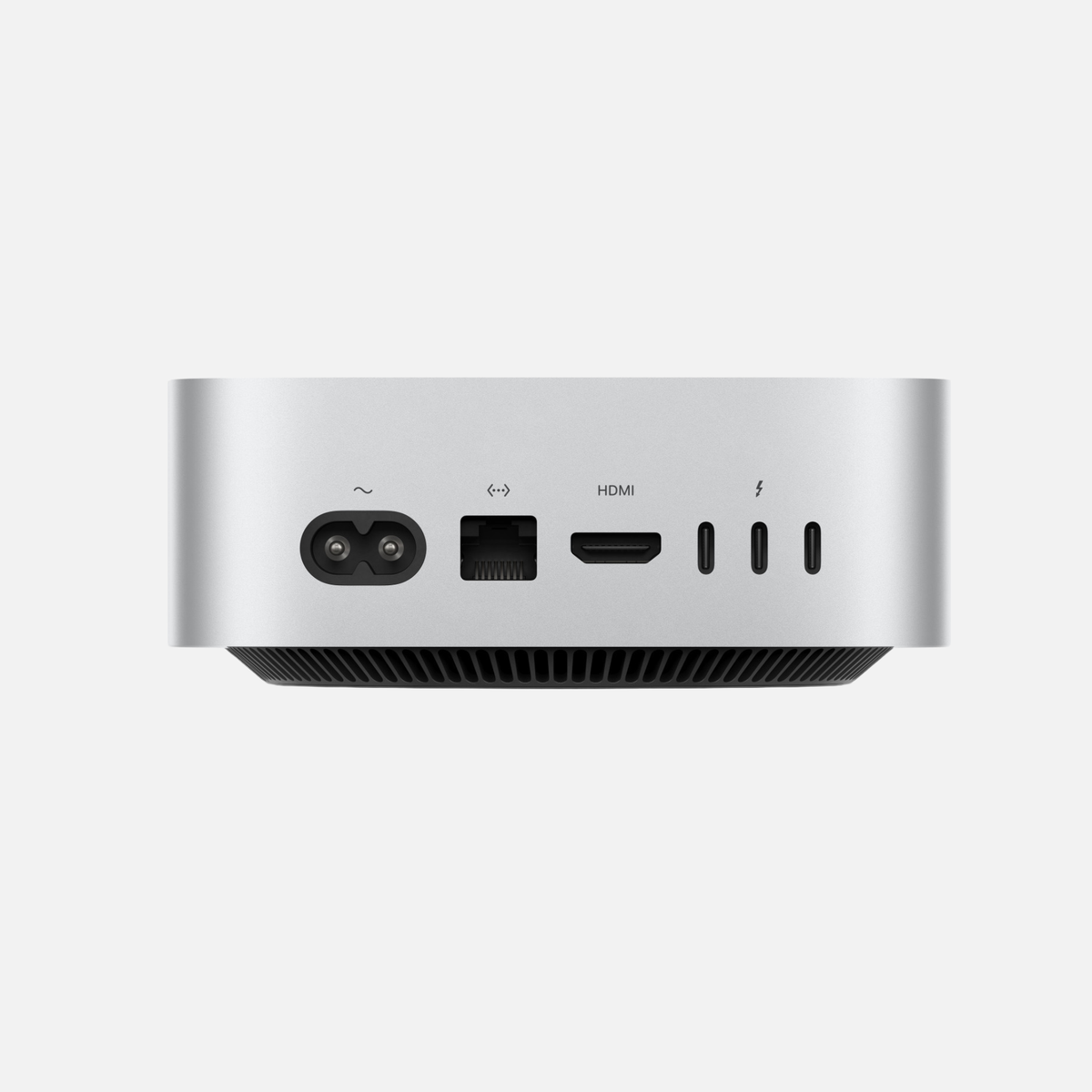
| Mac mini | 256 GB to 1 TB+ | Office, studying, development, compact desktop |
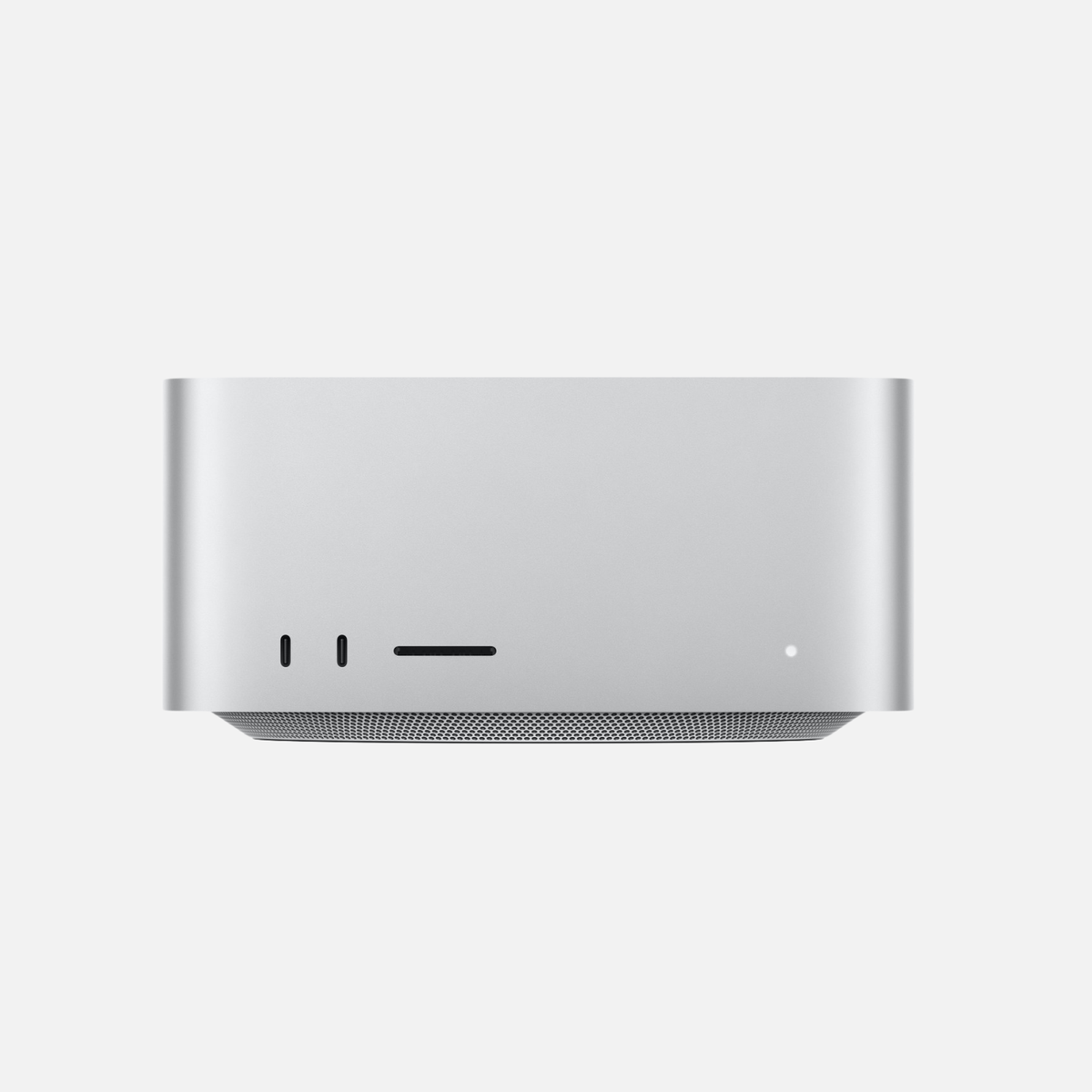
| Mac Studio | 1 TB to several TB | Video, 3D, AI, large professional projects |
| iMac | 512 GB to 1 TB+ | All-in-one workstation, family, office, creative use |
Note: Specific storage options differ by generation and chip. Always check the actual installed SSD capacity of a particular Mac.
Discover Macs with suitable SSD specifications
Compare available used and refurbished Macs by chip, RAM and SSD capacity.
How much SSD storage does a MacBook Pro need?
In the MacBook Pro, the internal SSD is particularly important because the device is often used on the go. If you work away from your desk, you do not want to keep connecting an external SSD. A 512 GB SSD is therefore a sensible starting point for simple to medium workflows, while 1 TB is significantly more convenient for many professional users.
MacBook Pro with 512 GB or 1 TB?
512 GB can be enough for Office, studying, programming and smaller creative projects. If you regularly use Lightroom, Photoshop, Xcode, Logic Pro or Final Cut, 1 TB in a MacBook Pro is often the more balanced choice. You can keep more active projects locally and need to move fewer files elsewhere when travelling.
When is 2 TB or more worthwhile in a MacBook Pro?
2 TB or more is interesting if you want to store large photo archives, video footage, virtual machines, extensive sample libraries or several local AI models on the laptop. Particularly for mobile professional use, additional internal storage can significantly simplify everyday work.
Our guidance for the MacBook Pro: 512 GB for lean use, 1 TB as a comfortable all-round option and 2 TB or more for data-intensive professional workflows.
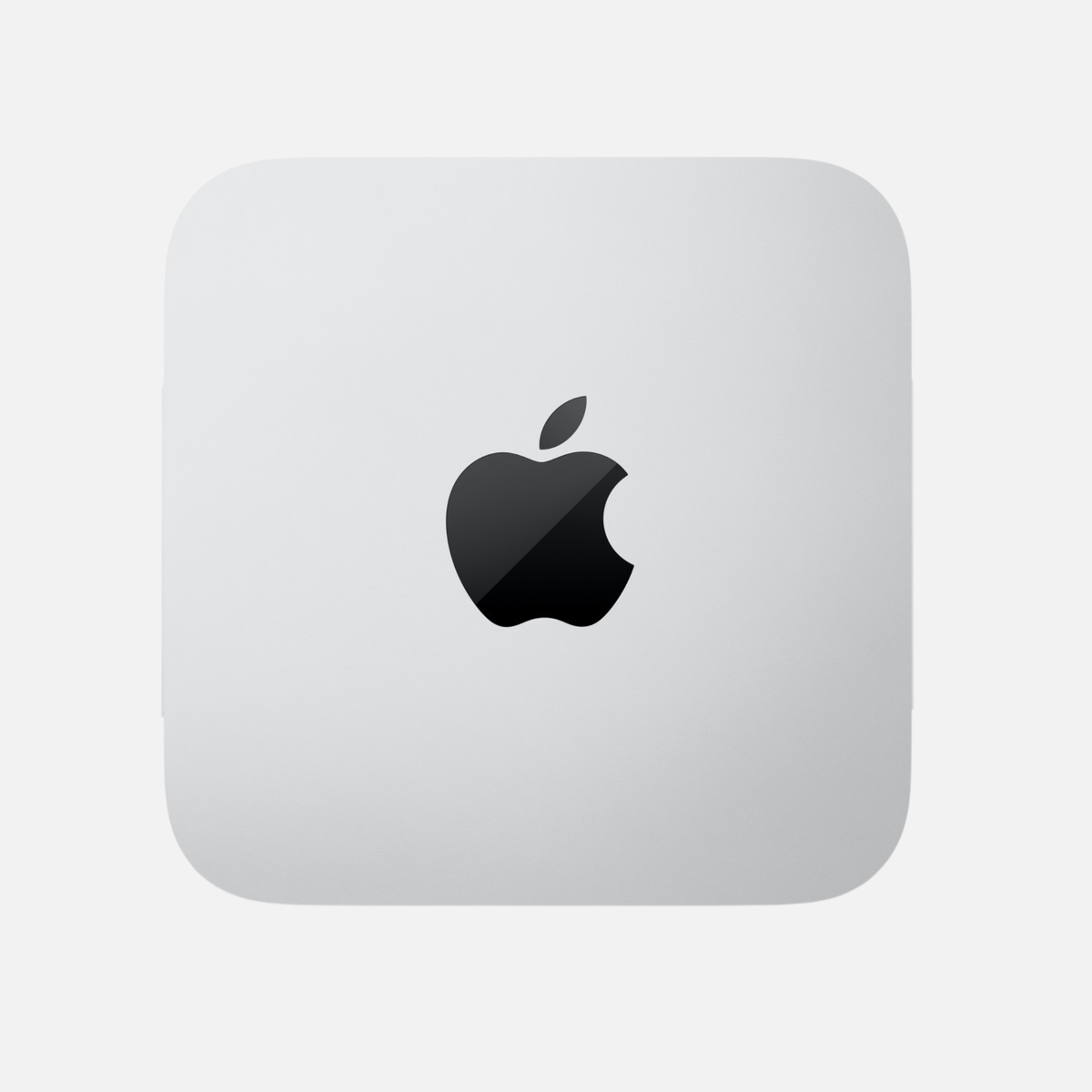
How much SSD storage does a Mac mini need?
With the Mac mini, you have a crucial advantage: the device normally stays on your desk. External storage is therefore particularly easy to add. A Mac mini with a smaller internal SSD can consequently make economic sense if large amounts of data are already stored on a fast external SSD or a NAS.
Mac mini with 256 GB or 512 GB?
256 GB can be sufficient for Office, web browsing, streaming, basic development and consistent cloud use. For most buyers, however, I would consider 512 GB in a Mac mini a more comfortable starting point, because macOS, programs and local files have significantly more headroom.
Mac mini with 1 TB: When is it worthwhile?
1 TB is particularly interesting for developers, photographers, music producers and local AI users. If you want to store many programs and active projects internally, the extra space is beneficial. For very large archives, a fast external SSD can still be the more economical addition.
If you are choosing between a powerful Mac mini and a Mac Studio, our “Mac mini or Mac Studio?” comparison can help.
How much SSD storage does a Mac Studio need?
The Mac Studio is aimed at users with professional workflows, and storage requirements can be correspondingly high. For many buyers, 1 TB is a sensible starting point. With video editing, 3D, large audio libraries, local AI or extensive project data, 2 TB, 4 TB or even larger configurations can quickly become worthwhile.
Mac Studio with 1 TB or 2 TB?
1 TB is sufficient if programs and current projects are stored internally and archives externally. 2 TB in a Mac Studio provides significantly more headroom for large media projects, AI models and professional applications without immediately needing an external drive.
When does 4 TB, 8 TB or more make sense in a Mac Studio?
Very large internal SSDs are worthwhile particularly when speed, portability within a production system or keeping the workspace as tidy as possible matters more than the lowest price per terabyte. This can make sense for video and film production, VFX, large datasets or specialist AI workflows.
For AI applications, always consider SSD storage and unified memory together. Our Mac for AI guide explains the differences in detail.
How much SSD storage does an iMac need?
The iMac combines a workstation and display in one device for many users. Typical uses range from Office, school and family activities to photo editing, music production and creative work. Since an iMac often remains at the same workstation for several years, avoid choosing too little SSD capacity.
iMac with 256 GB or 512 GB?
256 GB can be enough for very simple Office and cloud use. For an iMac used in varied ways, 512 GB is usually significantly more convenient because programs, photos and documents are less likely to cause space problems quickly.
When is 1 TB worthwhile in an iMac?
1 TB is particularly worthwhile for photographers, families with large media collections, creative users and anyone who wants to work with external storage as little as possible. Since the iMac is used at a fixed location, an external SSD can also be integrated very neatly if needed.
Our guidance for the iMac: 512 GB as a good all-round range, 1 TB or more for larger photo, music and creative projects.
Is a 256 GB SSD enough for a Mac?
256 GB can be sufficient if you use your Mac very deliberately: Office documents, email, browser, streaming, cloud storage and only a few large local programs. Users whose photos and documents are mainly stored in iCloud, OneDrive, Google Drive or on a NAS in particular can manage with this capacity.
Limitations become apparent when large programs, photo collections, games, music libraries or video footage are added. The operating system, apps, caches and temporary files also require space. If you want to spend as little time as possible managing storage, consider whether 512 GB is the more comfortable choice.
256 GB suits you if:
- You mainly use Office, the web and streaming.
- You consistently use cloud or network storage.
- You install only a few large programs locally.
- The most affordable entry point matters more than maximum headroom.
Is a 512 GB SSD enough for most users?
For many Mac buyers, 512 GB is a sensible starting point. This capacity provides significantly more room for apps, documents and media than 256 GB without immediately entering the price range of large professional configurations.
For studying, normal software development, photo editing with manageable libraries and everyday use, 512 GB can work very well. However, if you want to store large RAW archives, extensive virtual machines, many games, local AI models or video projects permanently on the internal drive, this capacity will eventually reach its limits too.
When is a 1 TB SSD worthwhile in a Mac?
1 TB is the sweet spot for many more demanding users. You have enough space for a larger collection of programs, photos, music, development environments and several active projects without constantly moving files elsewhere.
Additional internal storage is convenient in a MacBook Pro in particular, because you do not need to carry an external SSD while travelling. 1 TB can also make sense in a Mac mini or Mac Studio if you deliberately keep programs and current projects internally while storing archives externally.
1 TB is particularly interesting for:
- Lightroom and Photoshop users with larger libraries.
- Developers with Xcode, Docker, virtual machines and large repositories.
- Music production with sample libraries.
- Video editors who work on active projects internally.
- Users of local AI applications and several models.
2 TB, 4 TB, 8 TB or even 16 TB: When is plenty of internal storage worthwhile?
Large SSD configurations are aimed mainly at users for whom storage is a productive part of their workflow. A video project with high-resolution raw footage can quickly become very large. The same applies to extensive photo archives, sample libraries, virtual machines, scientific datasets or local AI models.
2 TB
Very comfortable for creatives, developers and larger amounts of local data.
4 TB
For large media projects, extensive libraries and professional work.
8 TB
For workflows that should keep large amounts of data as fully internal as possible.
16 TB
Specialist Mac Studio workstations with extremely high local storage requirements.
The larger the internal SSD, the more important value for money becomes. For desktop Macs, combining a sufficiently large internal SSD with fast external Thunderbolt storage can be more economical than the maximum possible internal configuration.
How much SSD storage do you need for your use case?
| Use | Good starting point | Comfortable | For large projects |
|---|---|---|---|
| Office, web, streaming | 256 GB | 512 GB | 1 TB |
| Studying | 512 GB | 1 TB | 1–2 TB |
| Software development | 512 GB | 1 TB | 2 TB+ |
| Photo editing | 512 GB | 1 TB | 2–4 TB+ |
| Video editing | 1 TB | 2 TB | 4–8 TB+ / external storage |
| Music production | 512 GB | 1–2 TB | 4 TB+ |
| Local AI | 512 GB | 1–2 TB | 4 TB+ depending on models and data |
These figures are guidelines. Actual requirements depend on project sizes, cloud use, external storage and your personal way of working.
How much SSD storage does a Mac need for local AI?
With cloud services such as ChatGPT, the actual models are not stored in full on your Mac. Local AI with applications such as Ollama or LM Studio is different: models, variants, quantisations and datasets can quickly occupy substantial amounts of storage together.
If you only want to try local AI, 512 GB can work. If you want to keep several models available, install development environments and also store normal working data, 1 TB or 2 TB often provides significantly more flexibility. For detailed buying advice on CPUs, GPUs and unified memory, we recommend our “Which Mac is suitable for AI?” guide.
External SSD or larger internal SSD: Which is better?
An external SSD is not a stopgap. Modern Thunderbolt and USB storage solutions can be very fast and practical for photo archives, video footage, backups and project files. With a desktop Mac mini or Mac Studio in particular, they can create a very capable storage system.
Internal SSD
- Always available, with no additional device.
- Ideal for macOS, programs and active projects.
- Particularly convenient with a MacBook Pro on the go.
- The additional cost can be high for very large capacities.
External SSD
- Storage can be added flexibly later.
- Very good for archives, media and backups.
- Particularly straightforward with desktop Macs.
- Requires a cable, a port and possibly an additional enclosure.
A common strategy is therefore to keep the operating system, programs and current projects on the internal SSD, and large archives and backups externally. This means you do not necessarily need to buy the maximum possible internal SSD.
More RAM or more SSD storage: Where should you spend your budget?
RAM and SSD storage solve different problems. More SSD storage provides space. More unified memory allows the Mac to hold larger active datasets simultaneously for programs, the CPU and GPU. Too little memory therefore cannot simply be replaced by a larger SSD.
If your budget forces a choice, first make sure the memory is sufficient for your planned workflow. Additional mass storage can often be added externally, whereas unified memory in Apple Silicon Macs cannot. We explain which RAM capacity makes sense in detail in “How much RAM does a Mac need?”.
The most common mistakes when choosing a Mac SSD
- Only calculating today’s requirements: programs, photos and projects usually will not get smaller over the coming years.
- Choosing 256 GB because of the lowest price: an affordable starting point can mean considerable storage management later.
- Automatically buying the largest SSD: external high-speed storage can be more economical with desktop Macs.
- Treating RAM and SSD storage as interchangeable: the two components perform entirely different tasks.
- Forgetting backups: a large internal SSD does not replace a separate data backup.
- Only looking at capacity: the chip, RAM, ports and overall condition of the Mac must also suit its intended use.
Why a used or refurbished Mac with a larger SSD can be interesting
The used market can be interesting, particularly for higher-end configurations. A Mac that was very expensive when bought new with more RAM and a larger SSD can later offer attractive value for money as a tested refurbished device.
Our “Mac mini or Mac Studio?” comparison also helps when deciding between a compact desktop and a professional workstation. You can then consider the SSD, memory and performance requirements together rather than buying individual specifications in isolation.
Which SSD capacity suits you? The quick decision
Choose 256 GB if you have a very lean Office/cloud workflow and deliberately use external or online storage.
Choose 512 GB if you want a versatile Mac for everyday use, studying and normal projects.
Choose 1 TB if you regularly do creative work, develop software or want to keep larger amounts of data locally.
Choose 2 TB or more if large media projects, local AI, virtual machines or professional datasets are part of your everyday work.
Choose 4–16 TB only if your professional workflow actually needs the local storage and the cost makes sense compared with external storage.
Frequently asked questions about SSD storage in a Mac
Is a 256 GB SSD enough for a Mac?
For Office, web browsing, streaming and consistent cloud use, 256 GB can be enough. For larger programs, media and long-term use, 512 GB is usually more comfortable.
Is 512 GB enough in a Mac?
For many everyday users, yes. If you store large photo archives, videos, virtual machines or local AI models, consider 1 TB or more.
Is 1 TB worthwhile in a MacBook Pro?
For many professional and creative users, 1 TB is very convenient because programs and current projects remain available on the go without an additional external SSD.
How much SSD storage do you need for Lightroom?
That depends on the size of your RAW library. 512 GB can be enough for smaller libraries, while 1 TB or more is often more convenient for regular photo editing.
How much SSD storage do you need for Final Cut Pro?
For video editing, consider not just the app but especially the raw footage. 1–2 TB is a sensible starting point; large 4K/8K projects often need additional external storage.
How much SSD storage does a Mac need for AI?
Cloud AI requires little additional storage. Local models, on the other hand, can take up substantial space. 1–2 TB often provides significantly more flexibility for more serious local AI use.
Can the SSD in a Mac be upgraded later?
In modern Macs, the internal SSD is not a normal user upgrade. Plan internal capacity when buying; you can add more storage later through external SSDs or network storage.
Is an external SSD just as good?
For many files and projects, a fast external SSD can work excellently. For the operating system, apps and mobile use, however, internal storage is more convenient.
How much SSD storage can a Mac mini have?
Depending on the current model and chip, configurations range from a 256 GB to an 8 TB SSD.
How much SSD storage can a Mac Studio have?
The current Mac Studio can be equipped with very large SSD configurations depending on the model; up to 16 TB is possible in suitable variants.
Conclusion: Which SSD capacity should you choose for your Mac?
256 GB is now interesting mainly for lean cloud and Office setups. 512 GB is a solid starting point for many users. With 1 TB, creatives, developers and demanding all-round users gain significantly more convenience. 2 TB and larger SSDs become interesting when large media libraries, virtual machines, local AI or professional projects need to be stored locally on a permanent basis.
The best configuration is not automatically the largest. What matters is the balance between internal storage, external options, RAM, performance and budget. The better you understand your actual workflow, the less money you spend on storage you never use, and the lower the risk of constantly needing to free space later.
Find the right Mac now
Compare available Macs with different RAM and SSD configurations.
More Mac buying guides on RAM, AI and Mac models
Technical configuration options: as of 25.10.2026. Individual storage options may differ depending on model generation and availability.
Specific configurations from the shop
Configuration examples checked on 25 October 2026. See each product page for price, condition and current availability. For MacBook Pro, select RAM, SSD and keyboard layout.
Related detailed guides
Recommendations are editorial guidance, not our own performance measurements.
Technical sources: Apple · Activity Monitor · Apple · Mac mini (2024) · Apple · Mac Studio (2025) · Ollama · Context length


Share:
How much RAM does a Mac need?
Which Mac is right for me?