

Set up a new Mac: 12 important settings for 2026
Updated: August 2026 · Reading time: approx. 12 minutes
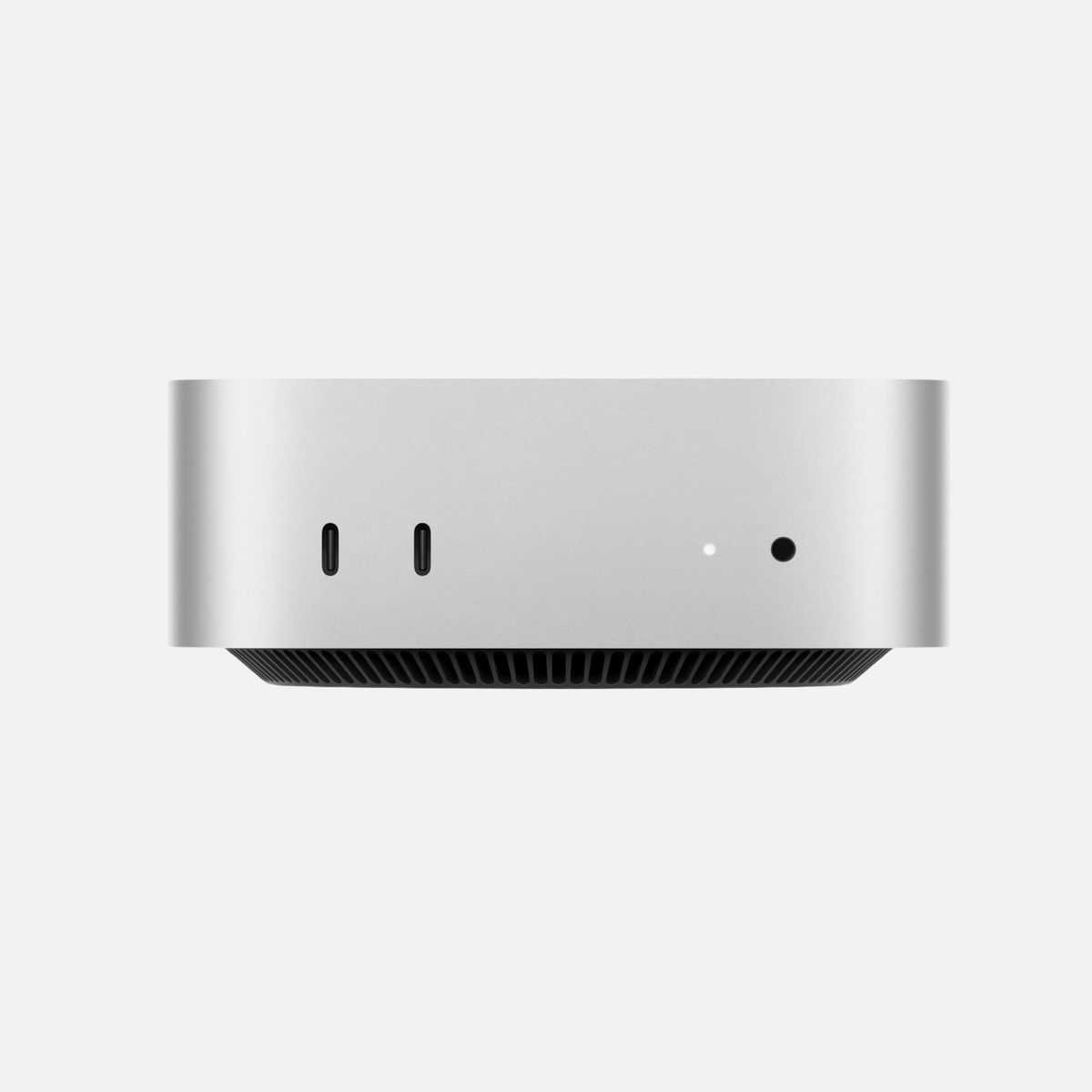
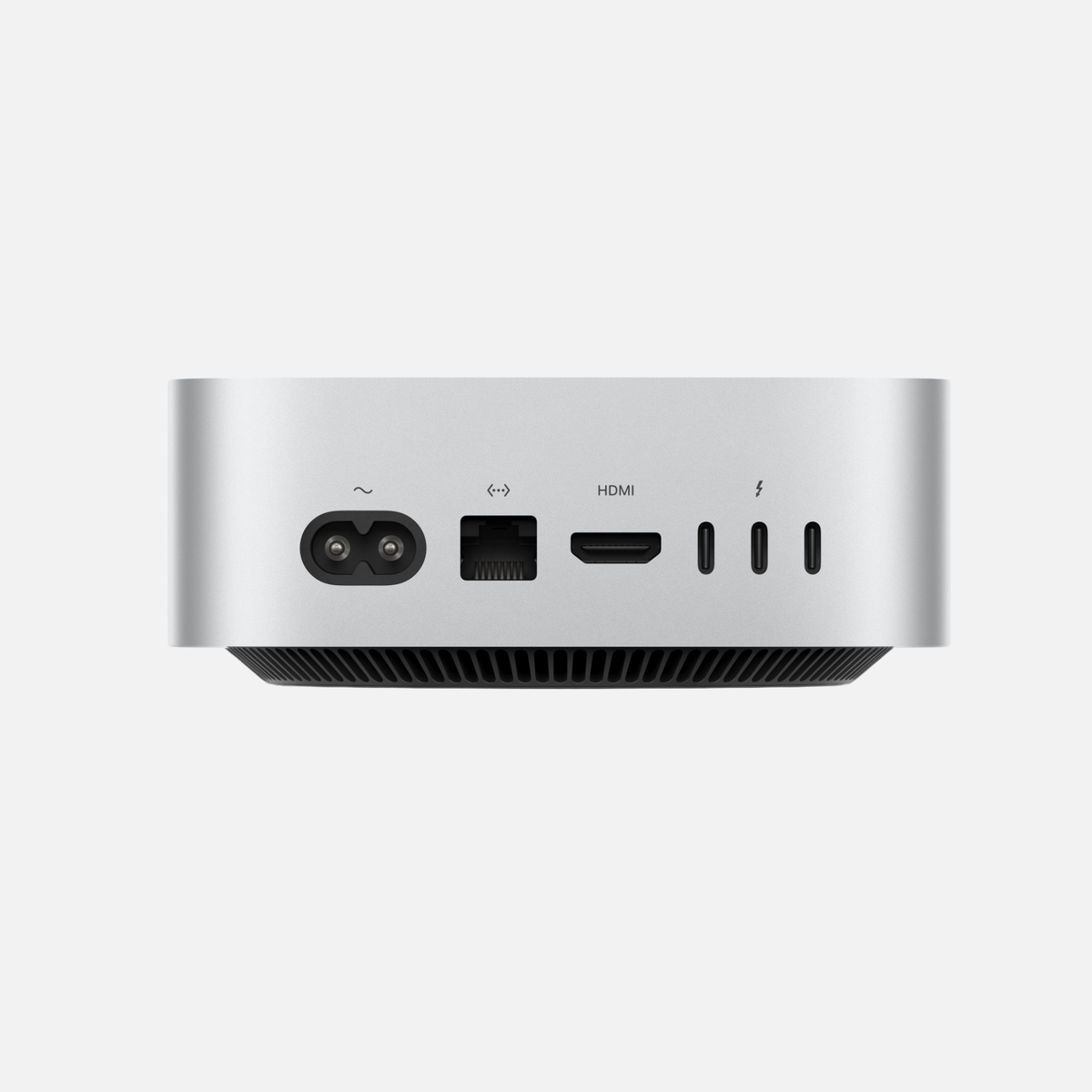
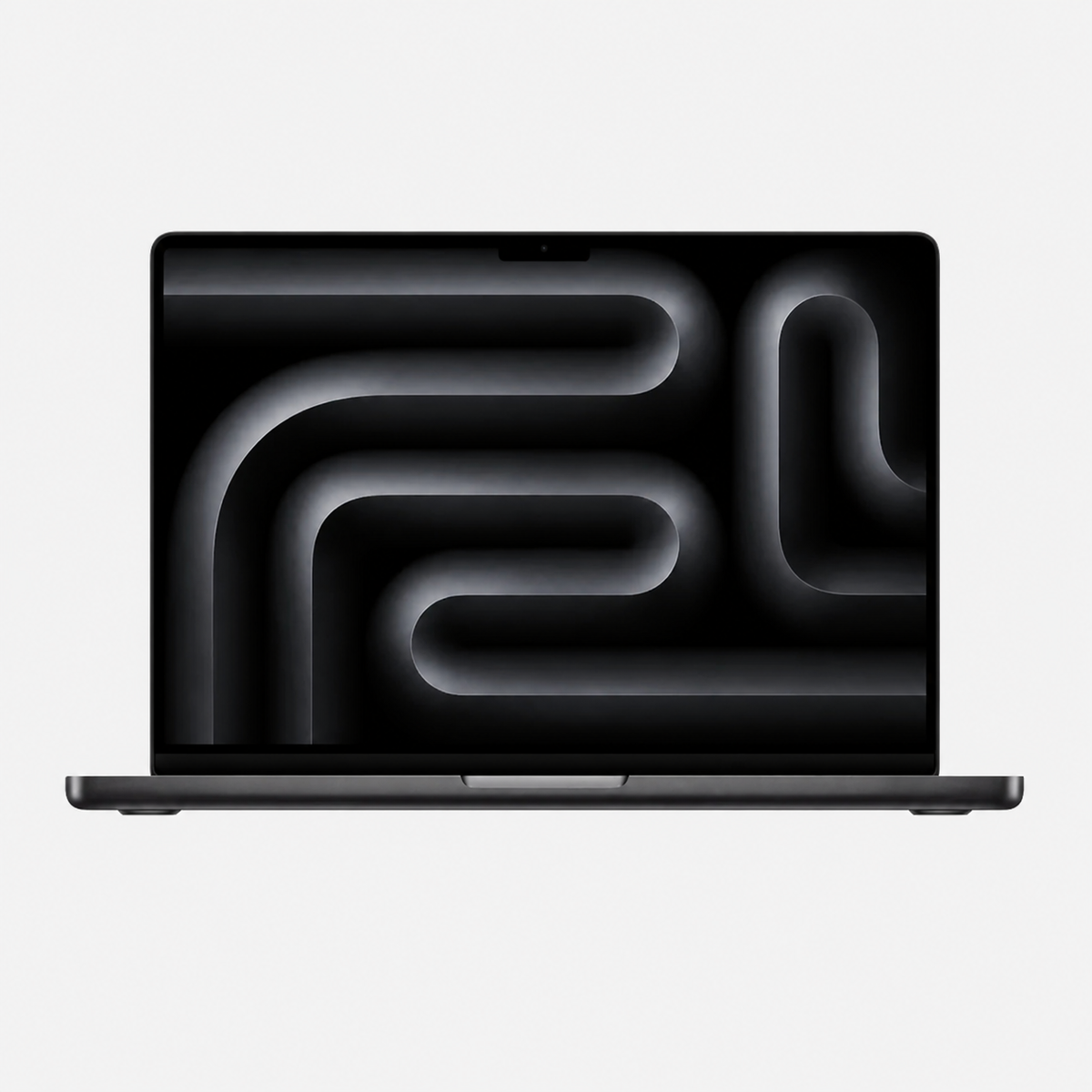
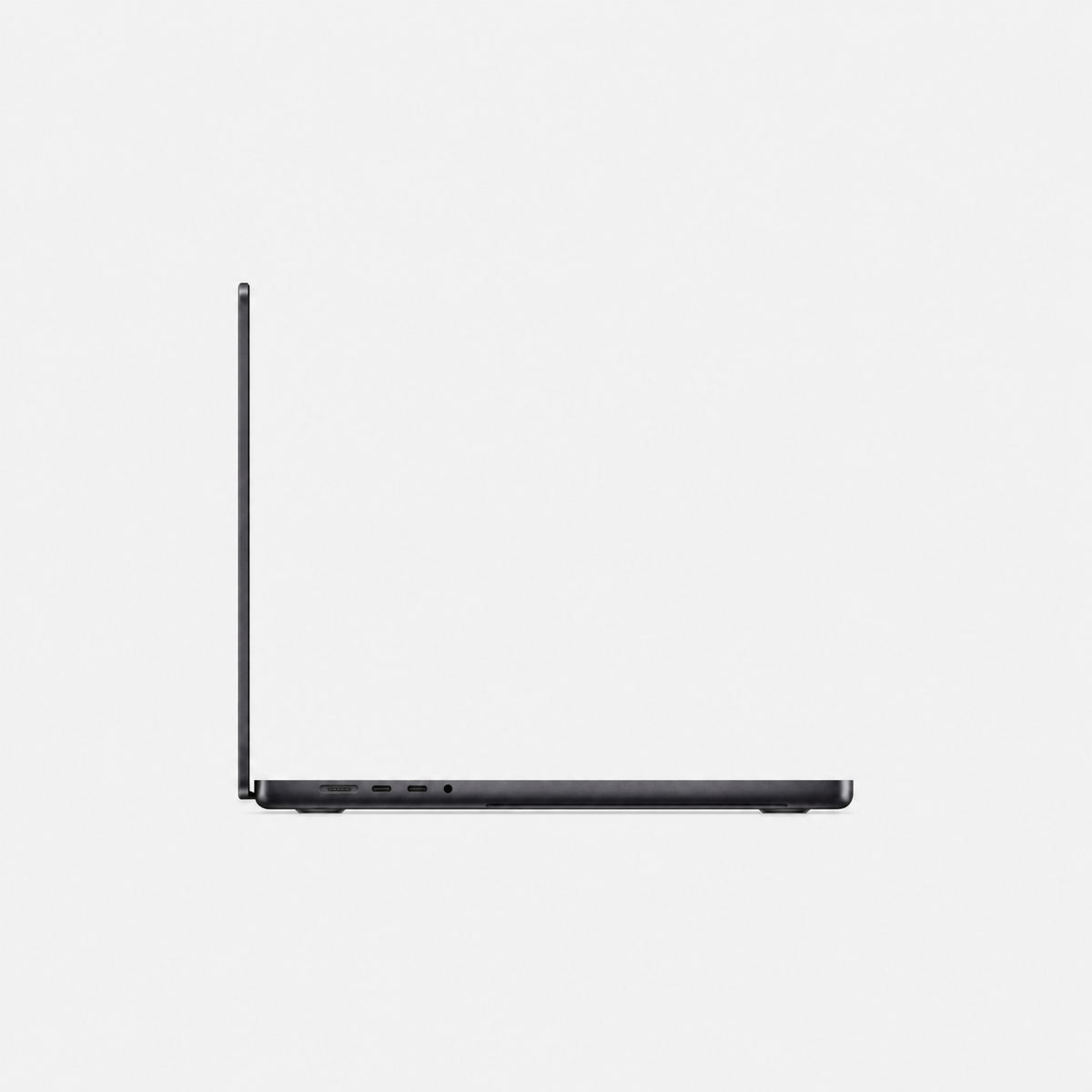
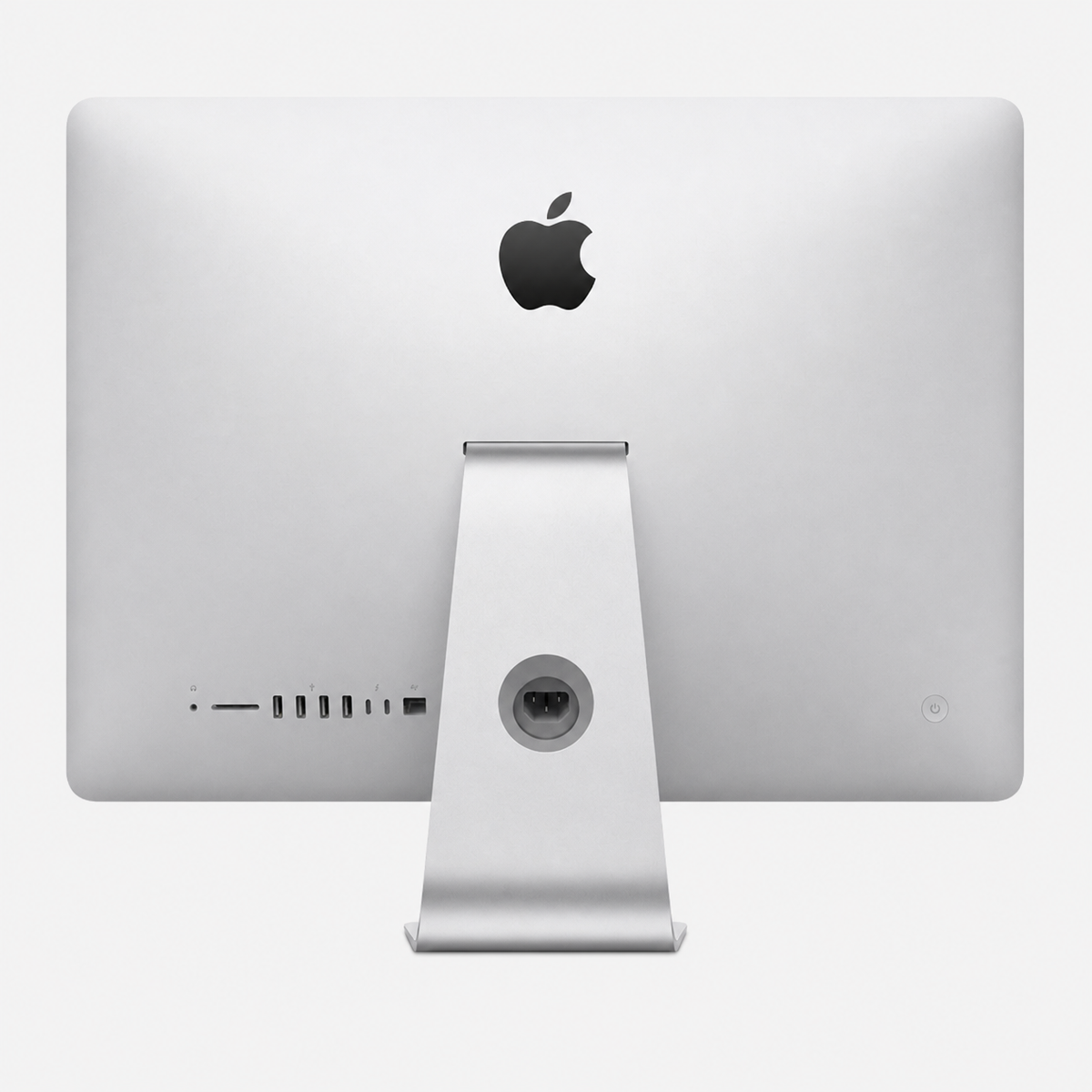
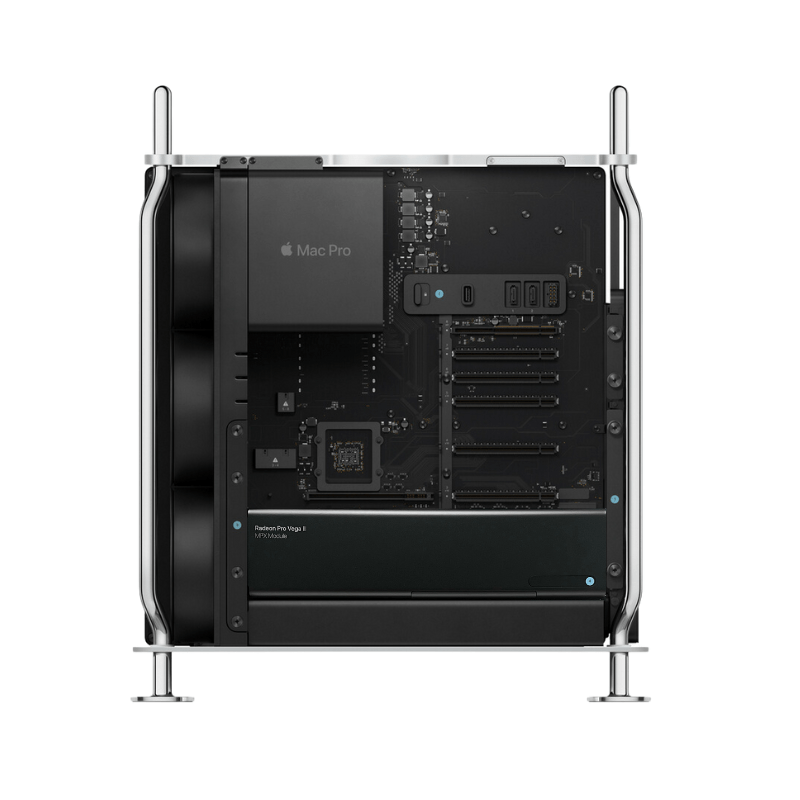
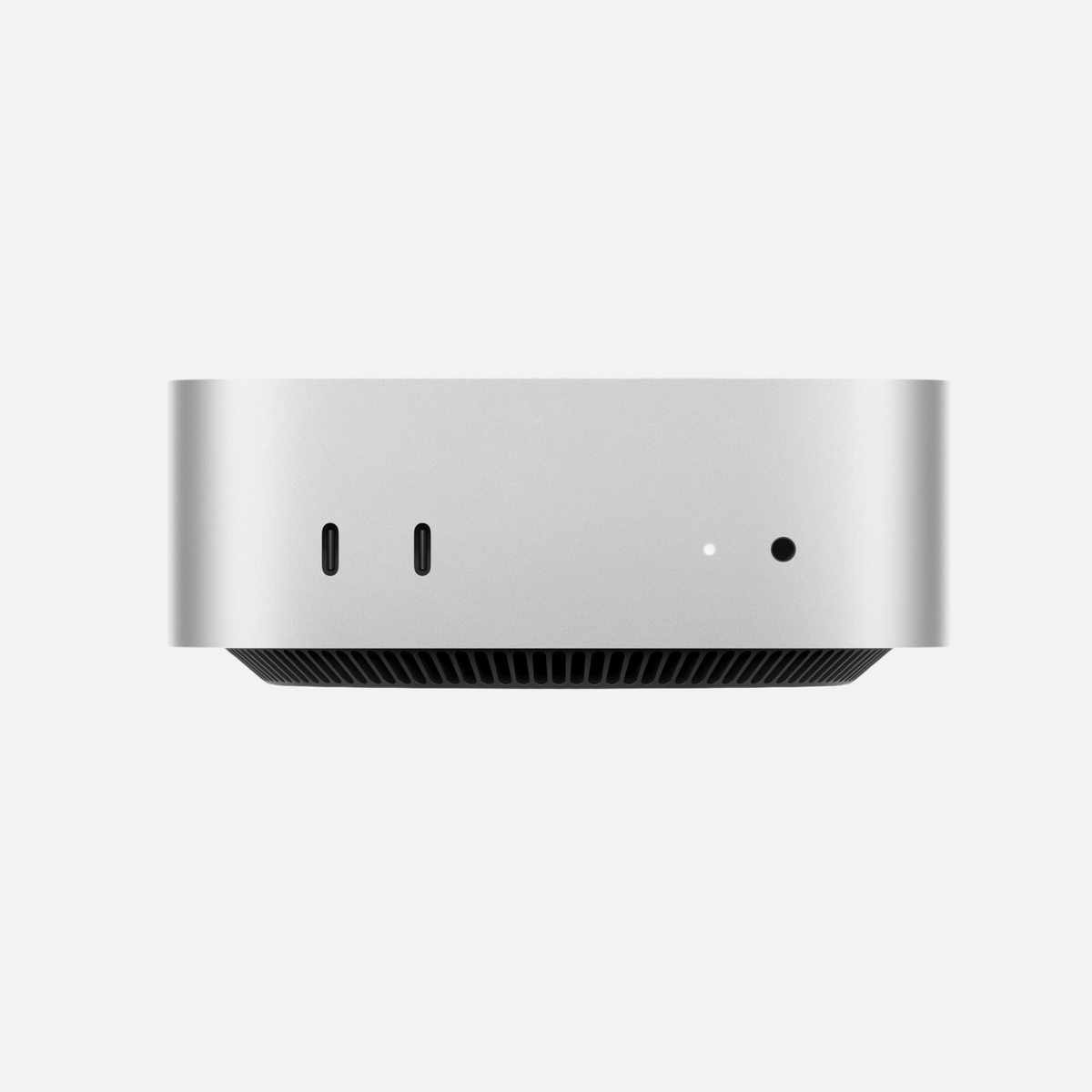
A new or refurbished Mac starts up quickly, but a few targeted settings make it more secure, more convenient and better suited to your everyday life. Here are the most important steps for MacBook Pro, MacBook Air, iMac, Mac mini, Mac Studio and Mac Pro.
Setting up a new Mac: What should I do first?
First check macOS updates, sign in with your Apple Account and then set up Find My, FileVault and Time Machine. On a MacBook, also check Touch ID and battery settings. You can then adapt Finder, the Dock, notifications and privacy to your workflow.
1. Update macOS
Before installing many programs, check → System Settings → General → Software Update for available updates. Updates provide security fixes, bug fixes and new features. Also check the automatic update options there.
2. Set up Apple Account and iCloud
Your Apple Account connects your Mac to Apple’s ecosystem. Sign in through System Settings, then choose under iCloud which data should be synchronised, such as iCloud Drive, photos, contacts, calendars, notes and passwords.
Configure iCloud Drive deliberately
iCloud Drive is particularly convenient with an iPhone, iPad or second Mac. However, check which folders and apps synchronise. Large photo, video and project files can consume both cloud and local SSD storage.
3. Transfer data from your old Mac – or start fresh?
Apple’s Migration Assistant can transfer user accounts, documents, apps and settings from an old Mac or a Time Machine backup. If you want to avoid carrying over clutter, you can instead deliberately set up the new Mac from scratch and transfer only the apps and files you need.
We explain all options in our guide “Transfer data from an old Mac to a new Mac”.
4. Enable Find My on your Mac
With Find My Mac, you can locate and protect a lost Mac. Check the feature early under System Settings → Your name → iCloud → See All → Find My Mac. If necessary, also enable Location Services under Privacy & Security.
On supported Macs, Find My is also linked to Activation Lock, an important protection against unauthorised use.
5. Check FileVault: Encrypt your data
FileVault encrypts the startup disk and protects your data against unauthorised access. Find the setting under System Settings → Privacy & Security → FileVault. If you use a recovery key, keep it securely and separately from the Mac.
6. Set up Touch ID and a secure password
If your MacBook or Magic Keyboard has Touch ID, you can use it to unlock the Mac and, depending on settings, authorise purchases, passwords and other actions. Open System Settings → Touch ID & Password and add a fingerprint. A strong login password remains important nonetheless.
7. Set up Time Machine
A working backup is one of the most important steps after setup. Time Machine is built into macOS and can automatically back up data to suitable external storage. Open System Settings → General → Time Machine and add a backup disk.
iCloud and Time Machine serve different purposes. Synchronisation is not a complete replacement for an independent backup.
8. Check the MacBook battery and optimised charging
On MacBook Air and MacBook Pro, open System Settings → Battery. Optimised Battery Charging can reduce the time the battery spends fully charged, helping reduce battery ageing. Additional charging options may be available on supported Macs and current macOS versions.
If your MacBook is often plugged in at your desk, avoid disabling the available charging optimisations too quickly.
9. Configure Finder sensibly
A few Finder adjustments save time every day. Depending on how you work, useful options include:
- Show filename extensions
- Reduce the sidebar to important locations and drives
- Choose a sensible starting folder for new Finder windows
- Show the path and status bars for complex folder structures
- Adjust how external drives are displayed
10. Adjust the Dock and desktop
Remove apps you rarely use from the Dock and keep your most important tools there. Under System Settings → Desktop & Dock, you can adjust size, position, magnification and automatic hiding and showing. The goal is a calm, efficient workspace rather than a “perfect” setup.
11. Configure notifications and Focus
After installing many apps, a Mac can quickly become overloaded with notifications. Check under System Settings → Notifications which apps should actually be allowed to interrupt you. With Focus, you can separate work, leisure and periods of concentration, for example.
12. Check privacy and app permissions
Under System Settings → Privacy & Security, you can see access to the camera, microphone, Location Services, screen recording, files and other sensitive areas. Grant permissions deliberately and revoke them from apps that no longer need them.
Setting up a refurbished or used Mac: Additional checks
Check under → About This Mac that the model, chip, memory and macOS version match the expected configuration. On a used MacBook, also check battery health.
Activation Lock and the previous owner
A used Mac should no longer be linked to the previous owner’s Apple Account. If someone else’s login details are requested during setup, resolve this before further use.
Clean install only if needed
If you want to completely reinstall the Mac, use our separate Mac clean install guide. This keeps this guide focused on sensible settings after purchase.
Do not perfect everything on the first day
Address updates, Apple Account, Find My, FileVault and backups early. Finder, the Dock, Focus and other convenience settings can evolve with your everyday needs.
Frequently asked questions about setting up a new Mac
Set up a new Mac from scratch or transfer data?
If your old Mac is neatly configured, Migration Assistant is convenient. If you want to avoid carrying over clutter, a deliberate fresh setup can make more sense.
Which settings first?
First check software updates, Apple Account/iCloud, Find My, FileVault and Time Machine. On a MacBook, also check Touch ID and battery settings.
Do I need Time Machine despite having iCloud?
A separate backup is still worthwhile. iCloud synchronises data, whereas Time Machine can back up local data and earlier file versions.
Does a refurbished Mac need to be reinstalled?
Not as a rule. If it starts cleanly with macOS Setup Assistant, you can set it up normally. Reinstallation is more useful for software problems or a deliberately desired fresh start.
Conclusion: Setting up a new Mac properly
Good Mac setup does not consist of making as many changes as possible. The most important foundations are up-to-date software, Apple Account, device protection, encryption and a working backup. Then optimise Touch ID, Finder, the Dock, Focus, notifications and battery options to suit your everyday life.
Still looking for the right Mac?
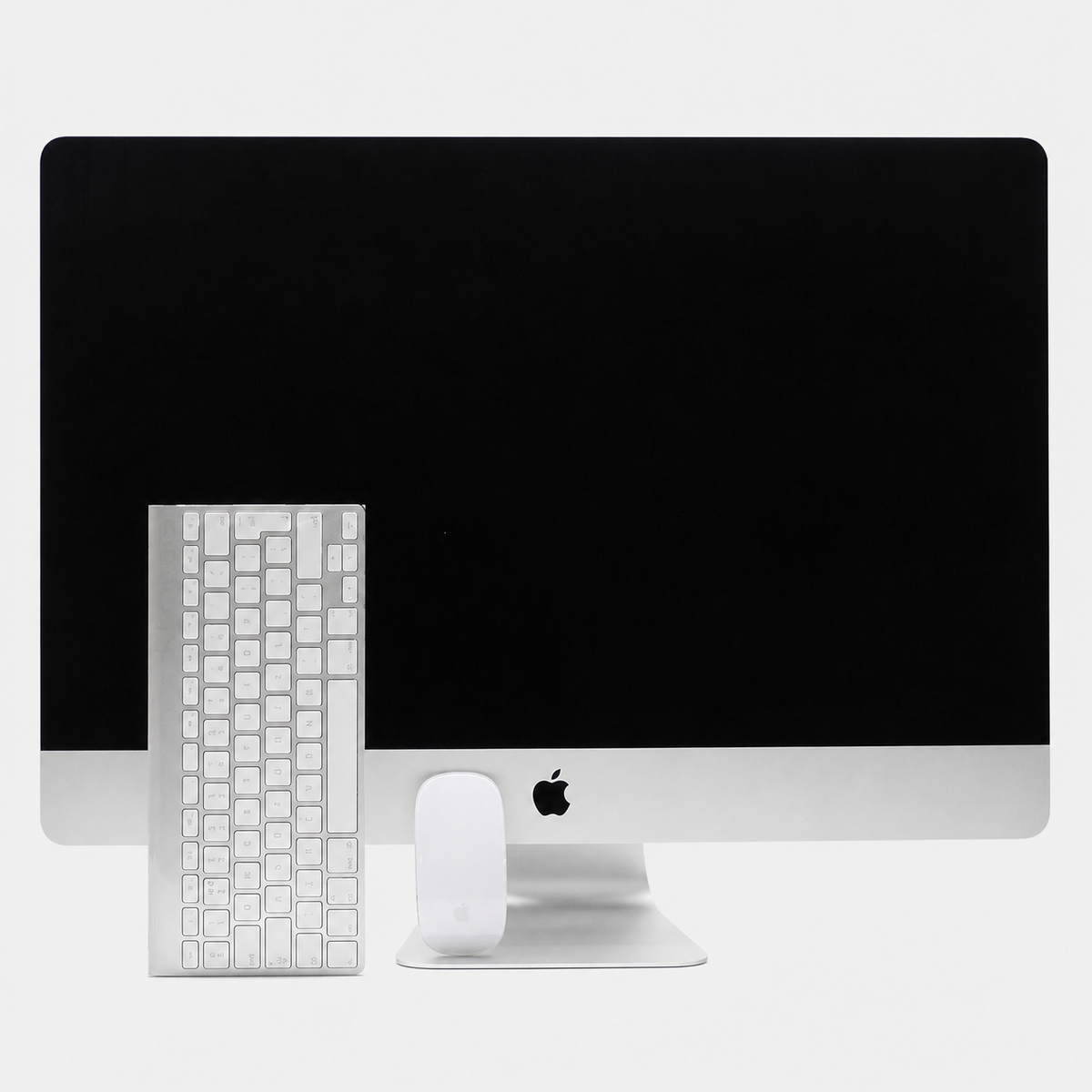
Discover used and refurbished Apple computers for different requirements and budgets.



Share:
Which Mac for photo editing? The 2026 buying guide
Slow Mac? 10 causes and solutions that really help