

Mac storage expansion. Suitable SSDs for Mac.
Updated: August 2026 · Reading time: approx. 17 minutes
Want to expand your Mac’s internal storage?
4 TB or 8 TB of additional storage can make a Mac significantly more flexible, particularly for large photo archives, video projects, music libraries, AI models or extensive backups. With Mac mini, Mac Studio, iMac and MacBook Pro in particular, an external SSD is often the simplest way to substantially expand available storage after purchase.
This guide compares six high-quality SSDs with 4 TB and 8 TB and explains which solution suits which Mac and workflow. It is not just about maximum speed, but also capacity, interface, mobility, continuous operation and value for money.
Can a Mac’s storage be expanded after purchase?
In current Macs, the internal SSD is not easily replaceable or upgradable by the user in the same way as in a conventional desktop PC. External SSDs are therefore the most practical storage expansion. Fast USB or USB4 SSDs suit active projects, while large 8 TB drives are particularly attractive for archives, media libraries, sample libraries and backups.
Large external SSDs for Mac: 4 TB and 8 TB compared
| SSD | Capacity | Max. read speed* | Interface | Ideal for | Amazon |
|---|---|---|---|---|---|
| Samsung T7 Shield | 4 TB | 1,050 MB/s | USB 3.2 Gen 2 · 10 Gbit/s | All-round use, mobile use, backups | View on Amazon* |
| Samsung T9 | 4 TB | 2,000 MB/s | USB 3.2 Gen 2x2 · 20 Gbit/s | Large files, photos, video | View on Amazon* |
| Crucial X10 Pro | 4 TB | Up to approx. 2,100 MB/s | USB 3.2 Gen 2x2 · 20 Gbit/s | Creatives, large transfers | View on Amazon* |
| SanDisk Extreme PRO USB4 | 4 TB | Up to 3,800 MB/s | USB4 · 40 Gbit/s | High-end use, video, Mac Studio | View on Amazon* |
| SanDisk Desk Drive | 8 TB | 1,000 MB/s | USB 3.2 Gen 2 · Power adapter | Desktop, archives, large media libraries | View on Amazon* |
| Samsung T5 EVO | 8 TB | Up to 460 MB/s | USB 3.2 Gen 1 · 5 Gbit/s | Capacity, archives, portable 8 TB | View on Amazon* |
* Manufacturers’ maximum figures. Actual achievable speed depends on the Mac, port, cable, file type and workflow.
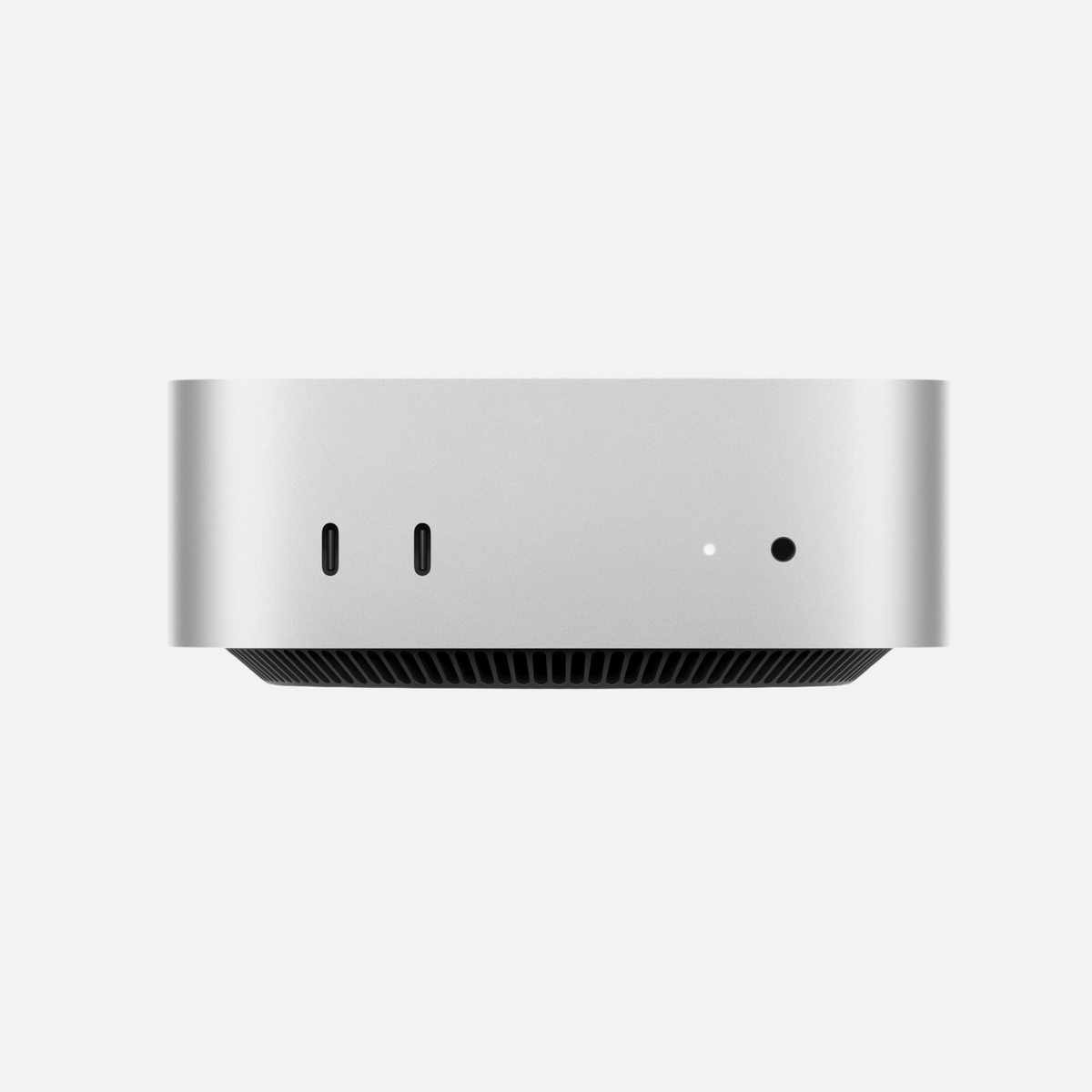
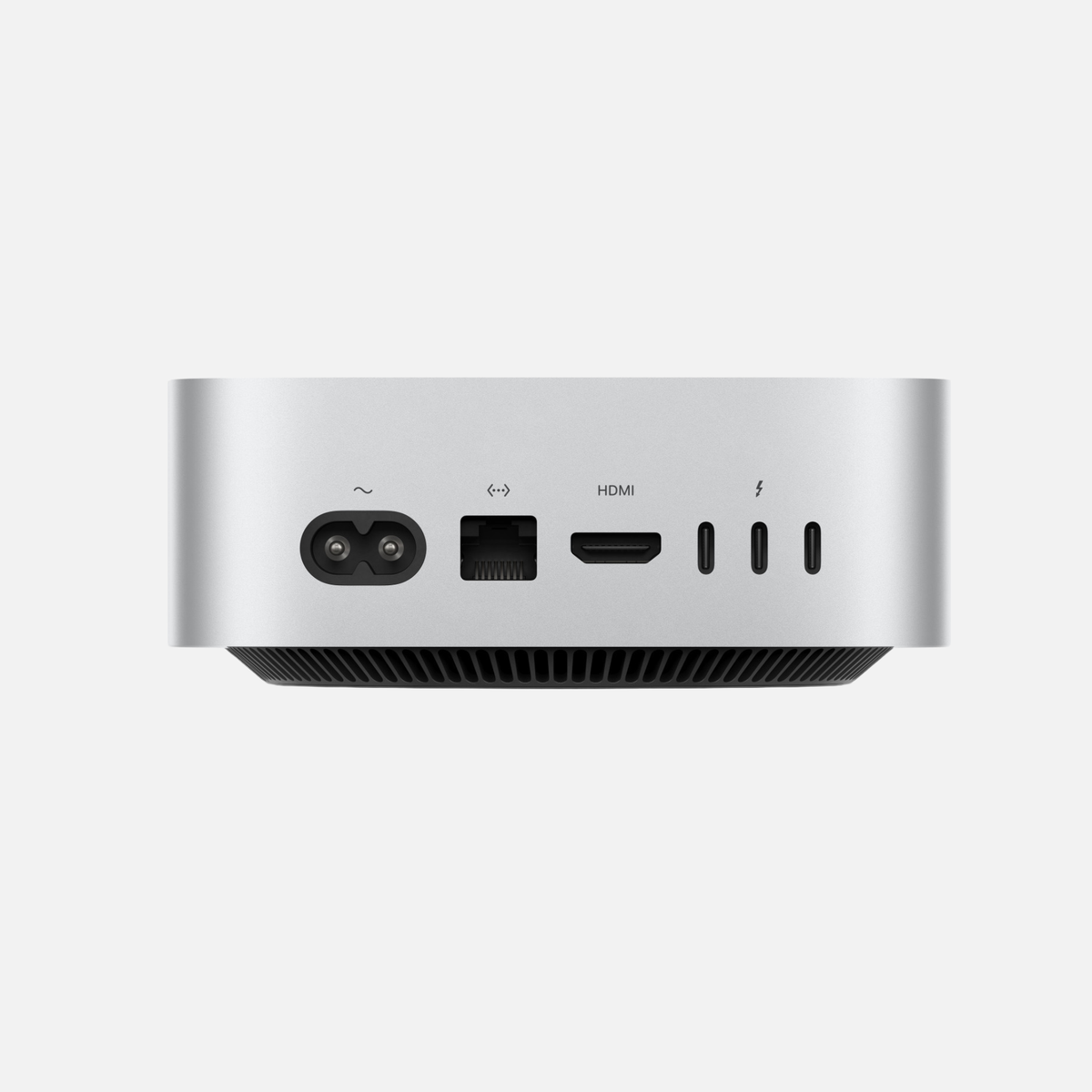
Expand Mac mini storage: Connect 4 TB or 8 TB externally
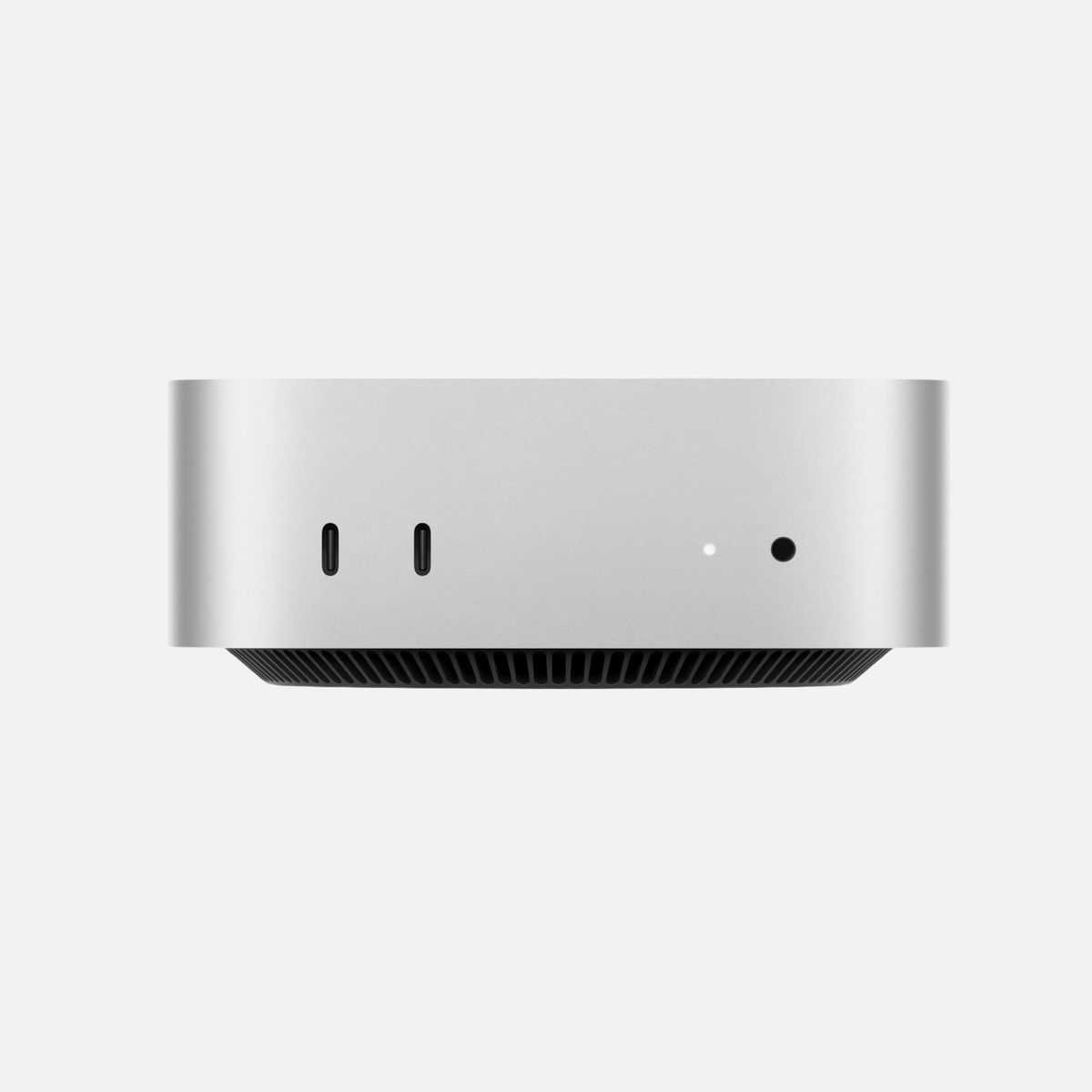
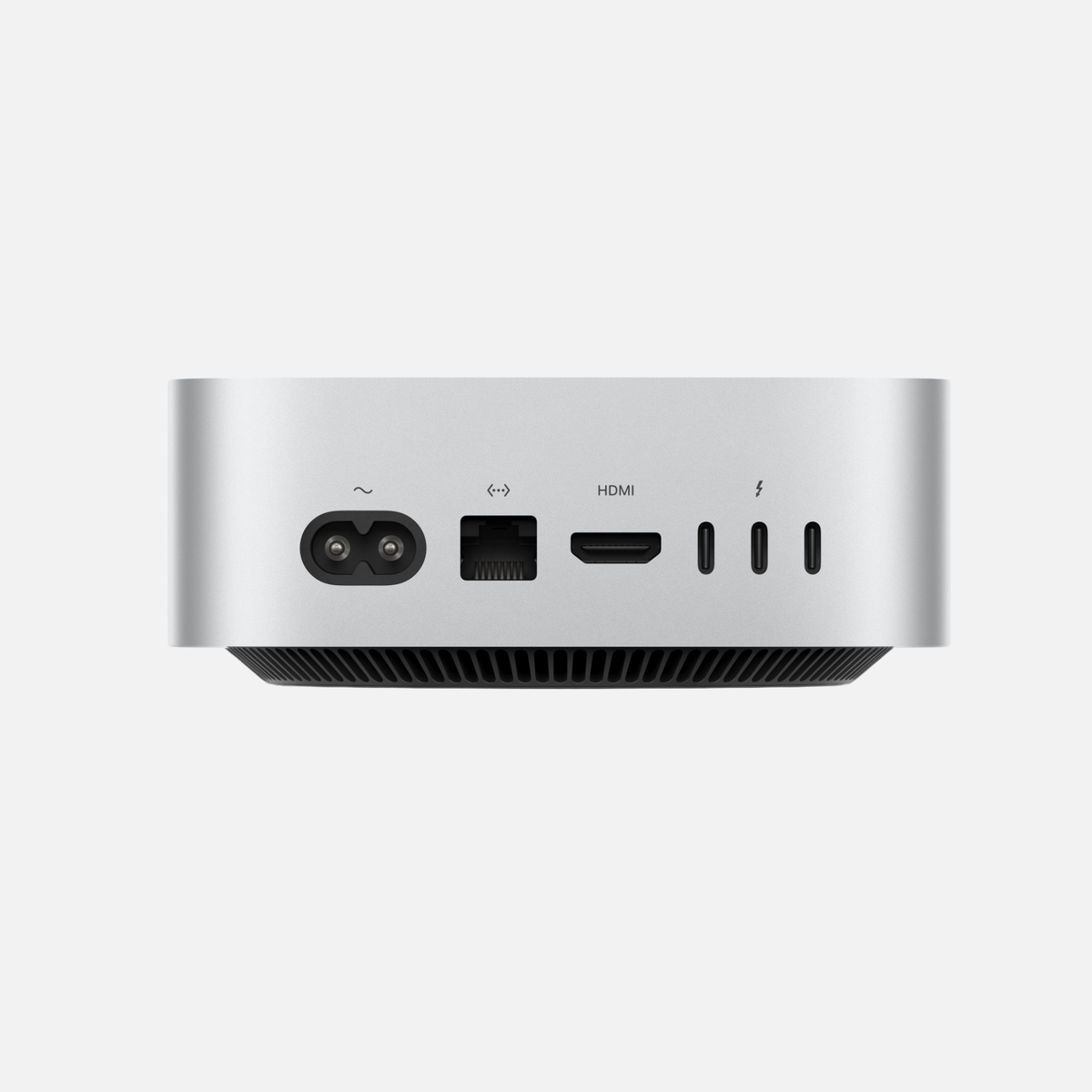
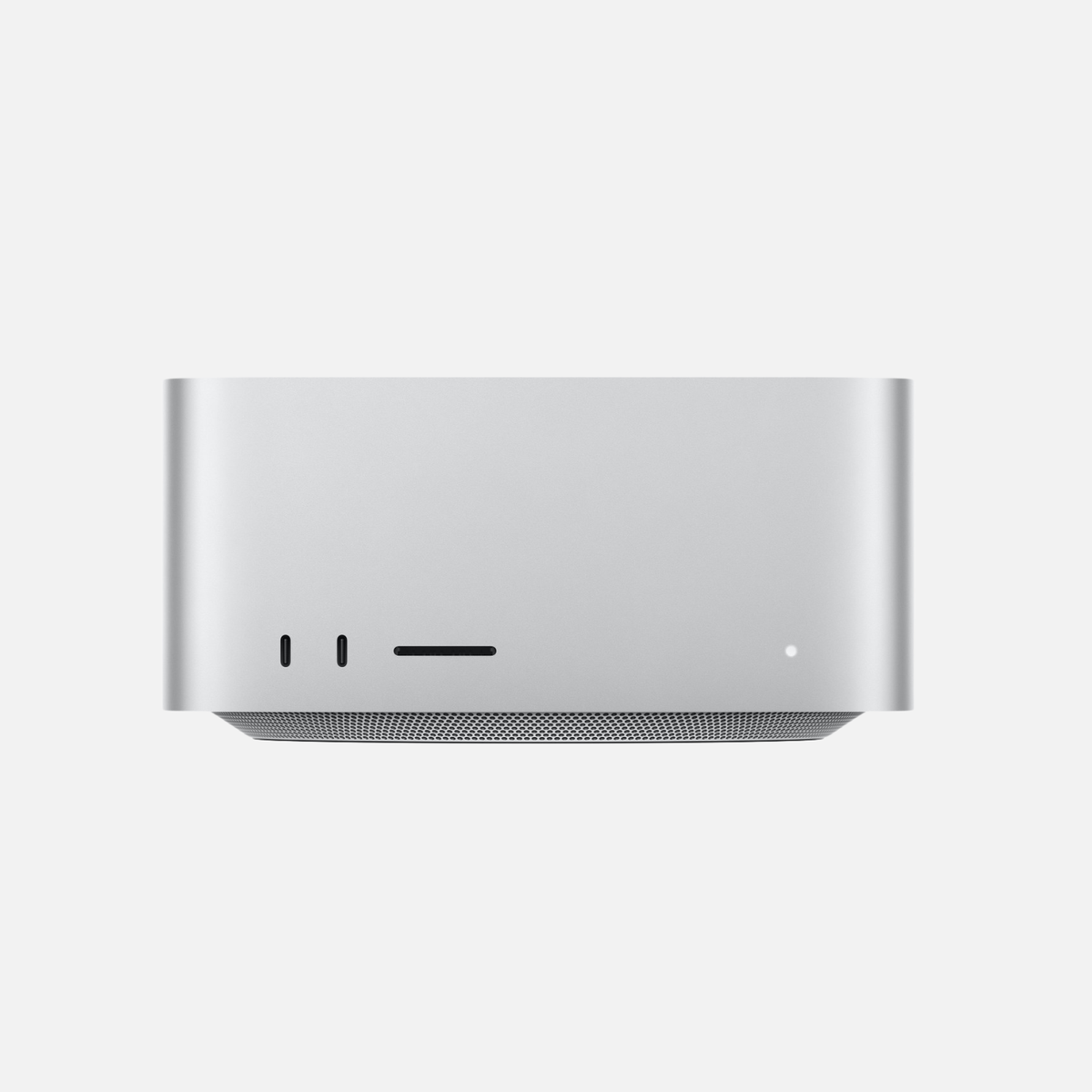
The Mac mini is particularly well suited to external storage expansion. It normally stays at a desk, so an SSD does not have to be small or especially portable. A large external drive can remain permanently connected and store photos, videos, music, games or project files, for example.
4 TB for active projects
A fast 4 TB SSD makes sense if you regularly edit files directly from the external drive. Samsung T7 Shield is already enough for many everyday and photography workflows. If you move very large files, consider T9, X10 Pro or USB4.
8 TB for large amounts of data
For a desktop Mac mini, the SanDisk Desk Drive 8 TB is particularly interesting. It requires its own power adapter but offers plenty of capacity and read speeds of up to 1,000 MB/s. For archives, media libraries and Time Machine, this can make more sense than a smaller high-end SSD.
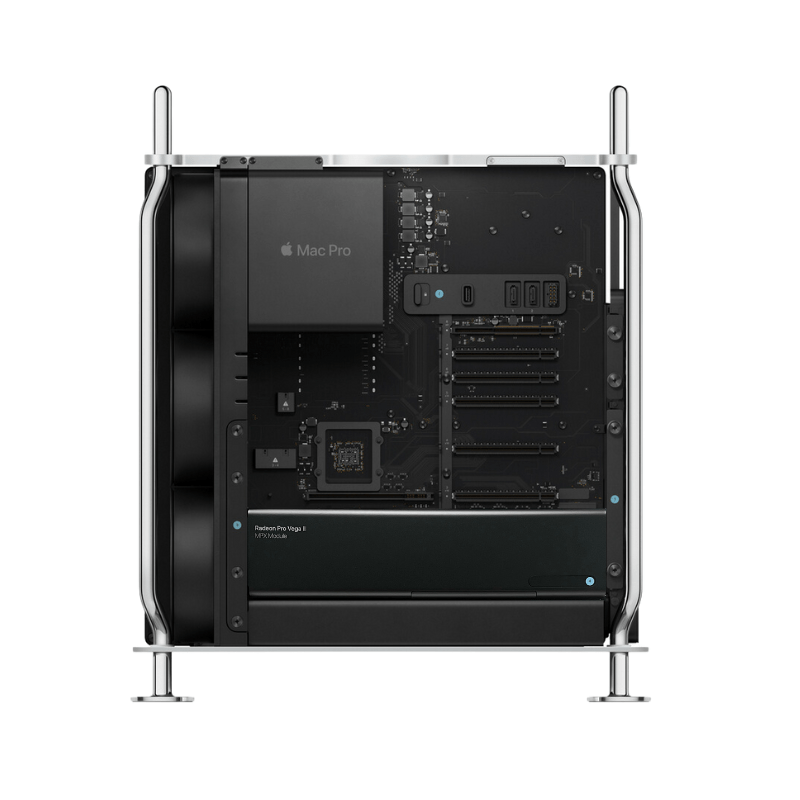
Expand Mac Studio storage: Large SSDs for professional workflows
With the Mac Studio, more demanding tasks are often the focus: Final Cut Pro, DaVinci Resolve, large RAW libraries, audio productions, 3D assets or local AI models. External storage should therefore be chosen to suit the workflow.
Fast working storage for video and large projects
For active projects, the SanDisk Extreme PRO USB4 4 TB is technically the most interesting in this selection. It uses USB4 at 40 Gbit/s and, according to SanDisk, reaches up to 3,800 MB/s reading and 3,700 MB/s writing. This makes it particularly interesting when many large files are regularly processed directly from the external drive.
8 TB for project and archive storage
Not every Mac Studio workflow needs maximum transfer rates. For completed projects, media libraries, samples, render files or additional backups, an 8 TB solution can make more economic sense. Here, SanDisk Desk Drive offers a strong combination of capacity and everyday desktop practicality.
If you are still choosing between the two desktop models, our “Mac mini or Mac Studio?” comparison provides further decision guidance.
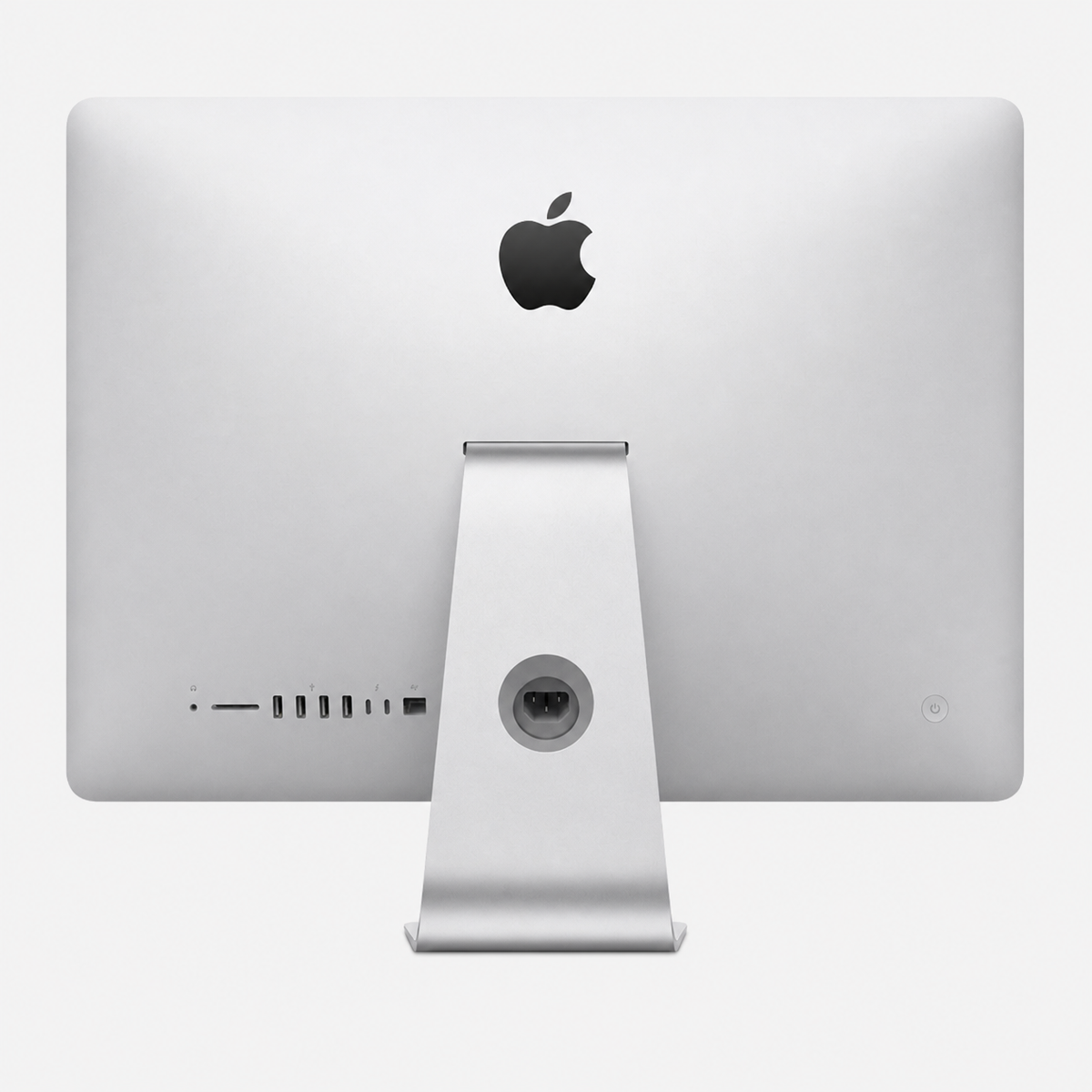
Expand iMac storage: Plenty of space without rebuilding the workstation
With the iMac too, internal storage cannot simply be upgraded later. An external SSD is therefore an elegant way to move photo archives, videos, music or project files off the internal drive.
Since an iMac stays in one location, an 8 TB Desk Drive is particularly well suited when a great deal of storage is needed. It can sit unobtrusively beside or behind the display. If you work directly from the SSD with Lightroom, Photoshop or Final Cut, however, a faster 4 TB solution is more beneficial.
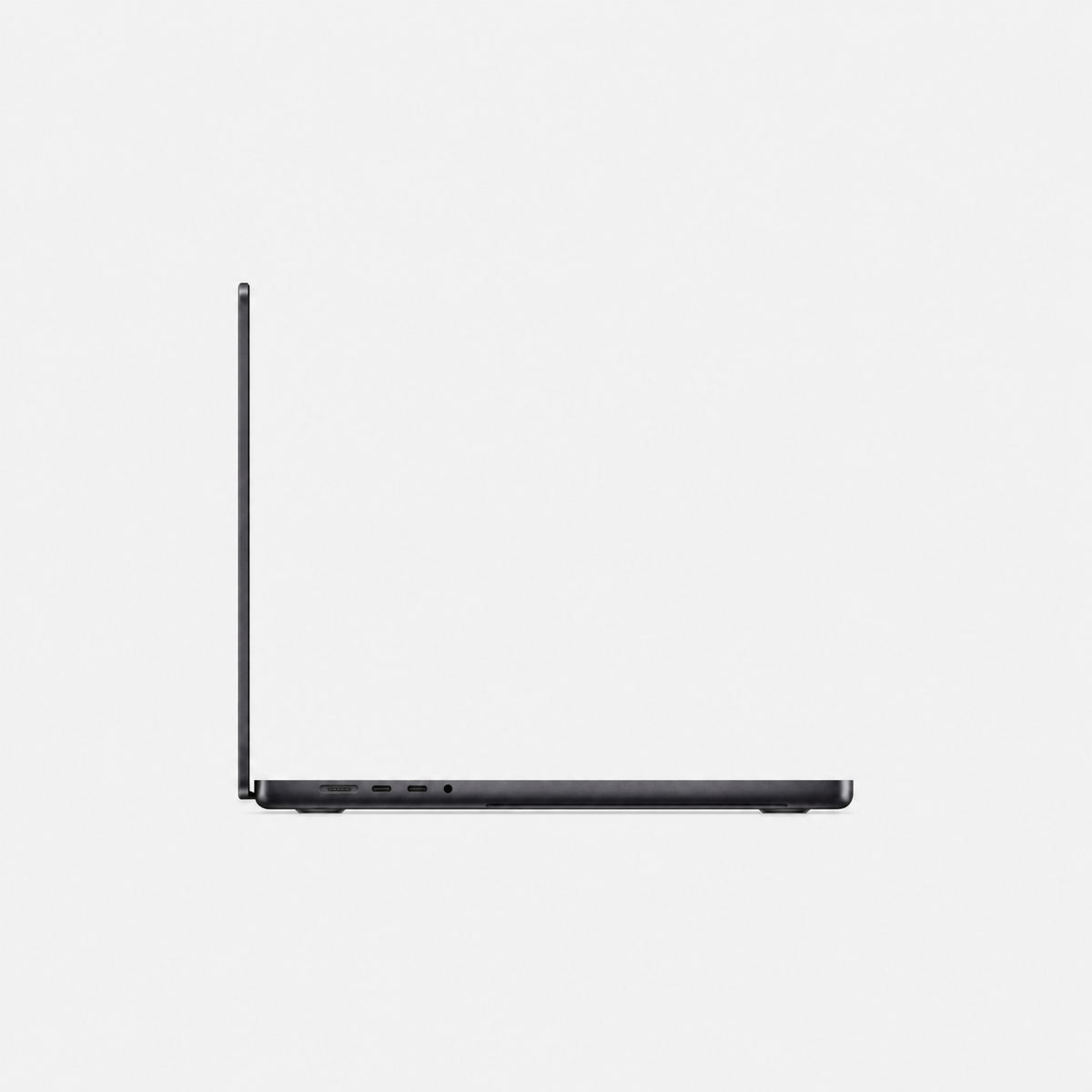
Expand MacBook Pro storage: 4 TB, fast and portable
With the MacBook Pro, weight, robustness and USB-C power matter as well as capacity. An external drive should be easy to use on the go without requiring an additional power adapter.
The Samsung T7 Shield 4 TB is a particularly good all-round option here: compact, IP65 certified and up to 1,050 MB/s fast. For larger creative workflows, T9, X10 Pro or the USB4 SanDisk are interesting.
Samsung T5 EVO even offers 8 TB in portable form, but is significantly slower at up to 460 MB/s. This can still be attractive for large archives on the go; for intensive 4K/8K projects, I would choose a faster 4 TB SSD instead.
Samsung T7 Shield 4 TB: Our all-round recommendation
The Samsung T7 Shield 4 TB combines read speeds of up to 1,050 MB/s and write speeds of 1,000 MB/s with a robust casing. Samsung specifies IP65 protection and resistance to drops from up to three metres under the stated test conditions.
It is not the fastest SSD in this comparison, but that is precisely why it is interesting for many users. On MacBook Pro, Mac mini or iMac, it already delivers enough performance for backups, photo archives and many active projects.
Our assessment: the best combination of mobility, robustness, 4 TB and everyday practicality.
Samsung T9 4 TB: Fast portable SSD for large files
The Samsung T9 4 TB reaches up to 2,000 MB/s reading and writing according to Samsung, and uses USB 3.2 Gen 2x2 at 20 Gbit/s. It is therefore positioned for large file transfers and more demanding creative workflows.
Important on a Mac: the advertised maximum speed requires a suitable 20 Gbit/s connection. Actual achievable speed may be lower depending on the Mac model and interface.
Our assessment: a high-quality premium all-round SSD with 4 TB when speed matters more than the lowest price.
Crucial X10 Pro 4 TB: A fast alternative for creatives
The Crucial X10 Pro 4 TB also belongs to the fast portable 20 Gbit/s SSD class. It is interesting for photographers, video editors and other users who regularly move large files and want a compact SSD.
Here too, maximum manufacturer performance is only achieved if the host system supports the corresponding USB connection. For archiving alone or Time Machine, an SSD of this performance class is therefore not necessarily required.
Our assessment: a strong alternative to Samsung T9 for professional mobile workflows.
SanDisk Extreme PRO USB4 4 TB: High-end SSD for Mac Studio and MacBook Pro
The SanDisk Extreme PRO USB4 4 TB is the fastest SSD in this selection. SanDisk specifies up to 3,800 MB/s reading and 3,700 MB/s writing through USB4 Gen 3x2 at 40 Gbit/s.
Particularly on modern Macs with fast USB4/Thunderbolt interfaces, this is an interesting option for video, large RAW projects and other workflows that work directly from external storage.
Our assessment: the best high-end recommendation for very fast external 4 TB storage.
SanDisk Desk Drive 8 TB: Our recommendation for large desktop storage expansion
The SanDisk Desk Drive 8 TB takes a different approach from portable SSDs. It stays permanently on the desk, has an external power adapter and offers up to 1,000 MB/s reading and 900 MB/s writing.
This is precisely why it suits Mac mini, Mac Studio and iMac so well. Whether an SSD fits in a pocket does not matter here. High capacity, a tidy workstation and enough speed for large amounts of data are much more important.
SanDisk also specifies direct compatibility with Apple Time Machine. This is particularly attractive for 8 TB backups, photo archives, video footage and large media libraries.
Our assessment: the best 8 TB solution in this comparison for desktop Macs.
Samsung T5 EVO 8 TB: Maximum portable capacity rather than peak performance
The Samsung T5 EVO 8 TB is interesting above all because of its capacity. At up to around 460 MB/s, it is significantly slower than T7 Shield, T9 or USB4 models, but offers 8 TB in a comparatively compact mobile format.
This makes it interesting for large photo archives, media libraries, backup data or completed projects that need to remain portable. If you want to edit large video files directly from the SSD, choose a faster solution instead.
Our assessment: portable 8 TB, ideal when capacity matters more than maximum speed.
4 TB or 8 TB: Which external SSD capacity is worthwhile for a Mac?
4 TB is ideal if you work actively from the SSD
4 TB already provides a great deal of space and is particularly interesting when speed plays a major role. For Lightroom libraries, Final Cut projects, photo archives and music production, a fast 4 TB SSD is often the best compromise.
8 TB is worthwhile for large archives and media libraries
8 TB becomes interesting when a lot of data needs to stay externally on a permanent basis: completed video projects, large image archives, sample libraries, family media libraries, game libraries or extensive backups.
USB at 10, 20 or 40 Gbit/s: Which external SSD suits a Mac?
With external SSDs, advertised speed can only be achieved if the SSD, Mac and cable support the same fast interface.
| Class | Typical SSD | Useful for |
|---|---|---|
| 5–10 Gbit/s | T5 EVO, T7 Shield | Backups, photo archives, everyday use |
| 20 Gbit/s | T9, X10 Pro | Large transfers, creative workflows |
| 40 Gbit/s | Extreme PRO USB4 | High-end video, very large projects |
USB 3.2 Gen 2x2 in particular is an important point on a Mac: not every Mac provides this 20 Gbit/s USB operating mode. A T9 or X10 Pro may therefore run well below its theoretical maximum performance on some Macs. USB4 is often the more interesting high-end interface for modern Macs.
Which large SSD for which Mac workflow?
Photo editing and Lightroom
Large RAW libraries can quickly reach 4 TB. T7 Shield is enough for many photographers, while USB4 becomes interesting if very large numbers of images are regularly imported, exported or moved between projects. Find out more about suitable Mac hardware in our “Which Mac for photo editing?” guide.
Video editing and Final Cut Pro
For active 4K/8K projects, speed matters more. Here, I would choose SanDisk Extreme PRO USB4, Samsung T9 or Crucial X10 Pro instead. Completed projects can then be moved to a larger 8 TB drive.
Music production
Large sample libraries require plenty of storage, but not always maximum sequential speed. Depending on the library, a large 8 TB SSD can therefore be more attractive than a smaller high-end SSD.
Local AI
Model files, checkpoints and generated media can take up substantial space. For locally used AI, however, sufficient unified memory remains crucial; external SSD capacity does not replace RAM. Find out more in our AI buying guide for Mac.
Time Machine
For Time Machine, capacity is often more important than extreme speed. A large 8 TB SSD can make particular sense for Macs with a large internal SSD or extensive amounts of data. We explain setup in our Time Machine guide.
Format an external 4 TB or 8 TB SSD for Mac
If the drive is used exclusively on modern Macs, APFS makes sense in many cases. If the SSD regularly moves between Mac and Windows, exFAT is more practical.
For Time Machine, configure the drive as a backup destination through macOS rather than also treating it as a general exchange drive.
Our recommendations at a glance
- Best 4 TB all-round SSD: Samsung T7 Shield 4 TB
- Fast portable 4 TB: Samsung T9 4 TB or Crucial X10 Pro 4 TB
- Best high-end SSD: SanDisk Extreme PRO USB4 4 TB
- Best 8 TB solution for Mac mini, Mac Studio and iMac: SanDisk Desk Drive 8 TB
- Best portable 8 TB solution: Samsung T5 EVO 8 TB
Frequently asked questions about expanding Mac storage
Can Mac mini storage be expanded after purchase?
The internal SSD in current Mac mini models is not intended as a conventional user upgrade. External USB-C, USB4 or Thunderbolt SSDs are therefore the simplest way to add several terabytes of storage later.
Can a Mac Studio be expanded with 8 TB externally?
Yes. An external 8 TB SSD can remain permanently connected to a Mac Studio. This makes excellent sense for archives and large media collections. For particularly performance-intensive active projects, also pay attention to the SSD’s speed.
Is 4 TB enough for a Mac?
For many creative users, yes. 4 TB already offers plenty of space for photos, video projects and media libraries. 8 TB becomes interesting when extensive archives, samples, backups or completed projects need to stay externally on a permanent basis.
Is an 8 TB SSD worthwhile for a Mac?
It can make excellent sense, especially with desktop Macs. A large external SSD is particularly attractive for photo and video archives, music libraries, Time Machine and other data that does not need to stay on the internal SSD.
Which external SSD is fastest for modern Macs?
In this selection, SanDisk Extreme PRO USB4 is the fastest solution. Whether maximum performance is achieved depends on the specific Mac, port and cable.
Conclusion: Large SSDs make Mac mini, Mac Studio, iMac and MacBook Pro significantly more flexible
An external SSD is the simplest way to add several terabytes of storage to a Mac after purchase. 4 TB is particularly attractive for fast active projects, while 8 TB shows its strengths with archives, media libraries and backups.
For Mac mini, Mac Studio and iMac, a desktop 8 TB solution is particularly practical. With a MacBook Pro, compact 4 TB SSDs are often the better choice. If you need maximum external performance, consider USB4; if you mainly need plenty of storage, you do not have to pay for the highest transfer rate.
Need less than 4 TB?
Our separate SSD comparison provides more compact recommendations for backups, photos and general Mac storage expansion.
Related Mac guides
- External SSD for Mac: 5 recommendations
- Back up your Mac properly: Time Machine backup
- Mac mini or Mac Studio?
- Which Mac for photo editing?
- Which Mac is suitable for AI?
* As an Amazon Associate, we earn from qualifying purchases.




Share:
External SSD for Mac: 5 recommendations for backups, photos & more
Clean your Mac properly: Safely clean the display, keyboard, casing & ports