

Updated: August 2026 · Reading time: approx. 12 minutes
Dust, fingerprints and dirt accumulate even on a well-maintained Mac. With the right tools, you can safely clean a MacBook, iMac, Mac mini or Mac Studio without damaging the display coating, keyboard, ports or casing.
This guide explains how to clean the display, keyboard, trackpad, aluminium casing and ports properly, which cleaning products are suitable and which methods you should avoid.
How do you clean a Mac properly?
Shut down the Mac, disconnect the power adapter and accessories, and use a soft, lint-free microfibre cloth. For many surfaces, a cloth lightly dampened with water is enough. Never spray liquid directly onto the device. Be particularly careful with the display and avoid aggressive cleaners.
1. Preparation: Shut down the Mac and remove accessories
Before you begin cleaning, shut down the Mac completely. Disconnect the power adapter, external drives, displays, USB devices and other accessories.
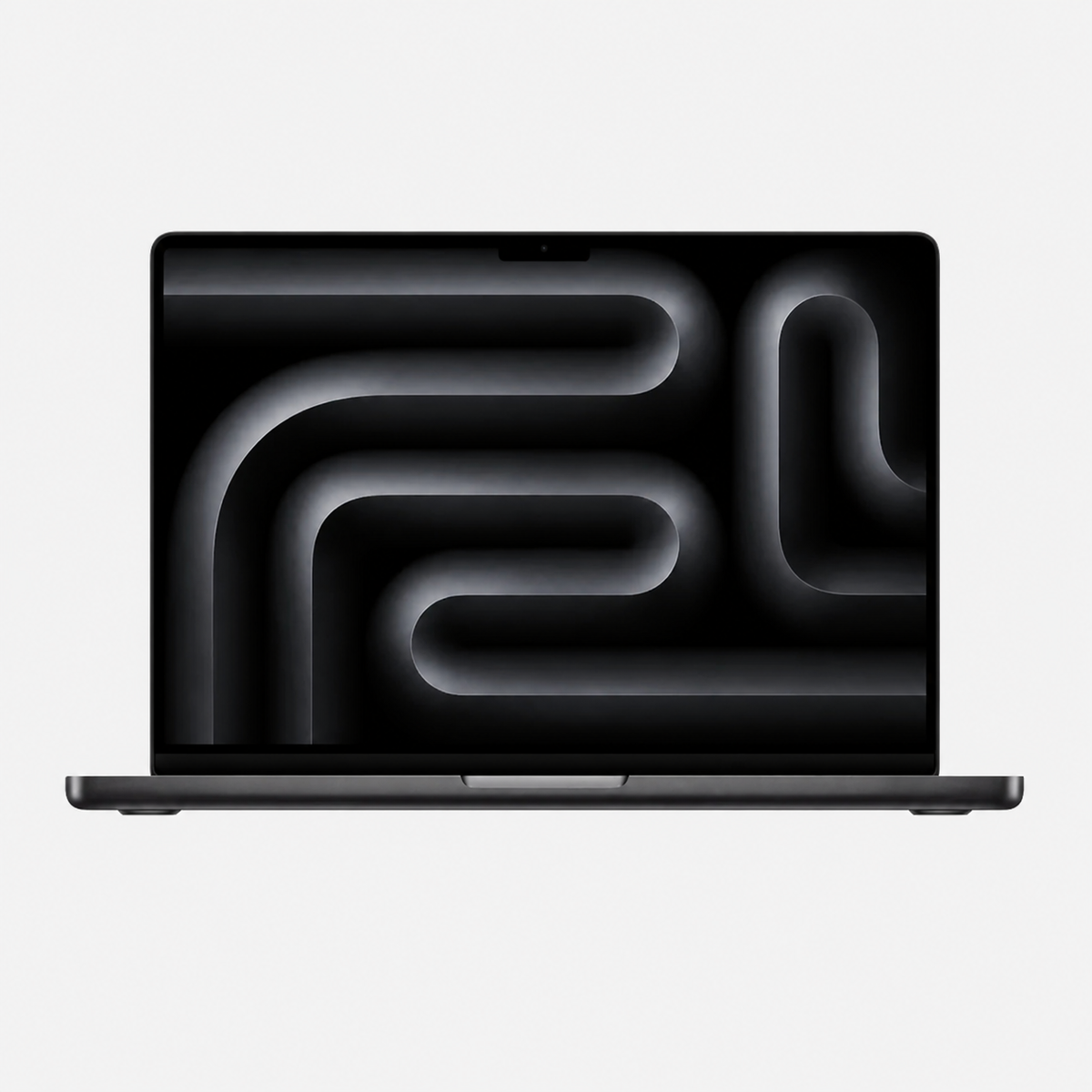
2. Clean a MacBook or iMac display properly
For normal fingerprints and dust, a clean, soft microfibre cloth is usually enough. Wipe the surface without applying strong pressure.
For heavier dirt
Lightly dampen the cloth with water. It should be only minimally damp and must not drip. If necessary, dry with a second clean cloth.
What about glass cleaner?
Avoid aggressive household cleaners, abrasive products and cleaners with a high alcohol content on the display. They can damage coatings or leave streaks.
3. Clean a MacBook keyboard
Dust, crumbs and skin particles collect between the keys. A dry microfibre cloth is enough for normal surface cleaning.
You can carefully remove loose particles with a soft brush. Be particularly careful with compressed air and do not blow high-pressure air into the keyboard at close range.
Greasy keys
For greasy fingerprints, very lightly dampen a cloth and wipe the keys individually. Make sure no moisture gets between the keys.
4. Clean the trackpad and palm rest
The trackpad and palm rest can be cleaned with a soft, lightly dampened cloth. Do not use abrasive sponges or rough paper towels.
5. Clean the aluminium casing of MacBook, Mac mini and Mac Studio
First remove dust with a dry cloth. Then wipe away fingerprints with a minimally dampened microfibre cloth. More cleaning product does not automatically mean a better result.
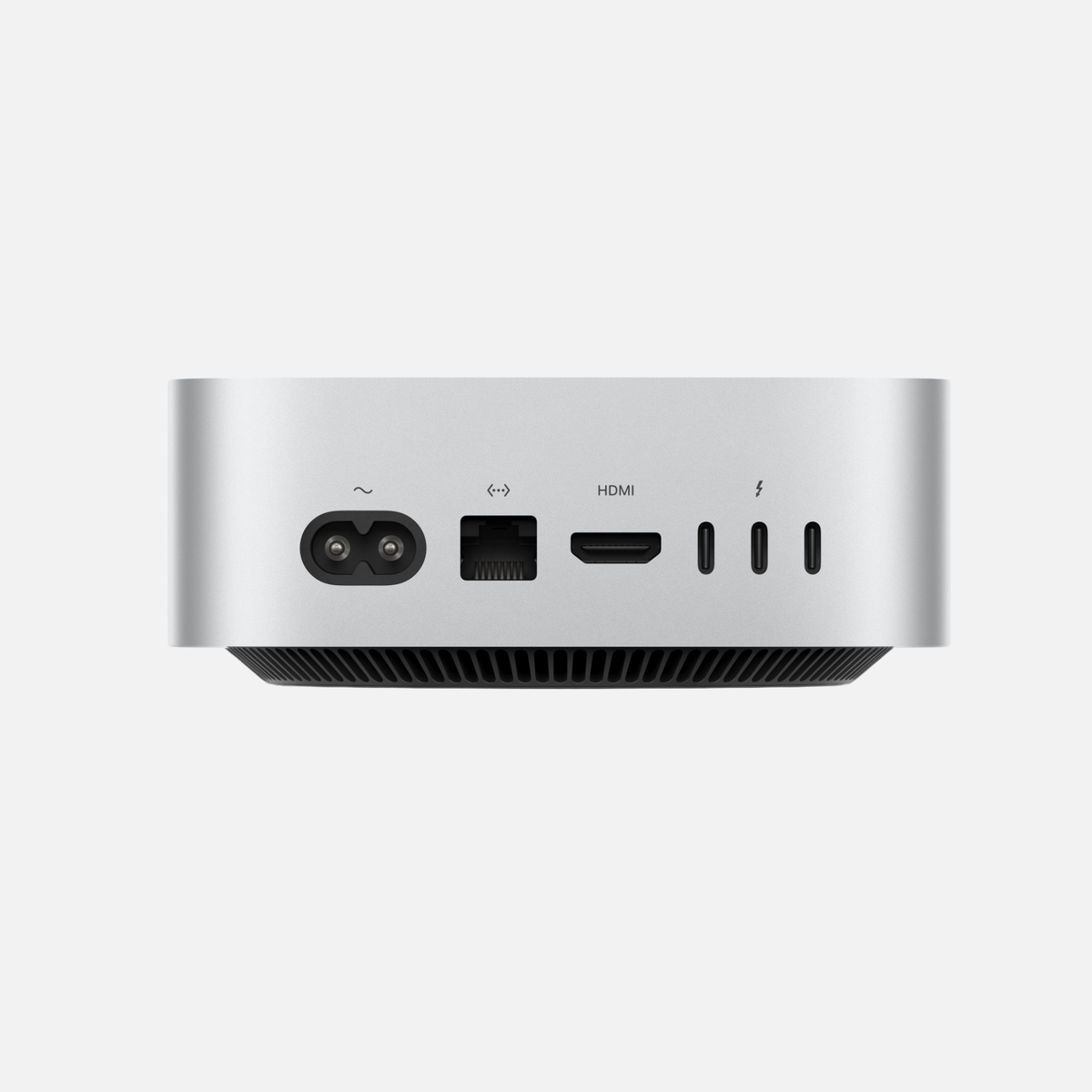
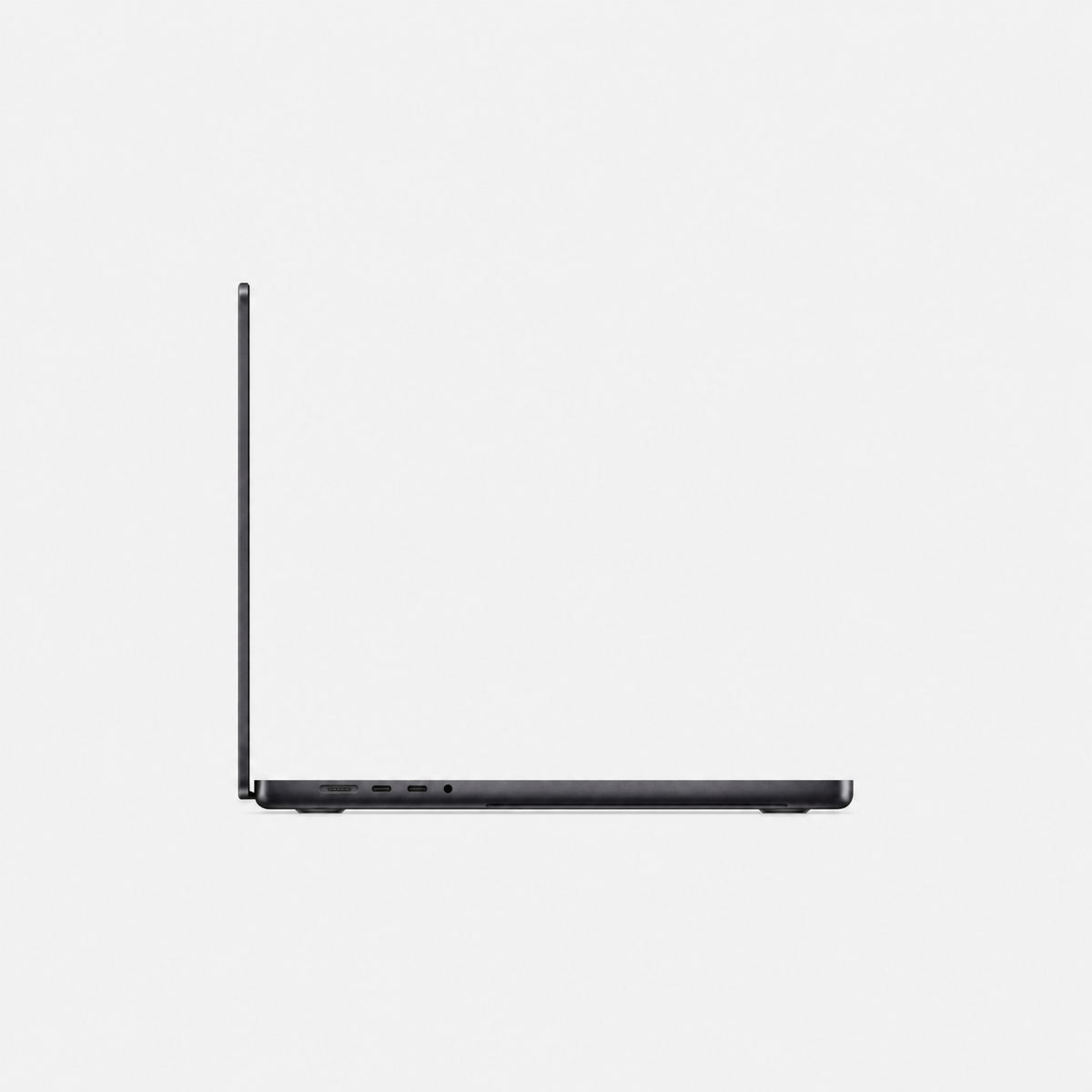
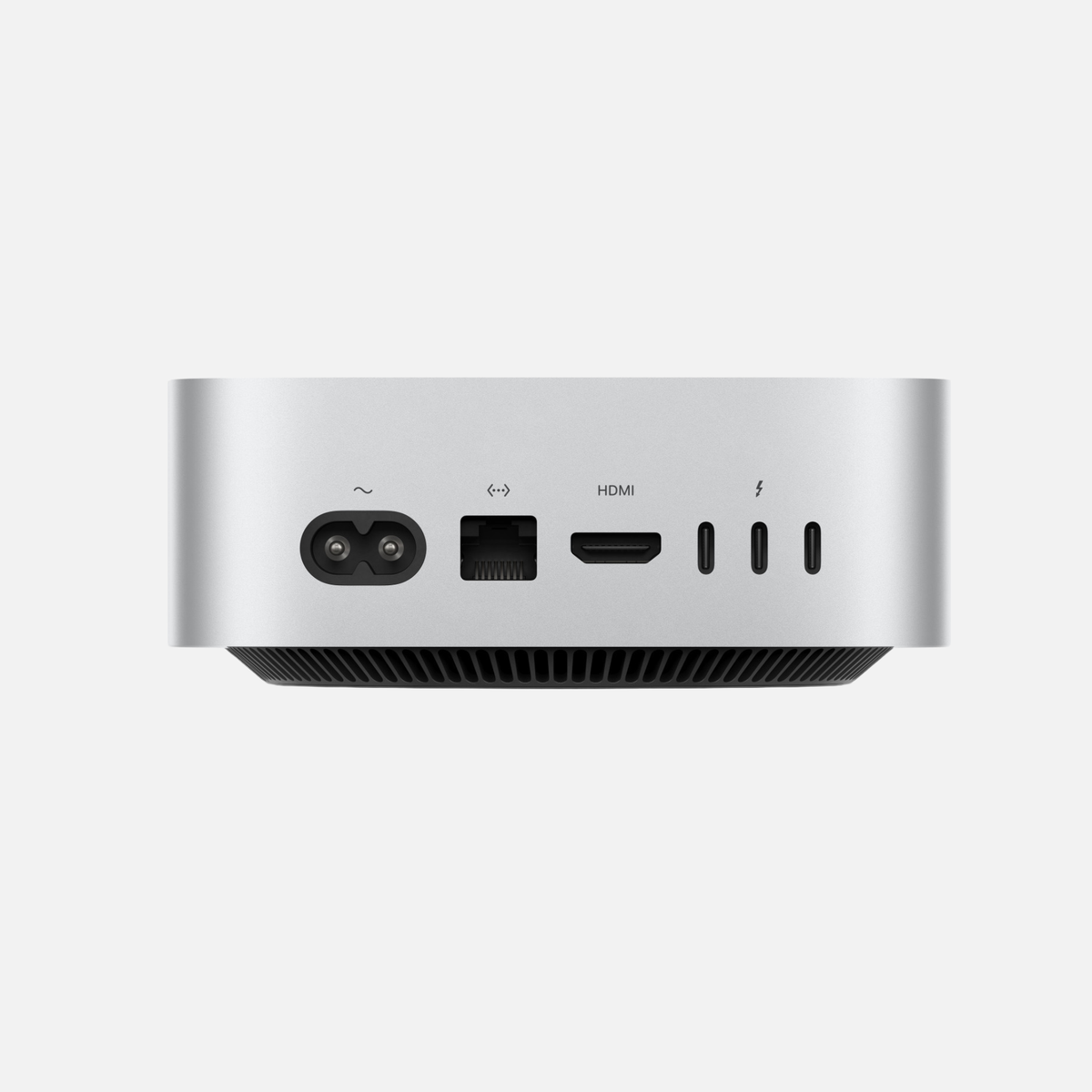
6. Clean USB-C, Thunderbolt, HDMI and other ports
Carefully remove visible loose dust while keeping everything dry. Do not insert metal objects, needles or damp cotton buds into the sockets.
USB-C plug no longer fits properly?
If a cable fits unusually loosely or the connection often drops, dirt in the port can be a cause. If deposits cannot be removed safely and without force, have the port inspected professionally.
7. Clean ventilation openings
Dust particles can collect around ventilation openings on actively cooled Macs. Remove visible surface dust with a soft brush or cloth.
Do not open the device for normal cleaning. If a Mac is constantly unusually hot or its fans run very strongly without an apparent workload, our “Slow Mac? 10 causes and solutions” guide helps with troubleshooting.
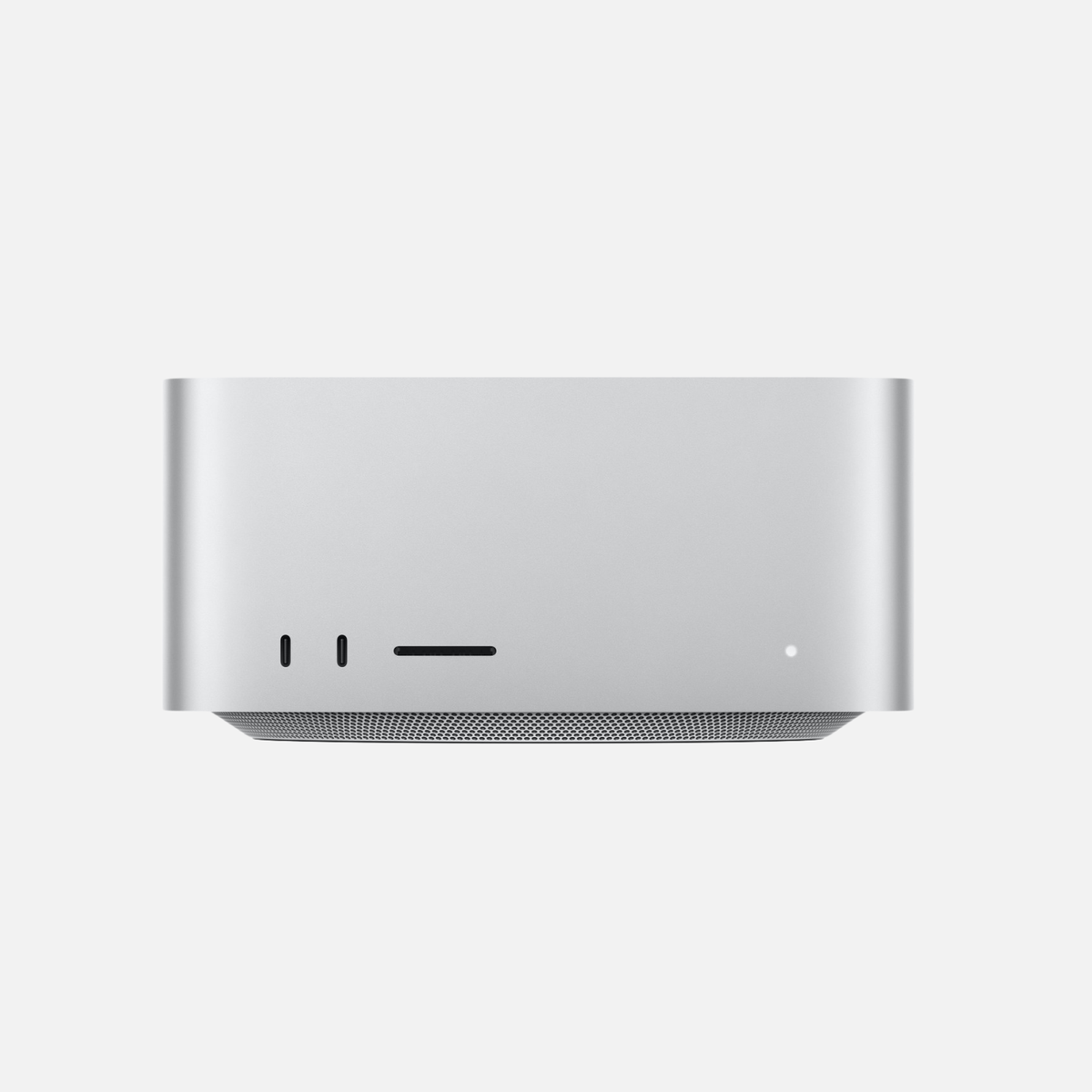
8. Clean Mac mini and Mac Studio
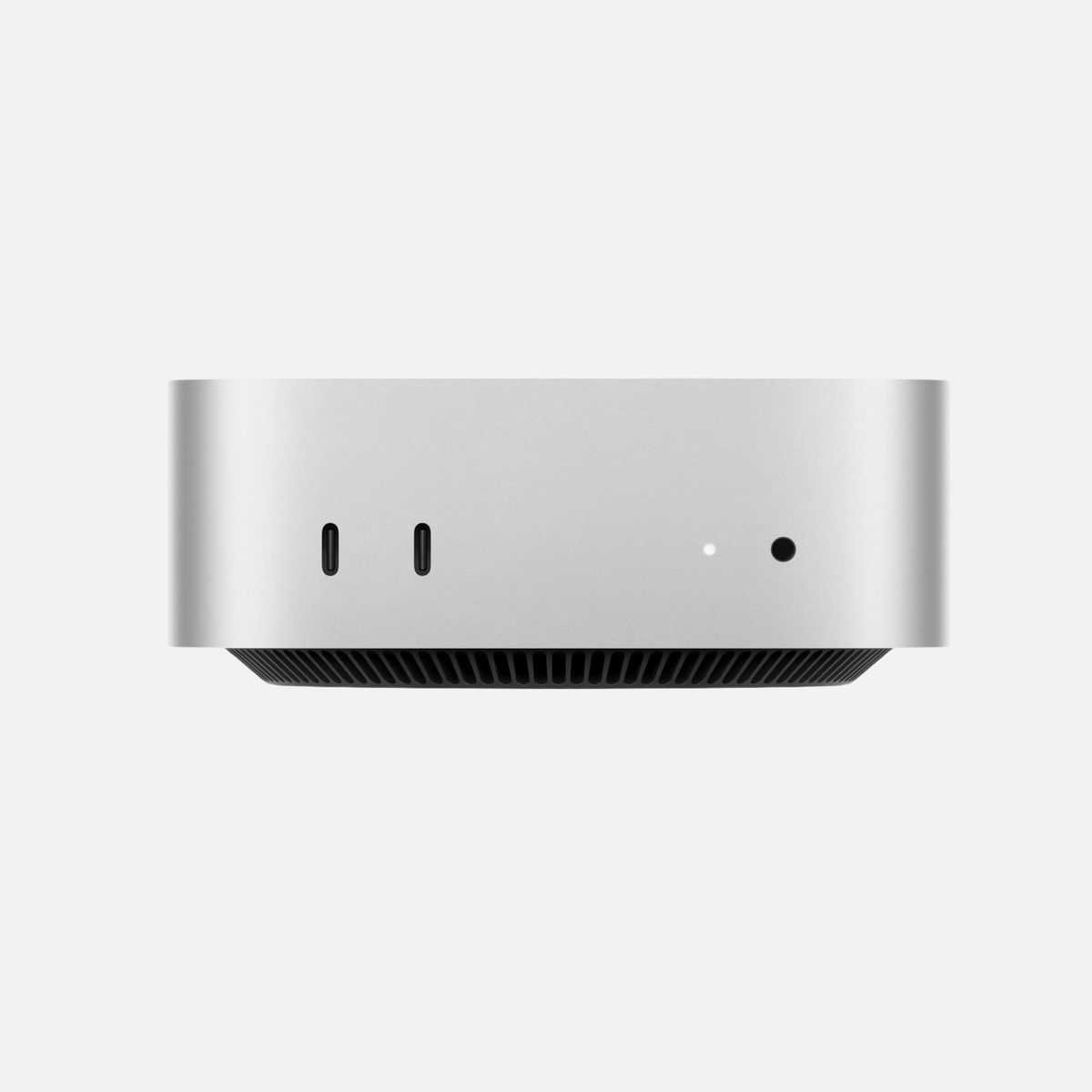
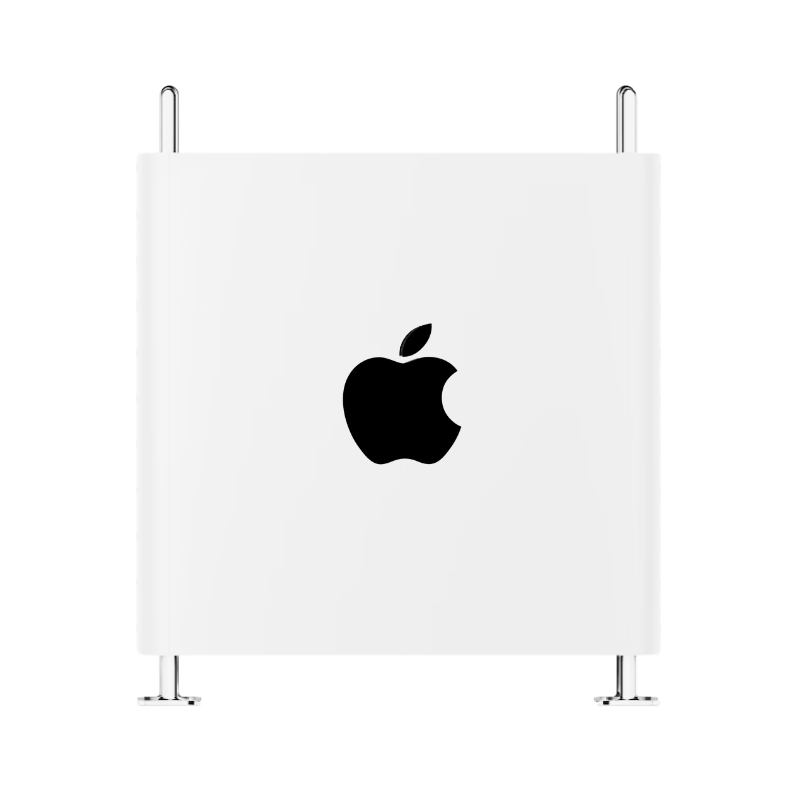
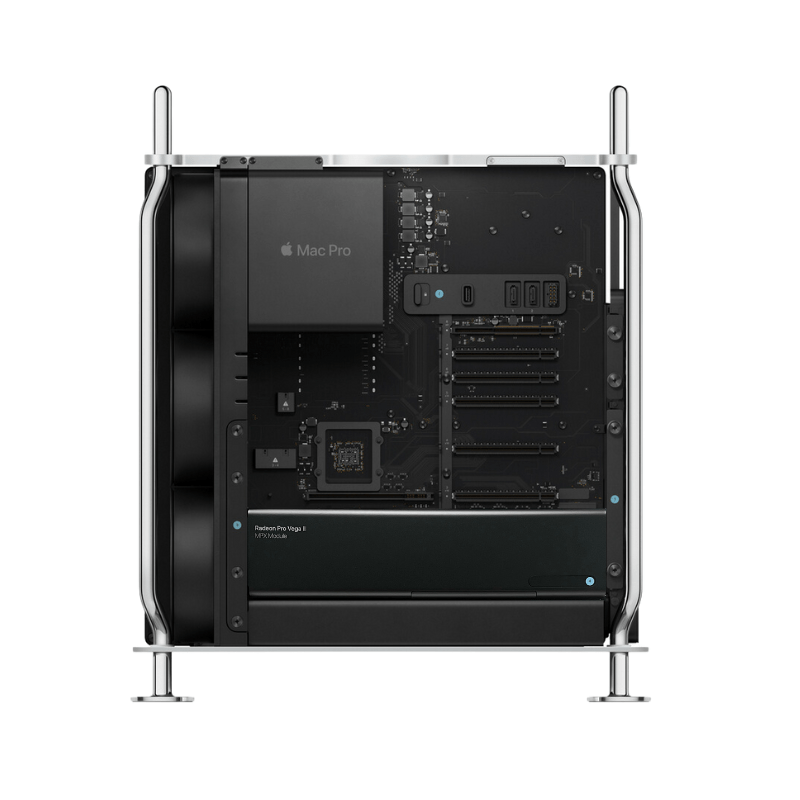
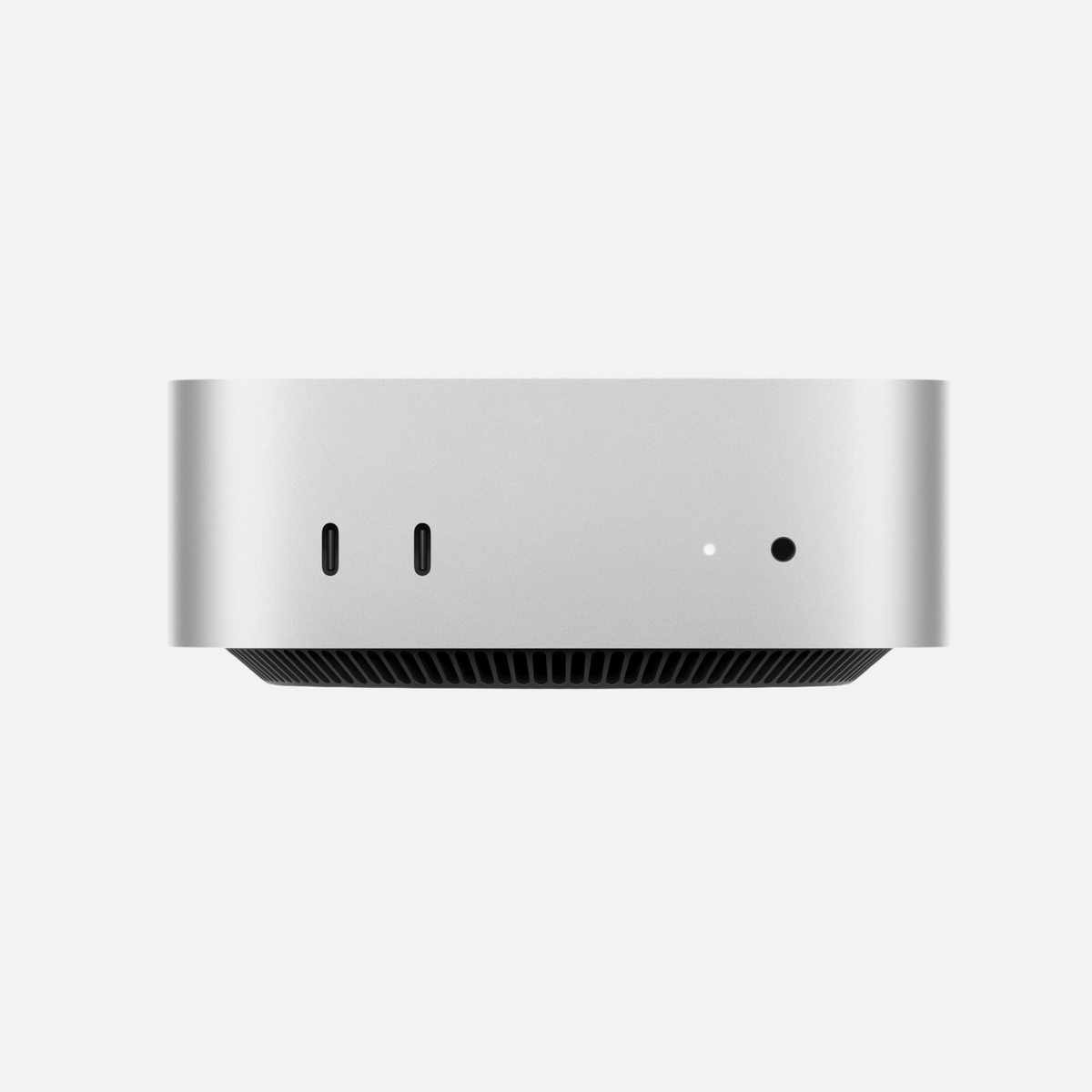
With the Mac mini and Mac Studio, cleaning is particularly straightforward. Wipe the top and sides with a soft cloth and regularly check ports and ventilation areas for dust.
Clean the desk as well
A dusty workspace quickly makes a freshly cleaned Mac dirty again. Clean the surface, cables and peripherals at the same time.
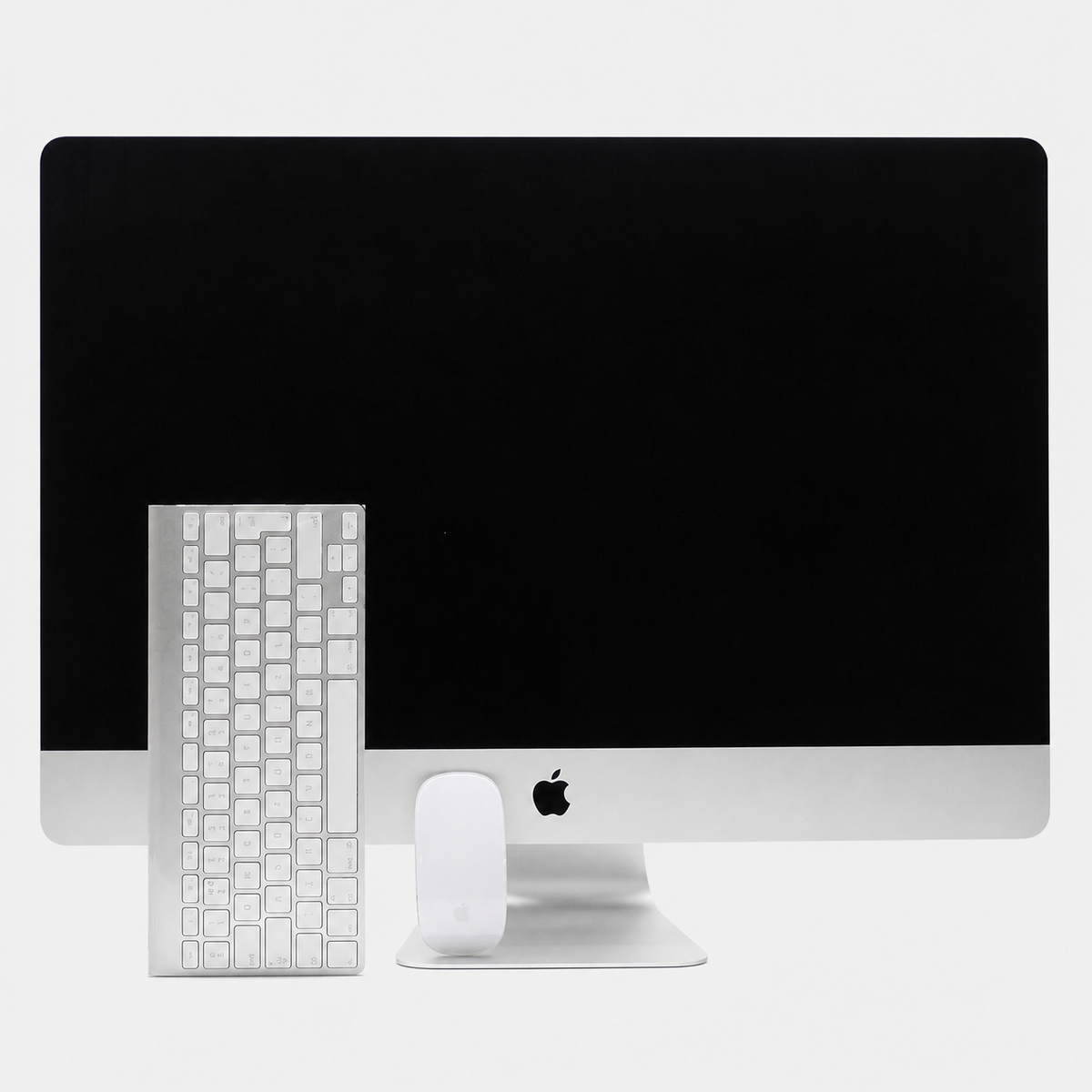
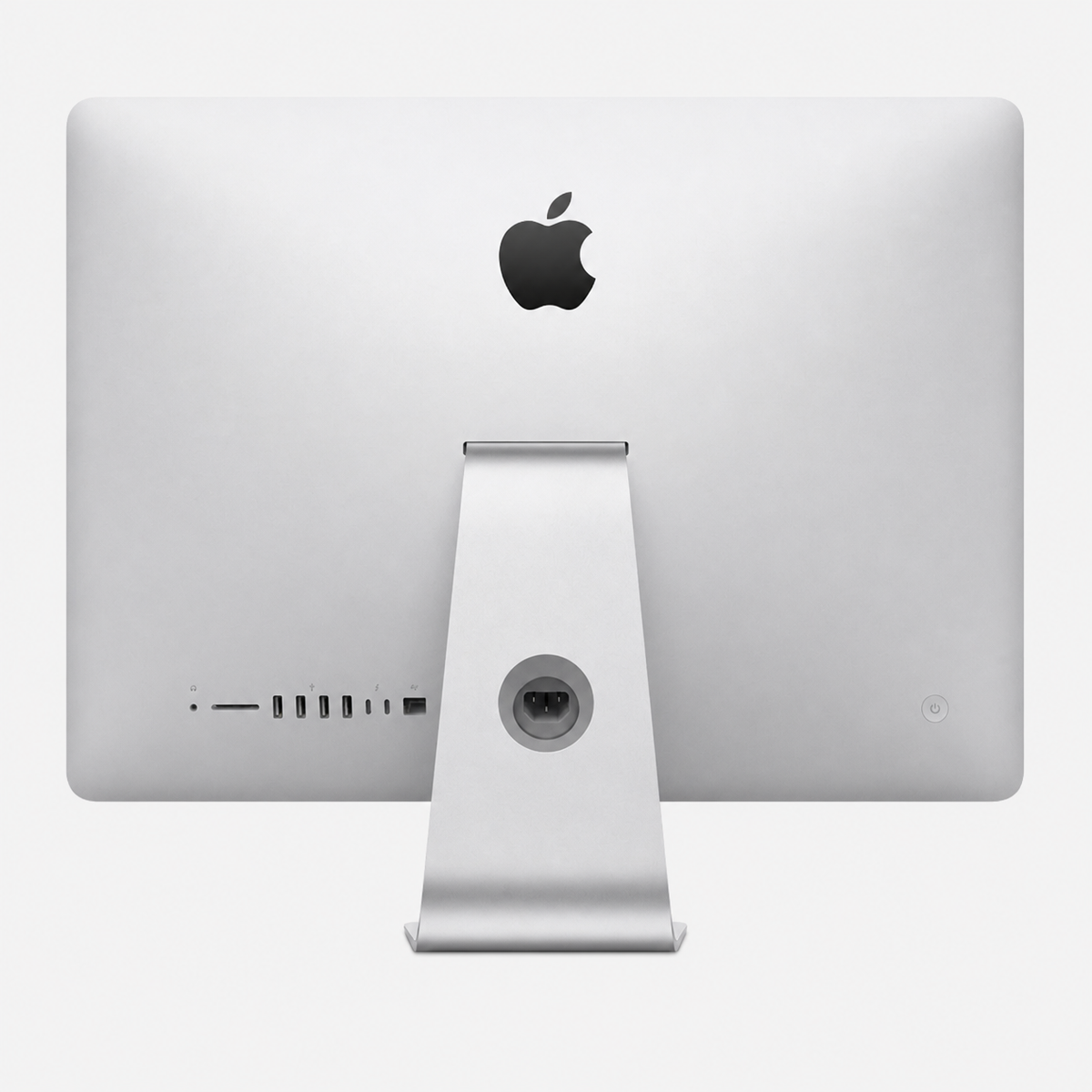
9. Clean an iMac: Treat the display and stand separately
With the iMac, treat the display particularly carefully; the stand and back can be cleaned with a soft cloth. Pay attention to ventilation areas and ports without allowing liquid into openings.
10. Care properly for a used or refurbished Mac
A well-maintained Mac retains a high-quality appearance for longer. With a used or refurbished Mac in particular, an initial thorough but gentle exterior cleaning is worthwhile after purchase.
Useful for later resale as well
Cleaning cannot remove scratches. However, a clean device looks significantly better maintained when sold or passed on and is easier to assess.
Mistakes to avoid when cleaning a Mac
- Spraying cleaner directly onto the device
- Using very wet cloths
- Using abrasive products or aggressive glass cleaners
- Inserting metal objects into ports
- Wiping the display with strong pressure
- Unnecessarily opening the device for normal cleaning
- Blowing dust deeper into ventilation openings with high pressure
Our simple Mac cleaning routine
- Shut down the Mac and remove accessories.
- Remove dust with a dry microfibre cloth.
- If necessary, minimally dampen the cloth with water.
- Clean the display without pressure.
- Treat the keyboard and ports carefully and keep them dry.
- Check ventilation openings for visible dust.
- Clean the workspace and cables as well.
Frequently asked questions about cleaning a Mac
Can I clean a MacBook display with glass cleaner?
Avoid normal household glass cleaners. For fingerprints, a soft microfibre cloth is usually enough, lightly dampened with water if necessary.
May I use disinfectant on a Mac?
Apple permits certain disinfectant wipes or 70% isopropyl alcohol wipes on specified hard, non-porous surfaces under defined conditions. Do not use them on fabric or leather surfaces and never let liquid enter openings.
How often should you clean a Mac?
There is no fixed interval. Clean the display and keyboard as needed, and occasionally check ventilation openings and ports.
Can I use compressed air?
Apple provides specific instructions for keyboards in certain cases. For general cleaning, do not blow compressed air uncontrolled into ports or ventilation openings at close range.
How do I clean nano-texture glass?
Follow Apple’s specific cleaning instructions and use the designated polishing cloth.
Conclusion: Cleaning a Mac – Less is usually more
You normally do not need aggressive specialist products to clean a Mac safely. A clean microfibre cloth, little moisture and careful work are enough for most dirt.
Especially with the display, keyboard, ports and ventilation openings, avoid force and do not allow liquid into the device.
Still looking for a well-maintained Mac?
Discover used and refurbished Apple computers for different requirements.




Share:
Expand Mac storage: 4 TB & 8 TB SSDs for Mac mini, Mac Studio, iMac & MacBook Pro
The best MacBook accessories for school & university in 2026: 7 useful recommendations