
Which Mac mini fits the way you work?
An affordable M1 can handle email, documents and everyday family use. For working from home, lots of browser tabs and regular photo editing, a Mac mini M4 with 16 GB of RAM and a 512 GB SSD is a good starting point. For large images, virtual machines or multicamera 4K video, look at your memory needs first. A used M2 Pro with 32 GB may suit you better than an M4 with 16 GB.
Browse all used and refurbished Mac mini models
Five chips compared
Memory bandwidth, measured in GB/s, tells you how much data the chip can transfer to and from RAM each second. Higher bandwidth can help with some video effects and local AI. RAM capacity determines how much data can be held in memory at once. For documents, email and spreadsheets, the price, RAM and ports will usually matter more.
M1 (2020)
RAM · 8, 16 GB
Memory bandwidth · ≈ 68.3 GB/s1
SSD · 256, 512 GB, 1, 2 TB
CPU / GPU · 8 / 8
Simultaneous displays · 2
2 × Thunderbolt 3
An affordable option for browsing, schoolwork and office apps. 8 GB can work with a few apps open. Choose 16 GB if you regularly combine video calls, many tabs and other apps. For two displays, connect one via Thunderbolt and one via HDMI.
M2 (2023)
RAM · 8, 16, 24 GB
Memory bandwidth · 100 GB/s
SSD · 256, 512 GB, 1, 2 TB
CPU / GPU · 8 / 10
Simultaneous displays · 2
2 × Thunderbolt 4
Worth a look if a 16 GB model with enough storage costs considerably less than a comparable M4. Two USB-A ports are useful for older accessories. Both displays can connect via Thunderbolt, for example one 6K and one 5K at 60 Hz.
M2 Pro (2023)
RAM · 16, 32 GB
Memory bandwidth · 200 GB/s
SSD · 512 GB, 1, 2, 4, 8 TB
CPU / GPU · 10 / 16 · 12 / 19
Simultaneous displays · 3
4 × Thunderbolt 4
The 32 GB version is worth considering for large RAW photos, layered Photoshop files and demanding apps used together. Four Thunderbolt 4 ports give you room for accessories. With three displays, you can connect two at up to 6K over Thunderbolt and one at up to 4K over HDMI, all at 60 Hz.
M4 (2024)
RAM · 16, 24, 32 GB
Memory bandwidth · 120 GB/s
SSD · 256, 512 GB, 1, 2 TB
CPU / GPU · 10 / 10
Simultaneous displays · 3
3 × Thunderbolt 4
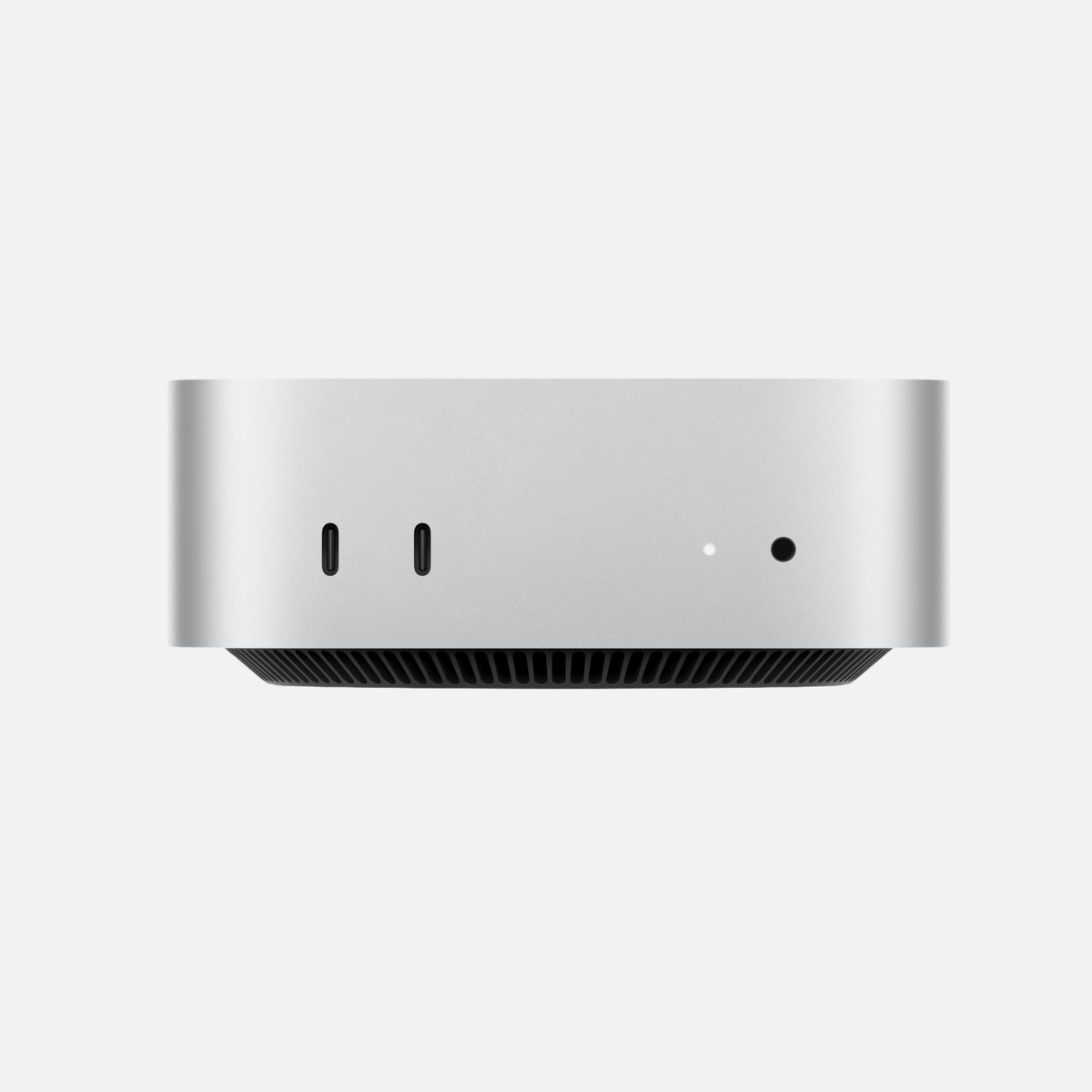
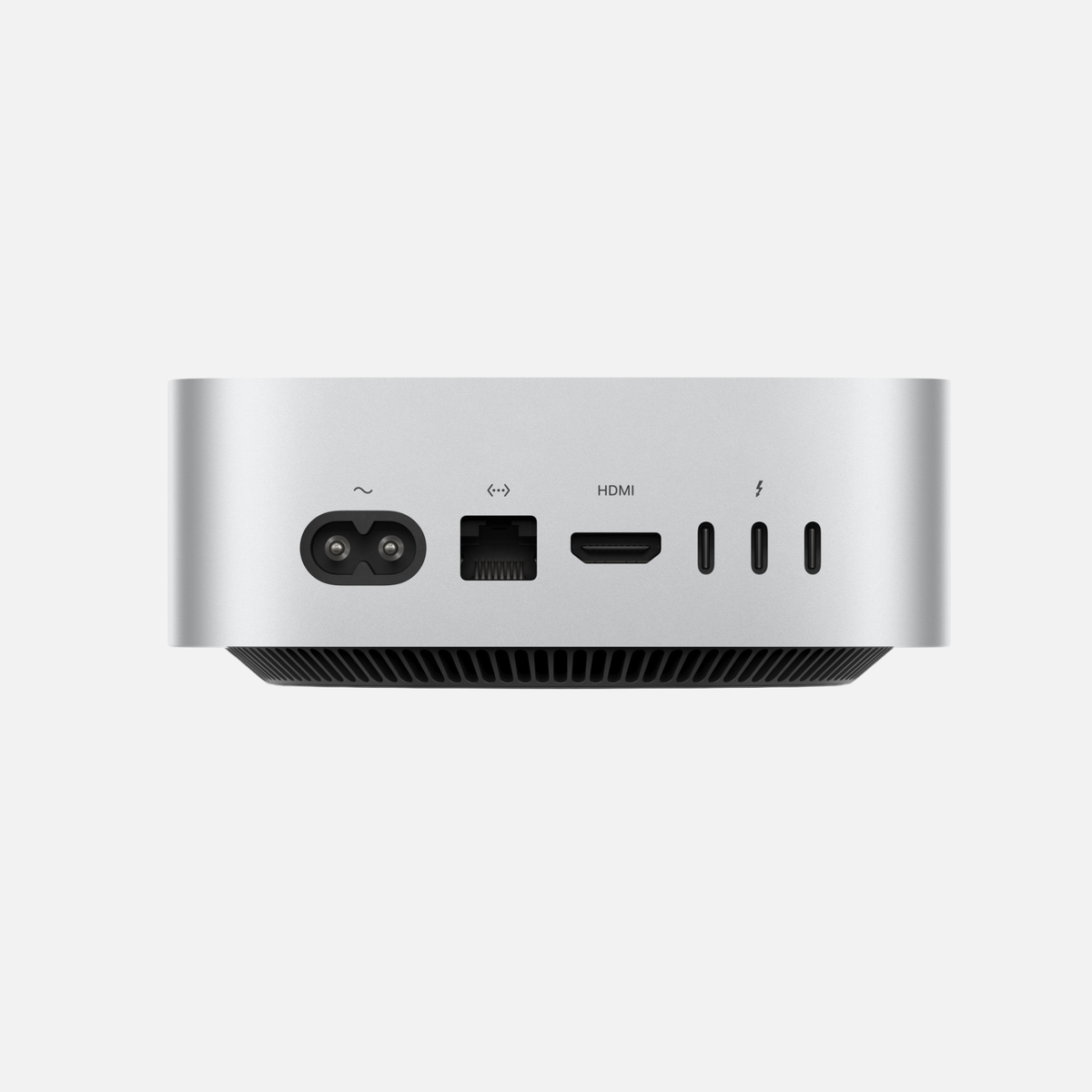
A versatile choice for office work, Lightroom and light to moderate 4K editing. 16 GB and 512 GB suit many buyers. Consider 24 or 32 GB if you regularly keep large projects open. The front USB-C ports are for accessories. Connect monitors to Thunderbolt or HDMI at the back.
M4 Pro (2024)
RAM · 24, 48, 64 GB
Memory bandwidth · 273 GB/s
SSD · 512 GB, 1, 2, 4, 8 TB
CPU / GPU · 12 / 16 · 14 / 20
Simultaneous displays · 3
3 × Thunderbolt 5
For frequent multicamera editing, demanding effects, rendering or memory-intensive projects. Start with 24 GB and consider 48 or 64 GB when your own projects need it. Thunderbolt 5 is particularly useful with a compatible fast drive or dock.
M2 Pro with 32 GB or M4 with 16 GB?
At a similar total price, consider the M2 Pro with 32 GB first for large Photoshop files, several creative apps or virtual machines. For office work, video calls and occasional photo editing, the M4 with 16 GB is usually a good fit. The M2 Pro has higher memory bandwidth and the M4 has a newer CPU. Export and effect speeds depend on the app and project.
On your current Mac, open a typical large project and check Memory Pressure in Activity Monitor. If it repeatedly stays yellow or red and switching apps slows down, choose more RAM. If pressure stays low but calculations take a long time, compare the chips using the same project. A short, single-track 4K clip is much lighter than several camera angles with colour grading and noise reduction.
Choose a Mac for photo editing
How much SSD space do you need?
256 GB can work for cloud documents and a few large apps if media lives on an external drive. 512 GB is comfortable for several apps and a modest photo library. Choose 1 TB or more for local photo catalogues, video footage and caches. RAM cannot be upgraded later. An external SSD adds file storage. Keep a separate backup.
Plan your displays and accessories
An M1 supports two displays natively, up to 6K/60 Hz over Thunderbolt and 4K/60 Hz over HDMI. An M4 can run two 6K displays via Thunderbolt and a third at 5K via Thunderbolt or 4K via HDMI, all at 60 Hz. The M4 Pro can run three 6K/60 Hz displays in the configurations Apple specifies. Check resolution, refresh rate, cables and dock before buying. M1 and M2 have USB-A. With M4 or M4 Pro, budget for an adapter, cable or hub for older USB accessories. Include a monitor, keyboard, mouse and, for video calls, a webcam if needed.
When should you consider Mac Studio?
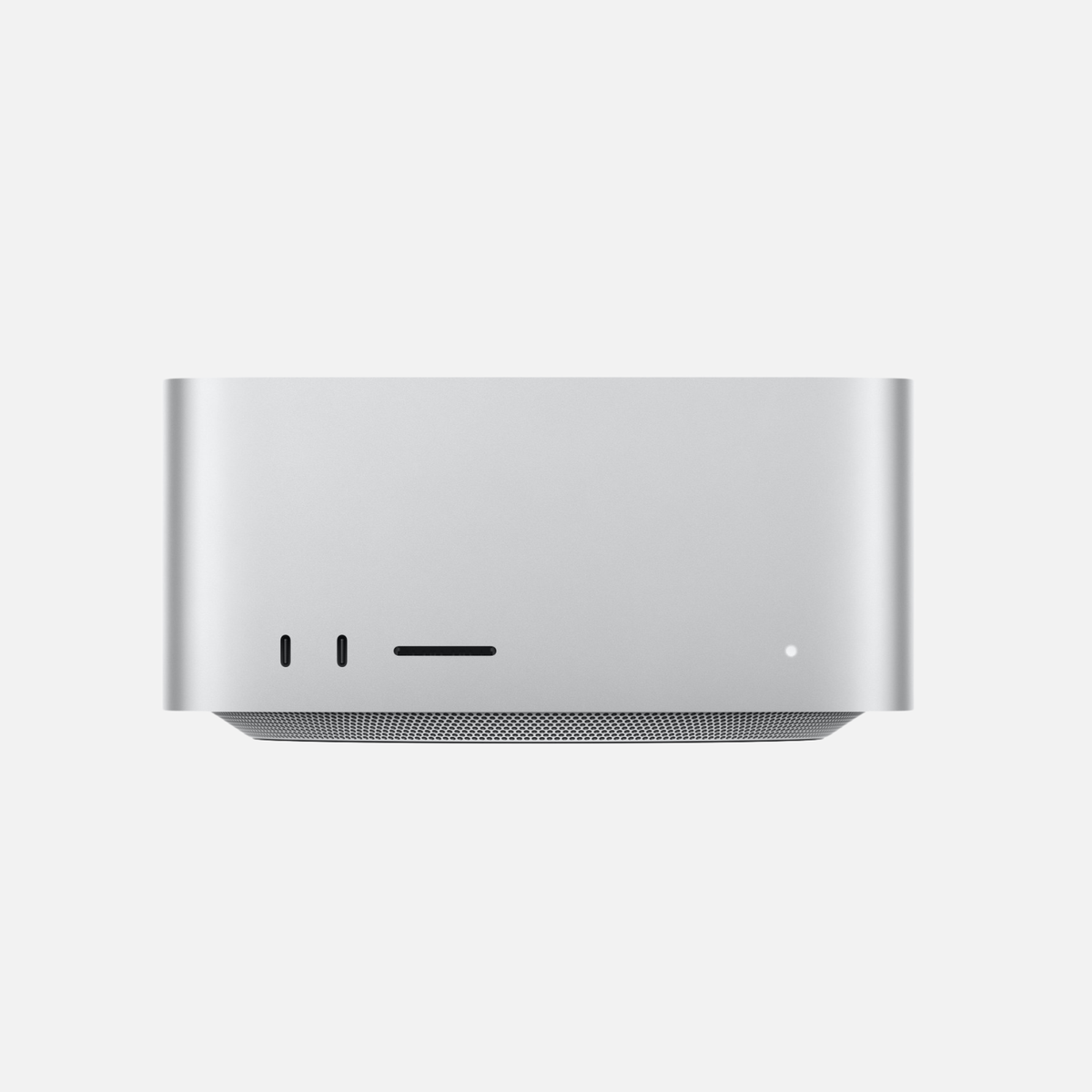
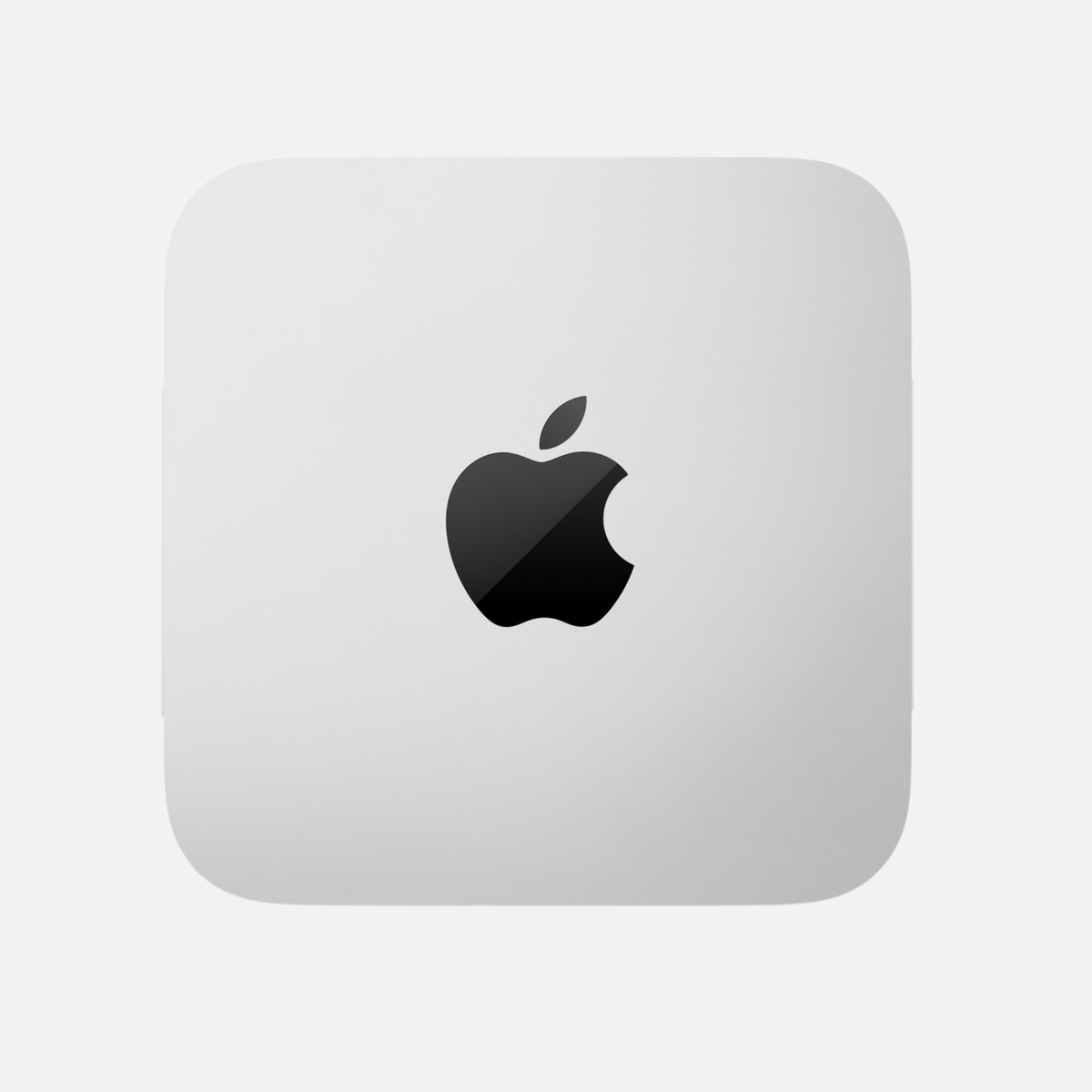
Compare Mac Studio if you regularly render large 3D scenes, edit several camera angles with effects or need more than 64 GB of RAM. At a similar price, compare memory, ports and performance in your own project.
Browse Mac Studio offers · Compare Mac mini and Mac Studio in detail
What to check before buying used
Check the exact chip, RAM, SSD and display support. Review the condition, included accessories, warranty and VAT treatment on the listing. If you need VAT shown separately, look for that detail. Check which macOS versions your older apps, plug-ins and audio interfaces support.
Browse Apple Certified Refurbished offers
Technical sources
Apple · Mac mini (2020) · Apple · Mac mini (2023) · Apple · Mac mini (2024)
1 ≈ 68.3 GB/s according to an independent chip comparison. Apple gives no figure for the M1 in the Mac mini specifications. MacRumors





Share:
Buying a used Mac Studio: M1 Max, M2 Max or M4 Max?