Imagine asking your Mac which checks an internal manual requires before handing over a test device. It finds the relevant passage and turns it into a checklist with sources. When the manual changes, the assistant can use the revised version.
A Mac with Apple silicon and 16 GB is often enough for a small-model trial. A Mac mini M4 Pro with 48 GB and a 1 TB SSD is a balanced choice for regular document work. For 70B models or several large models at once, start by looking at a Mac Studio with 96 GB or more.
What local, offline and learning mean
Local means your Mac runs the model and searches your files. Offline means those features still work after you download the software, models and other dependencies and disconnect from the internet. For an isolated machine you can transfer the required files on checked media. Current shipping information still needs an up-to-date local export.
Learning from corrections can mean updating the assistant’s reference library. In RAG (retrieval-augmented generation), an embedding model turns chunks of text into numbers so the search can match meaning even when the words differ. Relevant passages go to the language model with your question. The model’s weights stay the same. A correction in an old chat becomes reusable when you deliberately add the verified information to the knowledge base.
Try it offline without using Terminal
- Install LM Studio on an Apple silicon Mac and check its system requirements. Download a small chat model in the app, such as a 4-bit Qwen3 4B or 8B. Quantisation stores the weights with less precision to save memory. It can affect accuracy.
- Attach a non-sensitive PDF, DOCX or TXT file. Ask which three steps the manual requires before handover and request the source for each. Ask it to say when information is missing. Small files may fit in the context directly. Larger files are searched for relevant extracts. An image-only scan usually needs local optical character recognition (OCR) first. Try selecting some text in the PDF.
- Check the answer against the file, then ask a question it cannot answer from that file. Turn off Wi-Fi, unplug Ethernet, restart the app and repeat the test in a new chat.
Build a lasting knowledge base with Ollama and Open WebUI
Ollama runs the models. Open WebUI provides the browser interface and manages the document collection. Start with both available only on the Mac itself at 127.0.0.1. Install and start Ollama, then run the following in Terminal during online preparation.
ollama pull qwen3:8b
ollama pull qwen3-embedding:0.6b
ollama run qwen3:8b
Exit the chat with /bye. Following the Ollama guide, add "disable_ollama_cloud": true to the JSON object in ~/.ollama/server.json, keeping other settings, and restart Ollama. Its local address is normally http://127.0.0.1:11434.
Install uv and check the Open WebUI guide. Run the first command below and create your local admin account at http://127.0.0.1:8080. Connect to Ollama at the address above. In document settings choose Ollama for embeddings and qwen3-embedding:0.6b as the model. Use local text extraction.
DATA_DIR="$HOME/.open-webui" uvx --python 3.12 open-webui@latest serve --host 127.0.0.1 --port 8080DATA_DIR="$HOME/.open-webui" OFFLINE_MODE=true uvx --offline --python 3.12 open-webui@latest serve --host 127.0.0.1 --port 8080In Workspace → Knowledge, create a collection, upload some approved files and select the collection in a chat. After a successful test, stop Open WebUI with Ctrl+C and start it from the same folder with the second command. Turn off web search, hosted AI services and external tools. Offline settings stop selected downloads and update checks. Disconnect or block outbound network access for isolation, then restart and repeat the test.
Teach the assistant with verified corrections
- Give files descriptive names and version dates. Decide which document is authoritative for each topic and keep the current version in the active collection.
- If a manual says a test device takes 30 minutes to charge and the owner confirms 45 minutes, update the manual, replace the old file in the collection and check that the new file was indexed. A dated, approved question-and-answer note also works. Remove outdated entries from the searchable collection.
- Start a new chat and ask for the charging time, source and version date. Also try an old control question and one the assistant cannot answer. For scheduled imports, use a local folder containing approved files. Update changed files and remove deleted files from the index.
Keep 10–20 typical test questions with expected answers and sources. Check source retrieval, answer quality and wait time after changes. If the right passage is missing, check OCR, document selection and chunking. If it appears but the answer is still wrong, adjust the instructions or try a different model. Longer context can cost more RAM and processing time.
Fine-tuning changes model behaviour. For a fixed answer format, MLX LM with LoRA can train a small adapter on supported Macs. Use approved examples and keep some aside to compare with the original model. Keep changing facts in the knowledge base. Training a base model from scratch needs considerably more data and compute.
How much RAM, SSD space and bandwidth do you need?
The CPU and GPU share unified memory with macOS and other apps. Model weights and temporary context have to fit in it. Memory bandwidth, measured in GB/s, indicates how fast the chip can move data from memory. Dense models repeatedly read weights while producing text, so more bandwidth can help. Architecture, GPU, software, context and concurrent work also affect speed. Neural Engine figures alone tell you little about this workflow.
Ollama’s standard Qwen3 8B, 14B and 32B downloads occupy about 5.2, 9.3 and 20 GB on disk. B refers to billions of parameters. Actual RAM use is higher. A 70B model at 4 bits starts at about 35 GB for the raw weights, plus format overhead, context and the system. If the task fits, start with around 4,000–8,000 tokens, or pieces of text. Watch Memory Pressure and swap in Activity Monitor.
A 256 GB SSD can work for an initial trial with free space. For a purchase, 512 GB is a reasonable starting point, 1 TB gives room for multiple models and 2 TB suits larger libraries. External SSDs can hold files and models if the software supports the location. RAM cannot be upgraded. The document library does not all have to fit in RAM. The active excerpts and context matter most.
Which Mac should you buy for local AI?
16–32 GB: A 16 GB M4 Mac mini suits 4B or 8B trials. At 24–32 GB there is more room for 14B models and other apps. Keep an existing 8 GB Mac for very small experiments. Compare Mac mini M4 and M4 Pro and all used Mac mini models.
48–64 GB: The M4 Pro Mac mini is a good option for regular document work and 14B–32B models. A used 64 GB M1 or M2 Max Mac Studio with 400 GB/s is worth comparing. For mobility, look for an Apple silicon MacBook Pro with a Pro or Max chip and enough RAM. This walkthrough uses Apple silicon, so skip Intel listings.
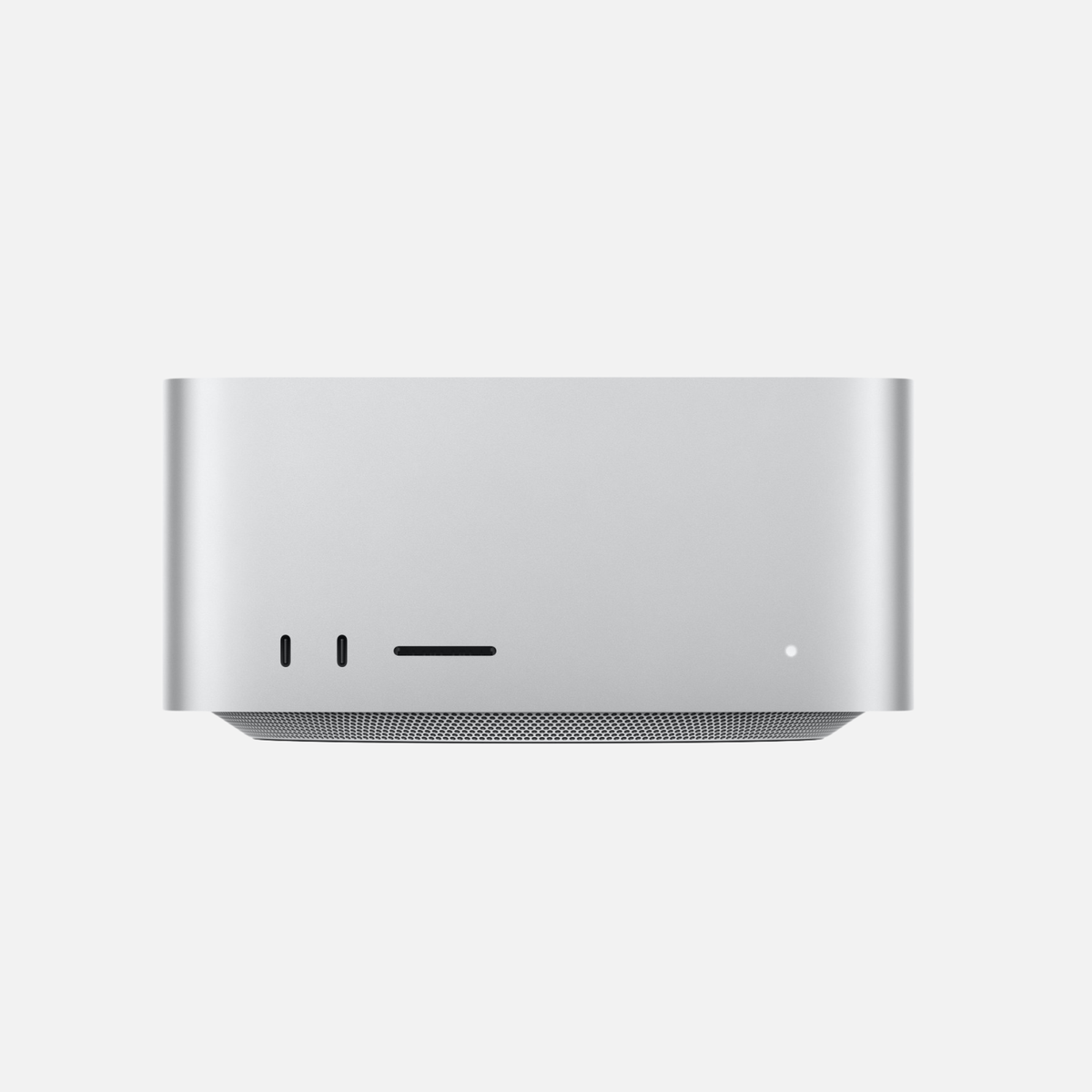
96 GB and above: A 96 GB M3 Ultra or a 128 GB Max model gives more room for 70B models, longer context and concurrent models. Consider 192–512 GB if your actual workload needs it. Browse M4 Max and M3 Ultra Mac Studio, all used Mac Studio models and our Mac buying guide for AI. The table gives technical references. Shop listings show actual configurations.
| Mac and chip | RAM options (GB) | Memory bandwidth (GB/s) |
|---|---|---|
| Mac mini M4 | 16 / 24 / 32 | 120 |
| Mac mini M4 Pro | 24 / 48 / 64 | 273 |
| Mac mini M6 | 16 · 24 / 32 | 153 · 170 |
| Mac mini M5 Pro | 24 / 48 / 64 | 307 |
| Mac Studio M1 Max | 32 / 64 | 400 |
| Mac Studio M2 Max | 32 / 64 · 96 (38-core GPU) | 400 |
| Mac Studio M1 Ultra | 64 / 128 | 800 |
| Mac Studio M2 Ultra | 64 / 128 / 192 | 800 |
| Mac Studio M4 Max · 32-core GPU | 36 | 410 |
| Mac Studio M4 Max · 40-core GPU | 48 / 64 / 128 | 546 |
| Mac Studio M3 Ultra · 60-core GPU | 96 | 819 |
| Mac Studio M3 Ultra · 80-core GPU | 96 / 256 / 512 | 819 |
| Mac Studio M5 Max · 32-core GPU | 36 | 460 |
| Mac Studio M5 Max · 40-core GPU | 48 / 64 / 128 | 614 |
| Mac Studio M5 Ultra · 64-core GPU | 96 | 1200 |
| Mac Studio M5 Ultra · 80-core GPU | 96 / 256 / 512 | 1200 |
| MacBook Pro 16″ M4 Pro | 24 / 48 | 273 |
| MacBook Pro 16″ M4 Max · 32-core GPU | 36 | 410 |
| MacBook Pro 16″ M4 Max · 40-core GPU | 48 / 64 / 128 | 546 |
Keep the system offline in daily use
Store files outside sync folders if they must stay on the Mac. Use FileVault and encrypted backups of documents, model versions, settings, approved corrections and the knowledge database. Test a restore. If several people use the system, separate users and collection access. Treat document text as data, require human approval for actions such as sending email or changing files, and give a search-only assistant read access.
Frequently asked questions
Do I need Apple Intelligence?
LM Studio and Ollama run separate local models. You can use this offline setup without a cloud AI subscription.
What if the assistant makes things up?
Open the cited passage and check that it supports the answer. Ask for a filename and section. If the source is missing, the answer should say so.
Can it improve automatically every night?
Approved imports, indexing and test questions can run on a schedule. Give humans control over which corrections enter the collection and keep a previous version available.












Share:
Buying a used Mac mini M1, M2 or M4: Which is worth it?