
Connect Apple Thunderbolt Display to a Mac – here’s how
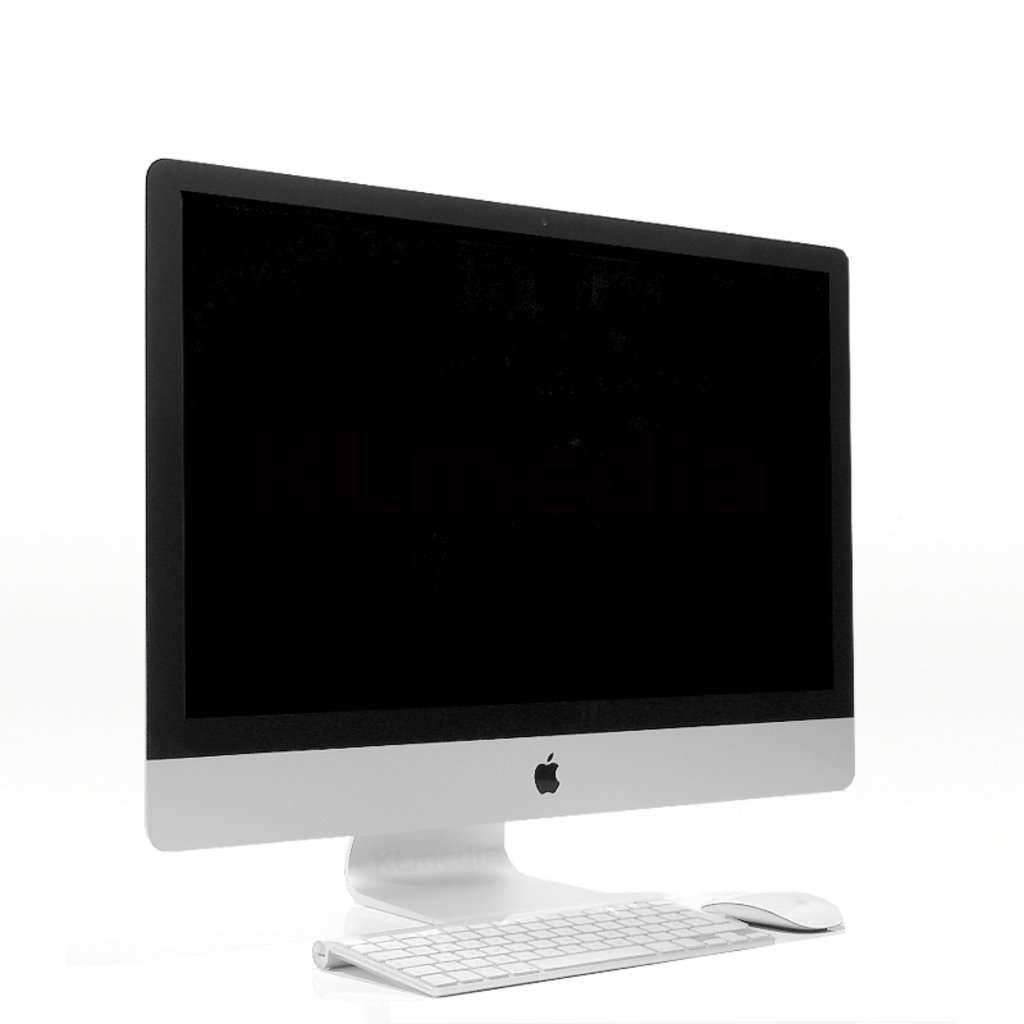
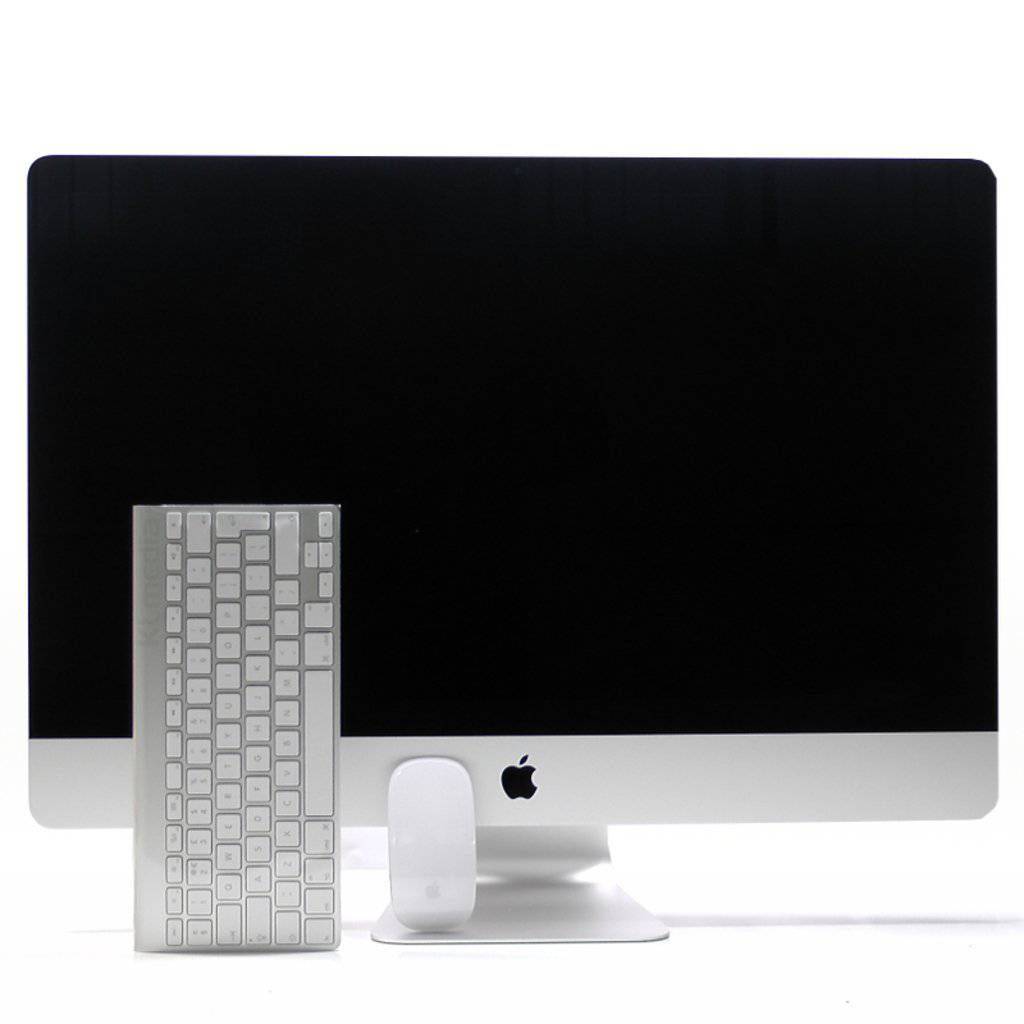
The Apple Thunderbolt Display is an elegant, high-quality monitor originally designed for Macs with a Thunderbolt 2 port. Many users also want to use this display with newer Macs – for example a MacBook Pro, Mac mini or iMac with Thunderbolt 3 (USB‑C) or Thunderbolt 4. This is possible, but requires an adapter and a bit of know-how. Here we’ll show you how it’s done.
What you need
-
An Apple Thunderbolt Display
(with permanently attached Thunderbolt 2 cable) -
A newer Mac
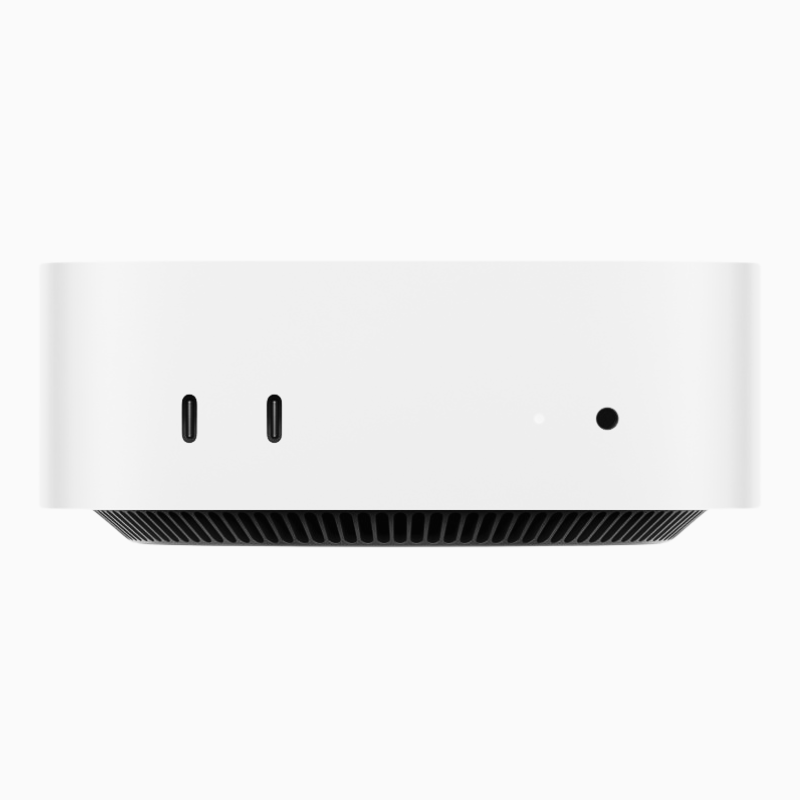
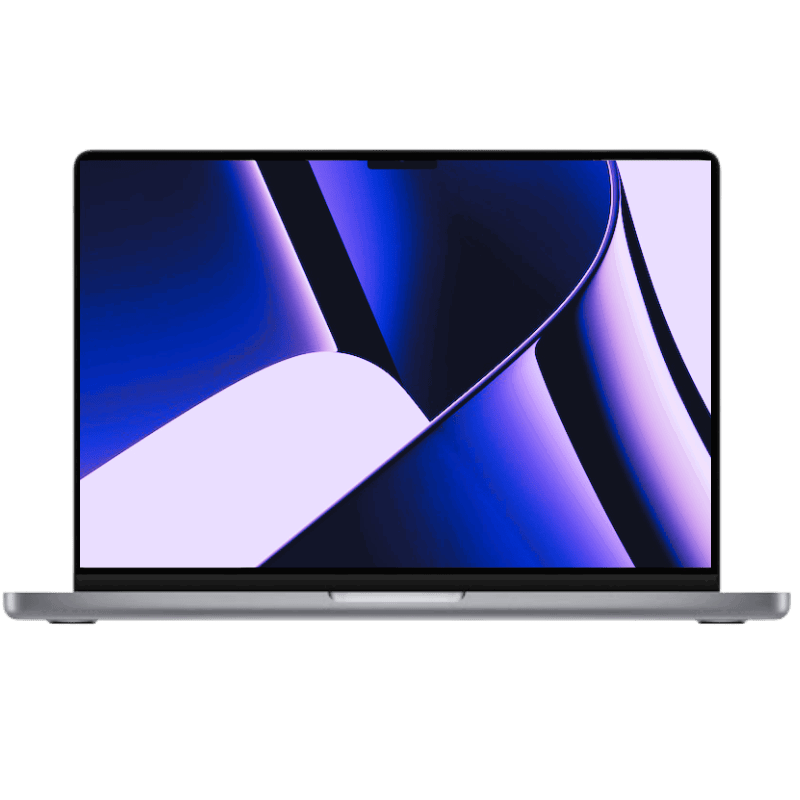
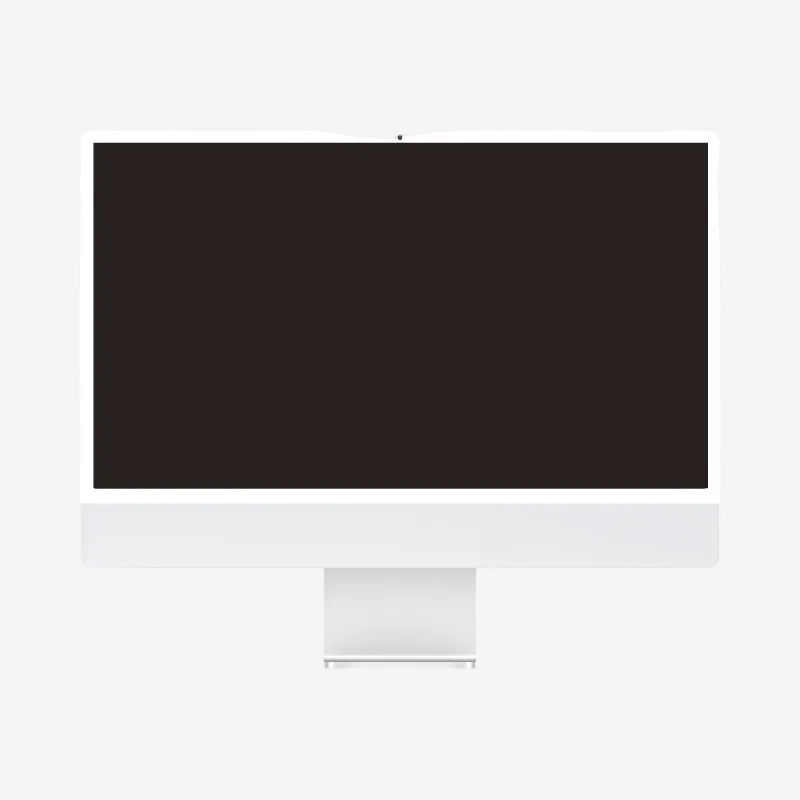
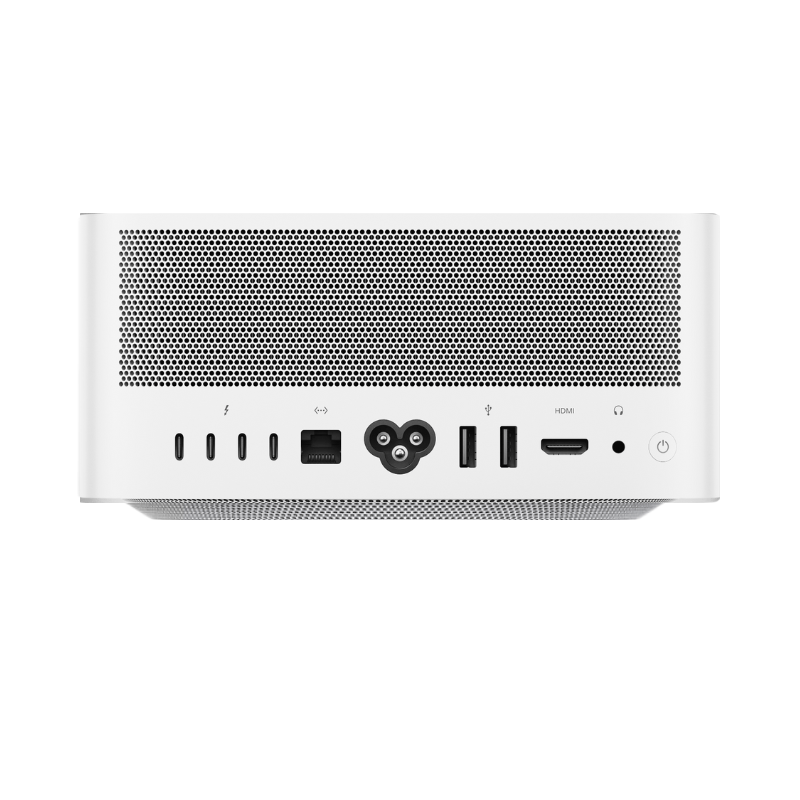
(MacBook Pro / Air, Mac Studio, Mac mini, iMac or Mac Pro with Thunderbolt 3 or Thunderbolt 4 – these are USB‑C ports with a lightning symbol) -
Apple Thunderbolt 3 (USB‑C) to Thunderbolt 2 Adapter
This adapter is absolutely required, because USB‑C and Thunderbolt 2 are not directly compatible. Go to adapter -
(Optional) USB‑C dock or hub
If you need extra ports, e.g. for power or additional devices.
Guide: Connecting a Thunderbolt Display
-
Connect adapter
Connect the permanently attached Thunderbolt 2 cable of the display to the Thunderbolt 3 to Thunderbolt 2 adapter. -
Connect the adapter to the Mac
Now plug the adapter’s USB‑C connector into a Thunderbolt 3 or Thunderbolt 4 port on your Mac. Make sure it’s really a Thunderbolt port (identified by the lightning symbol, not just a simple USB-C port). -
Power on the display
The Apple Thunderbolt Display does not have a physical power button. It should turn on automatically as soon as you plug in the power cable and the connected Mac is switched on. -
Detect display (if necessary)
If the image doesn’t appear immediately:
Go to System Settings → Displays and click Detect Displays (visible while holding the Option key).
Important notes
-
No HDMI or Mini DisplayPort adapter works here. The Apple Thunderbolt Display requires a true Thunderbolt signal – pure video output (as with HDMI) is not enough.
-
Adapter is only compatible in one direction. The Apple adapter only works to connect older Thunderbolt displays to newer Macs, not the other way around.
-
USB & Ethernet continue to work. The Thunderbolt Display comes with its own ports (USB, Ethernet, camera, speakers), all of which are passed through to the Mac via Thunderbolt.
Conclusion
With the right adapter, you can easily keep using your Thunderbolt Display with a new Mac – sustainable, stylish, and functional. Even though Apple no longer sells the monitor, it remains fully usable thanks to its high quality and clever connectivity options.
Tip – If the permanently attached Thunderbolt cable of the Thunderbolt Display is defective, you can continue to use the display with a new Thunderbolt cable plugged into the back of the Thunderbolt Display.
The product links in this post are so‑called affiliate links. If you make a purchase via these links, I receive a small commission. For you, this does not incur no additional costs. Thank you very much for your support.


Share:
How to transfer data from your old Mac to a new Mac – all options
AirDrop not working – troubleshooting