Time Machine Select backup drive Start backup Alternatives: iCloud or manual backup You can also manually back up documents, photos and settings, or use iCloud Drive. Reset your Mac – here’s how Depending on your Mac’s processor (Intel or Apple Silicon), the steps differ slightly. First find out which chip your Mac has:  > “About This Mac”. Step 1: Boot into macOS Recovery mode For Apple Silicon (M1, M2, M3): Shut down Mac Hold down the power button until “Options” appears “Options” > Continue On Intel-based Macs: Restart Mac Immediately hold down Command (⌘) + R until the Apple logo appearsalternatively OPTION + Command (⌘) + R - Loads the newest possible version of macOS Step 2: Erase the drive In the menu, select Disk Utility Select your main hard drive (usually “Macintosh HD”) Click “Erase” at the top Format: APFS or Mac OS Extended (Journaled) (depending on the macOS version) Confirm "Erase" Step 3: Reinstall macOS Quit Disk Utility Select “Reinstall macOS” Follow the on‑screen instructions Make sure you have an internet connection (Wi‑Fi or Ethernet). Optional: Set up your Mac after the reinstallation After the reinstallation you can: Set up your Mac as a new device Transfer data from a Time Machine backup or from another Mac Set up Apple ID and iCloud Reinstall your apps Tips for a clean start First use the Mac without a backup for troubleshooting Install only the apps you really need Check for software updates regularly Enable Gatekeeper protection for more security FAQ – Frequently asked questions about reinstalling your Mac What happens when you reinstall macOS? All data, applications and settings will be erased. The Mac will be reset to factory settings. Can I reinstall macOS without the internet? No, you need an active internet connection to download macOS again. Which macOS version will be installed? By default, the current compatible version is installed. You can also choose older versions using specific key combinations (e.g. Shift + Option + Command + R at startup). Conclusion: Reinstalling your Mac for better performance and security No matter whether you have a MacBook, iMac, Mac Studio or Mac Pro – reinstalling is the best way to fix problems and give your Mac a fresh start. Make sure you have a backup and follow the steps carefully. Your Mac will be running like new again in no time!"> Time Machine Select backup drive Start backup Alternatives: iCloud or manual backup You can also manually back up documents, photos and settings, or use iCloud Drive. Reset your Mac – here’s how Depending on your Mac’s processor (Intel or Apple Silicon), the steps differ slightly. First find out which chip your Mac has:  > “About This Mac”. Step 1: Boot into macOS Recovery mode For Apple Silicon (M1, M2, M3): Shut down Mac Hold down the power button until “Options” appears “Options” > Continue On Intel-based Macs: Restart Mac Immediately hold down Command (⌘) + R until the Apple logo appearsalternatively OPTION + Command (⌘) + R - Loads the newest possible version of macOS Step 2: Erase the drive In the menu, select Disk Utility Select your main hard drive (usually “Macintosh HD”) Click “Erase” at the top Format: APFS or Mac OS Extended (Journaled) (depending on the macOS version) Confirm "Erase" Step 3: Reinstall macOS Quit Disk Utility Select “Reinstall macOS” Follow the on‑screen instructions Make sure you have an internet connection (Wi‑Fi or Ethernet). Optional: Set up your Mac after the reinstallation After the reinstallation you can: Set up your Mac as a new device Transfer data from a Time Machine backup or from another Mac Set up Apple ID and iCloud Reinstall your apps Tips for a clean start First use the Mac without a backup for troubleshooting Install only the apps you really need Check for software updates regularly Enable Gatekeeper protection for more security FAQ – Frequently asked questions about reinstalling your Mac What happens when you reinstall macOS? All data, applications and settings will be erased. The Mac will be reset to factory settings. Can I reinstall macOS without the internet? No, you need an active internet connection to download macOS again. Which macOS version will be installed? By default, the current compatible version is installed. You can also choose older versions using specific key combinations (e.g. Shift + Option + Command + R at startup). Conclusion: Reinstalling your Mac for better performance and security No matter whether you have a MacBook, iMac, Mac Studio or Mac Pro – reinstalling is the best way to fix problems and give your Mac a fresh start. Make sure you have a backup and follow the steps carefully. Your Mac will be running like new again in no time!">

Resetting your Mac: Step-by-step guide for all Apple devices (MacBook, iMac, Mac mini & more)

If your Mac is running slowly, acting up, or you want to sell it, a restart or complete reset of the Mac can be the perfect solution. In this guide, I’ll show you step by step how you can reset your Mac – whether you’re using a MacBook Air, MacBook Pro, iMac, Mac mini, Mac Studio or Mac Pro.


When should you reinstall your Mac from scratch?

  • Your Mac has become extremely slow

  • You want to perform a completely fresh installation of macOS

  • You’re selling or giving away your Mac

  • You want to erase all data and start fresh


Supported Mac models

This guide works for all current and many older models:

  • MacBook Air (all generations)

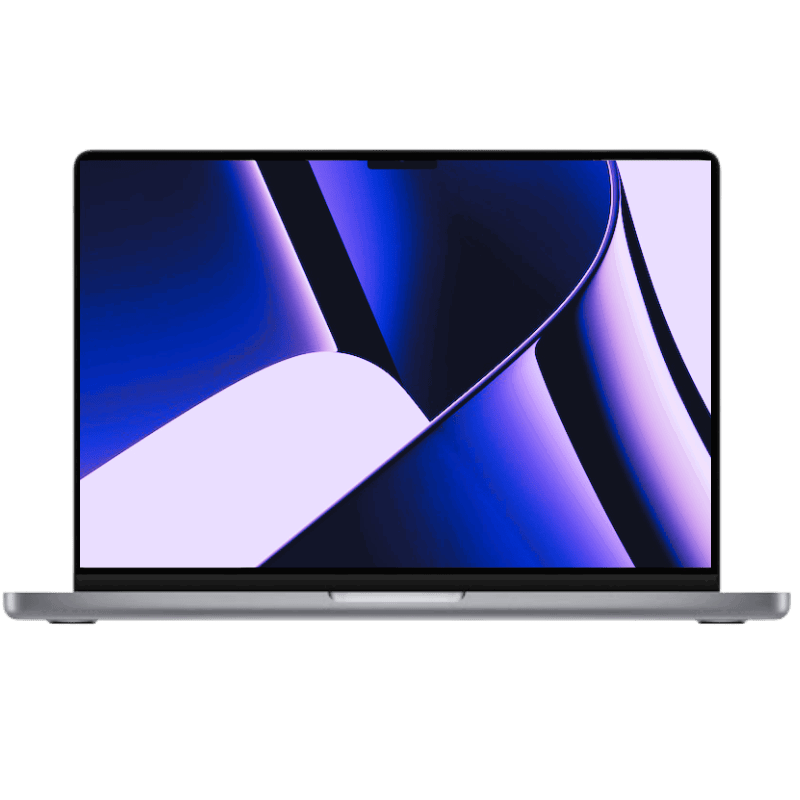
  • MacBook Pro (13", 14", 15", 16")

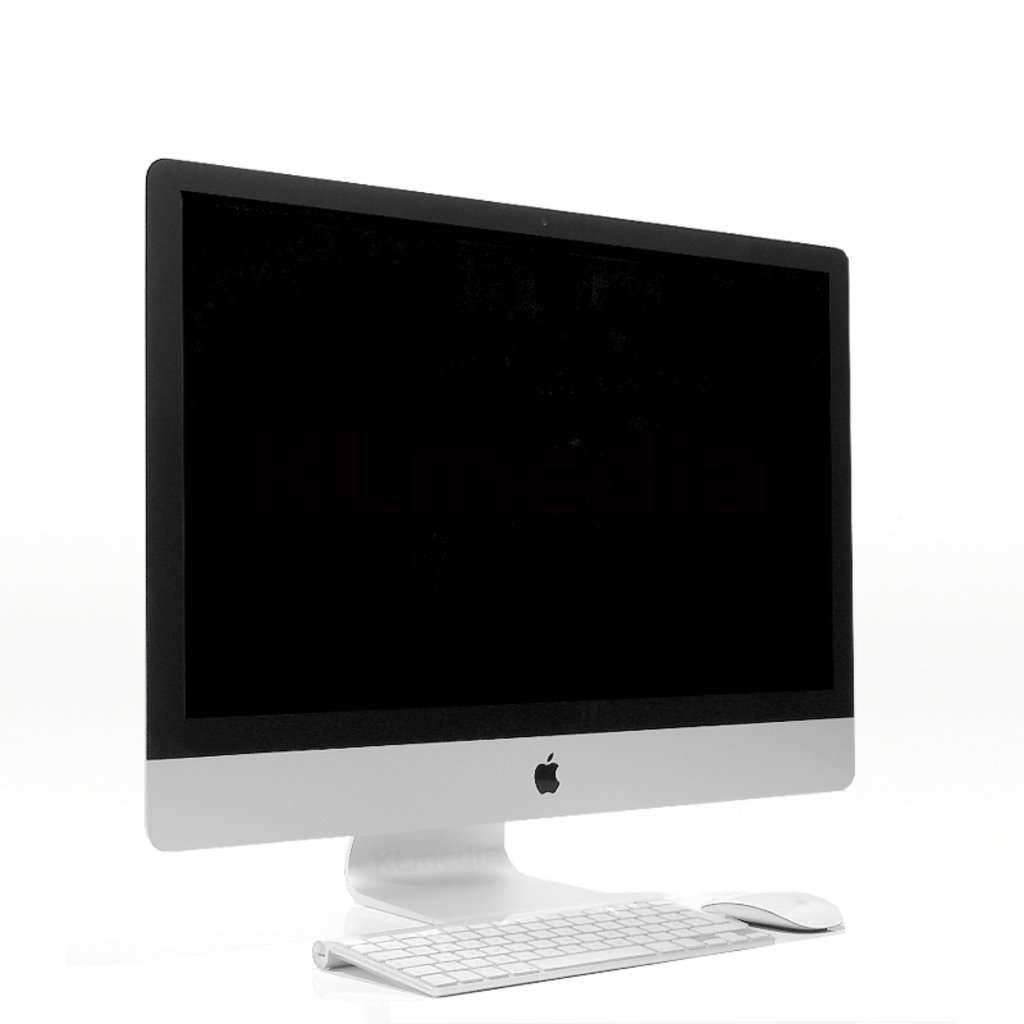
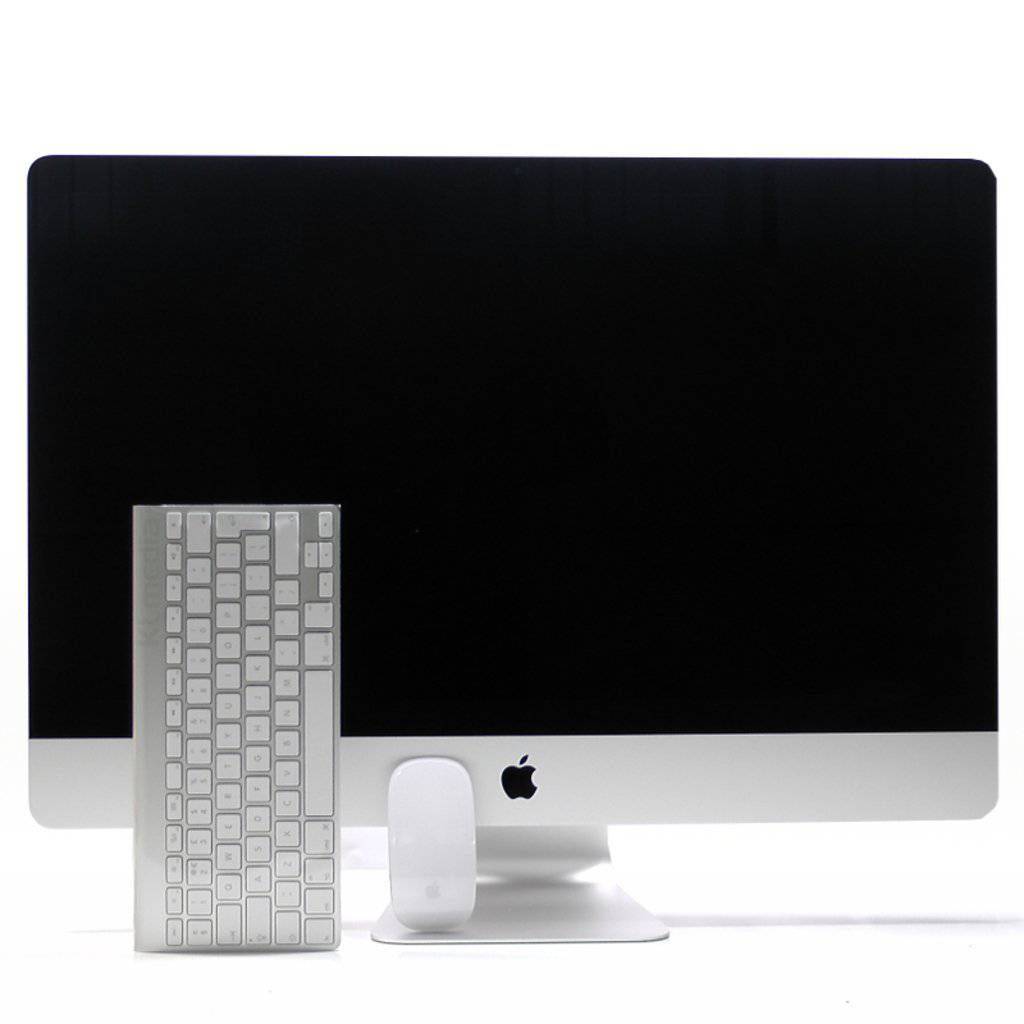
  • iMac (21.5", 24", 27")

  • Mac mini

  • Mac Studio

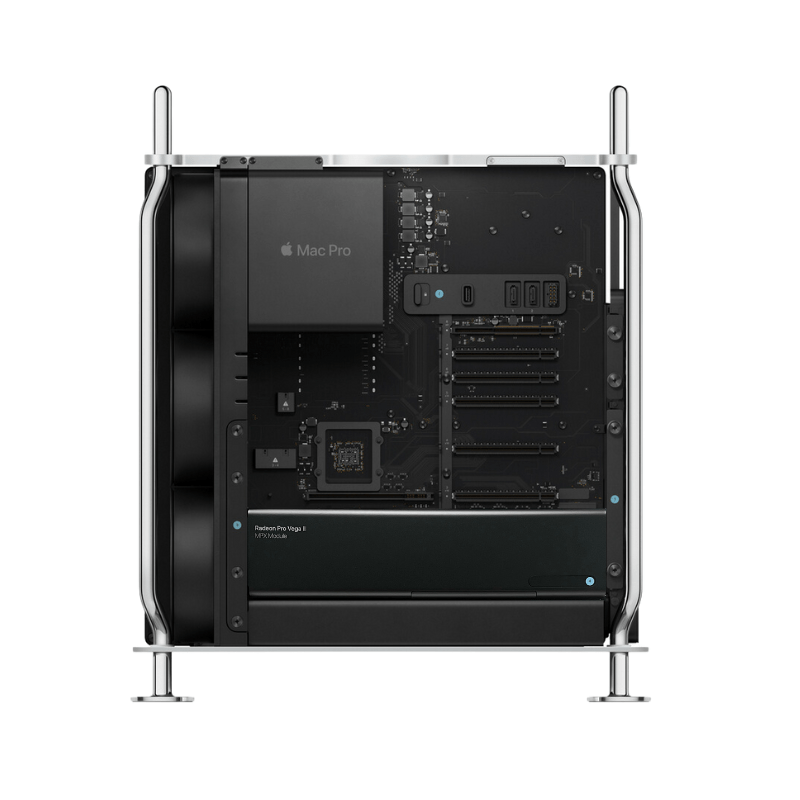
  • Mac Pro (tower or rack model)

  • Apple Silicon Macs (M1, M2, M3, M4 chip)

  • Intel-based Macs


Preparation: Create a backup

Before you reinstall your Mac, you should definitely create a backup. That way you won’t lose any important data.

 Backup with Time Machine

  1. Connect external hard drive

  2. Open System Settings > Time Machine

  3. Select backup drive

  4. Start backup

Alternatives: iCloud or manual backup

You can also manually back up documents, photos and settings, or use iCloud Drive.


Reset your Mac – here’s how

Depending on your Mac’s processor (Intel or Apple Silicon), the steps differ slightly. First find out which chip your Mac has:  > “About This Mac”.


Step 1: Boot into macOS Recovery mode

For Apple Silicon (M1, M2, M3):

  1. Shut down Mac

  2. Hold down the power button until “Options” appears

  3. “Options” > Continue

On Intel-based Macs:

  1. Restart Mac

  2. Immediately hold down Command (⌘) + R until the Apple logo appears
    alternatively OPTION + Command (⌘) + R - Loads the newest possible version of macOS


Step 2: Erase the drive

  1. In the menu, select Disk Utility

  2. Select your main hard drive (usually “Macintosh HD”)

  3. Click “Erase” at the top

  4. Format: APFS or Mac OS Extended (Journaled) (depending on the macOS version)

  5. Confirm "Erase"


Step 3: Reinstall macOS

  1. Quit Disk Utility

  2. Select “Reinstall macOS”

  3. Follow the on‑screen instructions

  4. Make sure you have an internet connection (Wi‑Fi or Ethernet).


Optional: Set up your Mac after the reinstallation

After the reinstallation you can:

  • Set up your Mac as a new device

  • Transfer data from a Time Machine backup or from another Mac

  • Set up Apple ID and iCloud

  • Reinstall your apps


Tips for a clean start

  • First use the Mac without a backup for troubleshooting

  • Install only the apps you really need

  • Check for software updates regularly

  • Enable Gatekeeper protection for more security

FAQ – Frequently asked questions about reinstalling your Mac

What happens when you reinstall macOS?

All data, applications and settings will be erased. The Mac will be reset to factory settings.

Can I reinstall macOS without the internet?

No, you need an active internet connection to download macOS again.

Which macOS version will be installed?

By default, the current compatible version is installed. You can also choose older versions using specific key combinations (e.g. Shift + Option + Command + R at startup).


Conclusion: Reinstalling your Mac for better performance and security

No matter whether you have a MacBook, iMac, Mac Studio or Mac Pro – reinstalling is the best way to fix problems and give your Mac a fresh start. Make sure you have a backup and follow the steps carefully. Your Mac will be running like new again in no time!

Kostenloser Versand Innerhalb der EU
12 Monate Garantie Refurbished vom Fachmann
Sichere Zahlarten Bedenkenlos einkaufen
Top Bewertungen 5 von 5 Sternen