

Your mouse does not respond, the keyboard is missing from the list, or headphones are connected but silent: “Bluetooth does not work” can have several causes. This guide separates them step by step. Start with the accessory and connection before removing settings or suspecting a hardware fault.
Pairing, connecting and using are three different steps
When pairing, Mac and accessory get to know each other. They store information to connect again later. Connected means a wireless link currently exists. Whether audio plays through it also depends on sound settings and the app.
An accessory can therefore be saved in My Devices without being connected now. Conversely, connected headphones may be silent because the app uses another output. These cases need different solutions.
Bluetooth also differs from a proprietary USB wireless receiver. If a mouse includes a receiver, check its instructions to establish whether you are using that wireless mode or Bluetooth.
First, make sure you can keep controlling your Mac
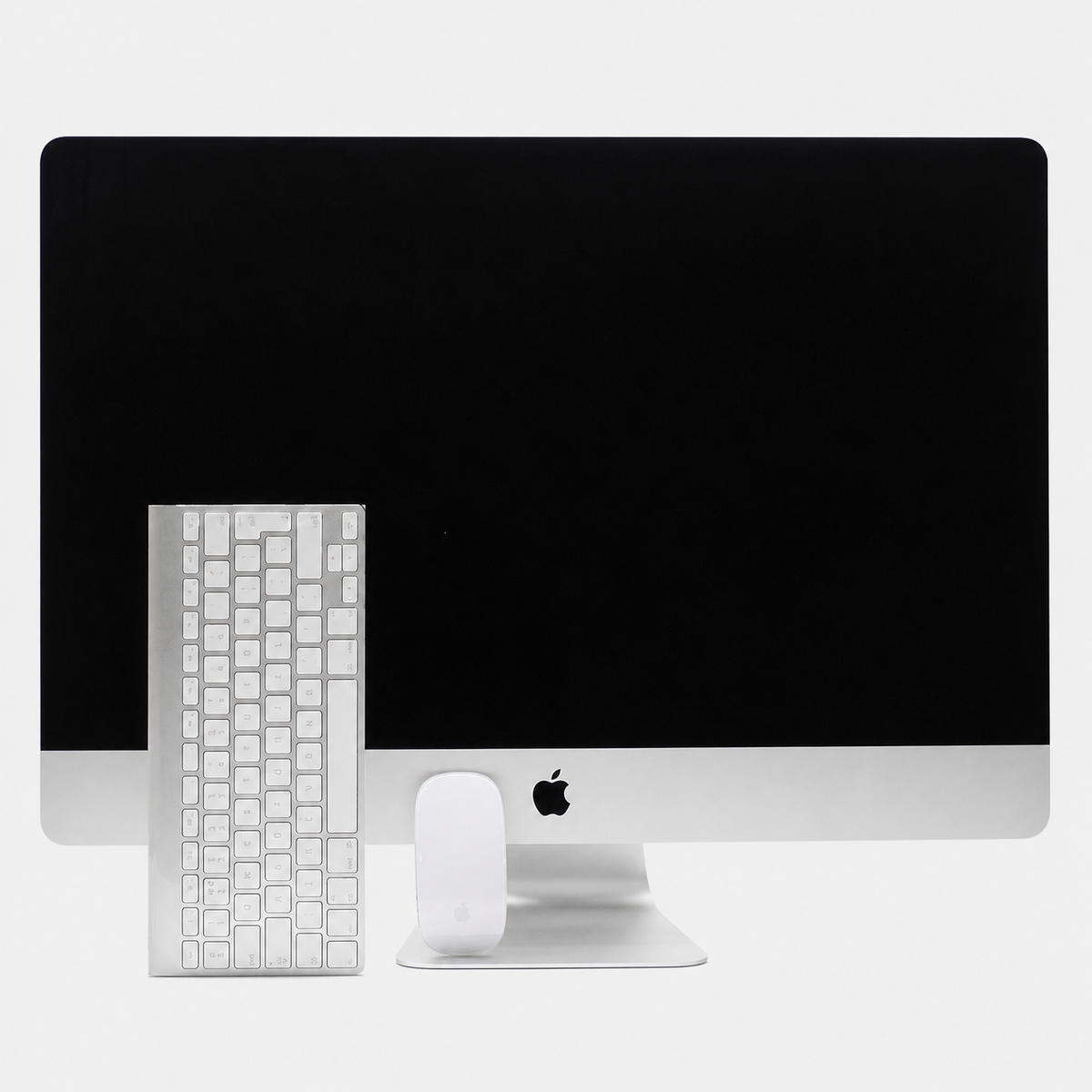
If Mac mini, iMac or Mac Studio has only a wireless mouse and keyboard, switching Bluetooth off may interrupt control. Have a wired alternative ready before such changes. A MacBook's built-in keyboard and trackpad help.
Do not remove several input devices from the list at once. Work on one accessory at a time so you can identify which change helped and continue operating the steps.
Step 1: check power and operating mode
- Switch the accessory off and on. For devices with multiple modes, check the selected mode.
- Charge a weak rechargeable battery or replace flat batteries according to the manufacturer.
- Place the accessory close to the Mac for testing.
- Check whether it is already connected to another computer, tablet or phone.
Some devices switch between saved connections; others must explicitly enter pairing mode for a new device. A blinking light may indicate that mode, but the exact button combination depends on the manufacturer. Use the specific accessory's instructions.
A fitting charging connector does not prove that a cable transfers data. To pair a Magic accessory by cable, use a suitable cable. Charging alone does not prove successful pairing.
Step 2: reconnect the accessory
On newer macOS, open System Settings → Bluetooth. Enable Bluetooth and observe the known and nearby device sections. Names may vary slightly by version.
- Put the accessory into pairing mode.
- Select the correct device by its name.
- Click Connect and confirm any displayed steps.
- Test a simple function, such as typing or brief audio playback.
For supported rechargeable Magic Keyboard, Magic Trackpad or Magic Mouse models, connecting a cable to the Mac while the accessory is on can pair it. The required cable depends on generation. Older accessories with replaceable batteries may be configured differently.
If a previously paired device still will not connect, deliberately removing that one device and pairing again may help. First ensure that you can pair it again and have an alternative way to control the Mac.
Headphones connected but silent: check audio output
Open sound settings or the sound menu and choose headphones as output. Check volume and mute in both system and affected app. Meeting software may select its own output and microphone.
Also test a second app. If music works but the meeting app does not, start with that app's settings. Headphones working properly on another device also provide a useful comparison.
With some Bluetooth audio configurations, sound quality changes when the headset microphone is actively used. This does not automatically mean the speaker is faulty. Consider whether another microphone source suits your workflow and which modes the device supports.
Compare systematically when audio drops or the mouse stutters
Test near the Mac first and remove substantial shielding. A Mac behind a metal cabinet or under a densely equipped desk may face different wireless conditions from one standing in the open.
Observe whether issues coincide with particular connected devices or cables. Disconnect unneeded external devices methodically for comparison. Eject external drives first to avoid interrupting writes. Change only one factor at a time.
Bluetooth and Wi-Fi partly share the same frequency range, so interference is possible in a busy environment. A distance test or comparison at another workstation often reveals more than repeatedly deleting system files.
Example: A mouse works reliably next to the Mac but stutters in one position. Investigate the wireless environment first. If the same accessory also drops its connection near a second computer, suspicion shifts towards the accessory.
Restart, updates and clear limits for resets
Save work and restart the Mac. For recurring problems, check suitable macOS updates and any accessory firmware updates. Involve the responsible IT team on company Macs.
Online guides describe hidden Bluetooth menus, Terminal commands or deleting settings files. They do not suit every macOS version and are not a universal first step. In particular, Intel SMC or NVRAM instructions cannot simply be applied to Apple silicon.
If several known-good devices cannot be used near your Mac, or Bluetooth remains unavailable, targeted further diagnostics make sense. Record Mac model, system version, accessory model and combinations already tested.
Do not confuse Bluetooth connections with AirDrop
AirDrop has several requirements and is not ordinary Bluetooth file sending. A working mouse does not prove every AirDrop setting is correct. If only AirDrop is affected, use our separate AirDrop guide.
Frequently asked questions
Why is my device missing from the Bluetooth list?
Check power, the correct wireless mode and the manufacturer's pairing mode. A device merely being switched on does not necessarily make it discoverable for new connections.
Must I remove all Bluetooth devices?
No. Focus on the affected device and retain a way to operate the Mac. Removing all connections can cause unnecessary setup work.
Can I just switch Bluetooth off and on?
Only if you can keep operating the Mac meanwhile. An alternative is particularly important with only a wireless keyboard and mouse.
Why do headphones work in one app but not another?
Apps can select different outputs and microphones. Check the affected app as well as system settings.
Official sources and further information
Technical information is based on the linked manufacturer sources. Buying recommendations are mac-store24 editorial assessments; no in-house laboratory tests were performed.





Share:
Set up a new iPhone and transfer data: a clear guide
Updating macOS: check compatibility and prepare updates safely